

Choose the right HeyGen workflow for a PowerPoint, PDF or Word document, refine the narration, and understand the cost before exporting.
By Alex Wright, DigiOffly · Workflow and pricing checked 13 November 2026 · Source-led practical guide.
Quick answer: To turn a document into a video with HeyGen, open the PPT/PDF to Video app and select the route that matches your file. Import an existing PPT, PPTX or PDF if the pages already look like slides. For a text-heavy PDF or Word DOCX, generate a fresh presentation from the document, then review the new slides and narration in AI Studio. Choose an avatar, correct the script scene by scene, preview the result and export using the settings your subscription supports. If you want a more cinematic video instead of a narrated deck, use Video Agent with the document as reference material.
Editorial disclosure: This guide is based on HeyGen’s public documentation and pricing checked November 13, 2026. The screenshots are taken from the vendor’s public instructional and pricing pages, not from a paid account. The example onboarding document, narration and budget calculations below are original instructional examples, not an assertion that we generated or timed a finished video. See our HeyGen review for a broader product assessment.
Choose the right document to video workflow
The first decision is not which avatar to use. It is whether the pages in your document should remain visible in the final video. A presentation created by a designer already has a visual order. A seven-page policy, in contrast, may need to become six scenes with much less text and a stronger narrative. Treating both files as the same kind of input is where many document-to-video projects go wrong.
| Your source material | Recommended HeyGen route | What to check |
|---|---|---|
| PPT or PPTX with finished slides | PPT/PDF to Video: upload a presentation | Editable slide elements, speaker notes, font substitutions |
| PDF exported from a presentation | PPT/PDF to Video: upload a presentation | Readable pages, static layouts, narration |
| Text-heavy PDF or DOCX | PPT/PDF to Video: generate a presentation | Summary accuracy, new slide order, original figures |
| Document plus screenshots or footage | Video Agent with references | Video plan, approved assets, credit estimate |
| Confidential or regulated document | Approved, redacted source or alternative workflow | Data handling, permissions and retention |
For a finished slide deck, importing it means you can focus on the spoken explanation rather than reconstructing the presentation. For a text document, generation is more like commissioning a new storyboard. When creating an AI video from PDF source material, the new layout may differ from the original. The resulting deck may organize, shorten or rephrase your source. That distinction matters if you must retain a legally approved sentence or an exact safety instruction.
HeyGen’s PPT/PDF to Video documentation describes a dedicated presentation workflow. Its Academy walkthrough illustrates both import and generation. The public document to video converter also describes other document-oriented creation options. The marketing page and the import screen are not interchangeable specifications: use the supported file types for the specific tool you open.
Before uploading: prepare a document that works on screen
Begin with a copy of the source, not the only original. Record the version number and the date of the document you intend to convert. This creates a reference for checking whether the script still reflects the approved information after the video is edited.
A slide deck for live presenting is not always ready to become a video. A presenter can point at a small label or explain why a chart matters. A viewer watching a recording on a phone has neither that flexibility nor the room of a large presentation screen. Resize important text, remove nonessential decoration and make each slide understandable without a person standing beside it.
If you need to convert PPTX to video, put the narration in the speaker notes if you have already approved it. Keep a slide’s notes focused on that slide. For example, the first slide may introduce an onboarding module, the second may describe account setup and the third may explain where the viewer should get help. Do not put several unrelated procedures into one long block of notes.
If the source is a PDF, inspect the pages before you upload. Scans may contain rasterized text that is difficult to read or extract. A PDF that looks fine on a desktop can become unreadable when a video editor scales it down. If the PDF is mostly a report rather than a deck, consider the generation route or prepare a new presentation yourself.
The following preparation choices make a useful difference:
- Replace or redact credentials, private identifiers, customer records and financial details before using an online generator.
- Keep a single authoritative copy of the document and mark the version used in the video project.
- Decide which statements must remain verbatim and which paragraphs may be summarized.
- Use assets that your organization has permission to publish, including logos, photos, recordings and a person’s likeness.
- Keep a short glossary for product names, technical terms, acronyms and uncommon pronunciations.
- Set a viewing objective that can be checked: for example, a new employee should know how to request access, not merely understand that access is important.
The final preparation step is choosing the delivery format. A training clip for an internal portal can use landscape framing and a moderately paced narrator. A portrait video for a mobile audience needs a different layout and larger labels. Do not expect a full landscape spreadsheet to remain legible just because the export resolution is high.
Step 1: Import a finished PDF or PowerPoint presentation
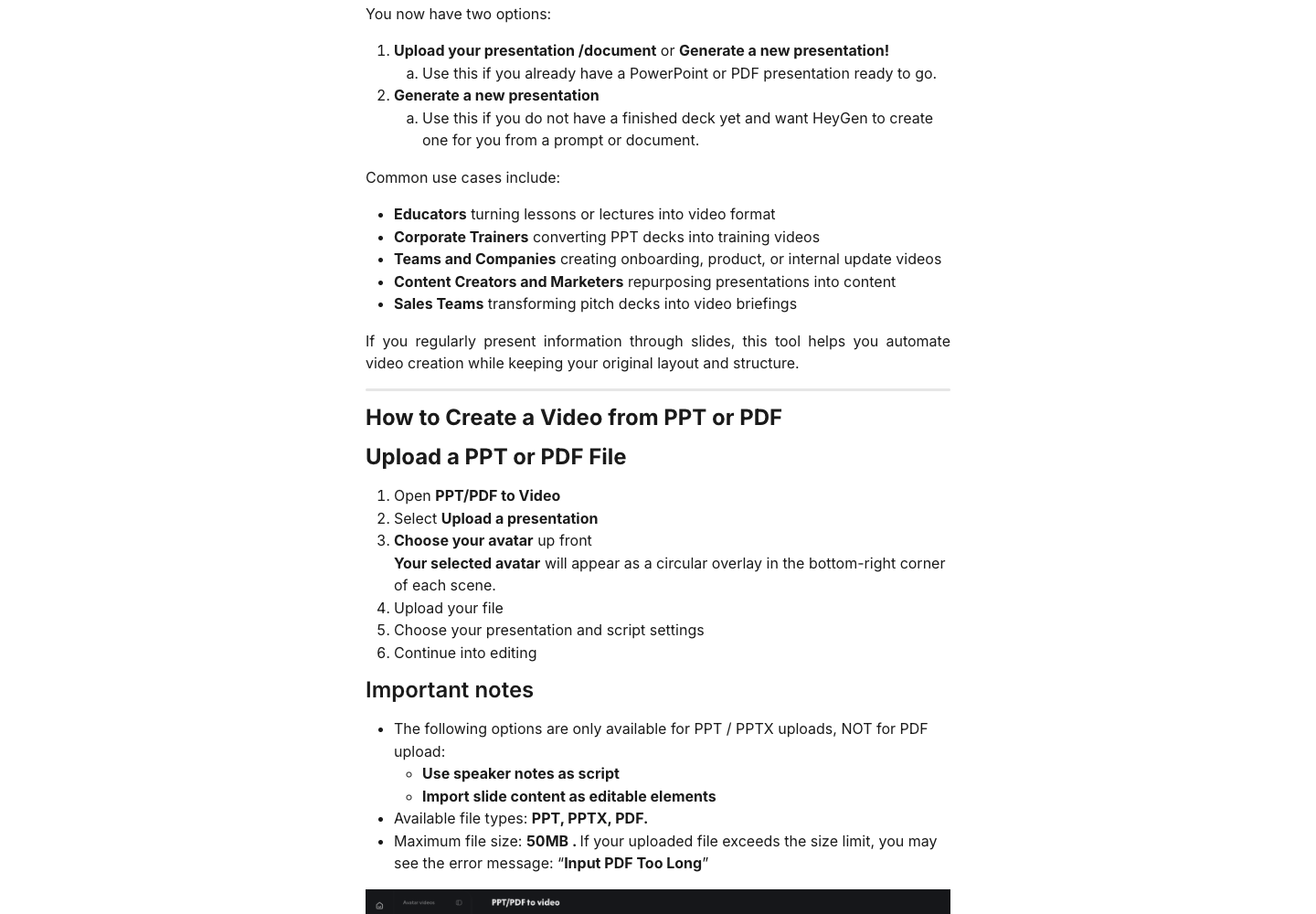
Log in to HeyGen and locate PPT/PDF to Video under Apps. The vendor’s Academy also describes access from the Avatar area; navigation may differ between accounts or interface updates. Search for the tool name if the shortcut has moved. Choose the option for uploading an existing presentation rather than creating a new deck. The HeyGen PPT to video workflow is the route for an existing PowerPoint file.
Select your presenter and upload the file. In this workflow, HeyGen documents PPT, PPTX and PDF as supported input. A presentation can be up to 50 MB, and the import is limited to 50 slides; if the deck is longer, only the initial 50 are brought into the project. Split a large course into coherent modules instead of assuming the remaining pages will appear automatically.
When you choose the presentation settings, decide how much you need to edit. A PowerPoint can be brought in as editable content, subject to supported elements and fonts. If the original layout matters more than later changes, an image-based slide background is another approach. For PDF imports, do not expect the ability to edit every element as though it were a PowerPoint object. The editable slide import and use of speaker notes as narration are PowerPoint-specific options in the documented workflow.
If the imported PowerPoint contains fonts HeyGen does not support, the application may ask you to select replacements. Font substitution can change line wrapping, crop labels and shift a diagram’s alignment. Verify the dense slides first, not only the title slide.
The HeyGen PDF to video workflow is particularly useful when the file already contains one logical slide per page. Suppose you have a five-slide sales introduction. The slides show the problem, a product workflow, a benefit, a customer example and a call to action. Preserve that order. Add a narration segment for each page and move the presenter away from the diagram or text the audience needs to read.
After the initial import, open the editing workspace. Confirm the number of scenes before working on the scripts. A missing slide in the middle of a safety procedure can create an inaccurate lesson even when every visible slide looks polished. Compare the scene list with the original deck and check slides near the import limit.
For a PowerPoint to video with narration project, the deliverable is a video version of an existing presentation. It should not silently invent extra conclusions or replace a chart with an approximation. If an image has fine print that matters, create a close-up or a separate scene rather than hoping a viewer will pause and zoom.
Step 2: Turn a Word document or text-heavy PDF into a new presentation
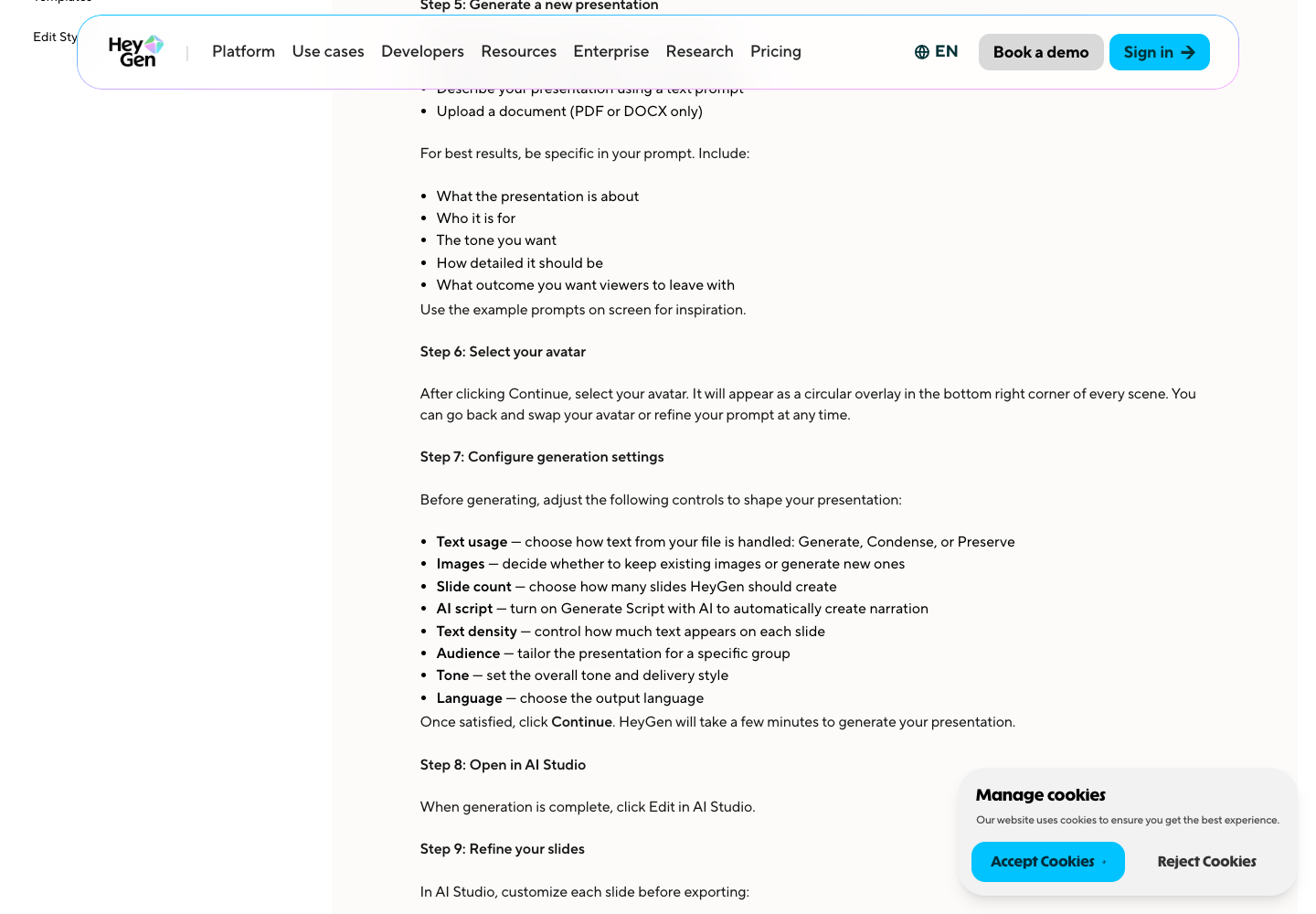
Choose the generation option in PPT/PDF to Video if you have an article, guide, report or Word DOCX rather than a finished deck. The documentation permits PDF and DOCX as source materials for this route. It uses the document as input for a newly generated presentation, rather than promising to preserve the original page layout.
Think about the result before attaching the source. For a six-page onboarding policy, a reasonable brief might say:
Create a six-scene onboarding presentation for new US-based employees. Use the attached policy as the factual source. Explain where to request access, how to enroll in multi-factor authentication and who to contact if setup fails. Keep the language direct, use a calm professional tone and avoid inventing deadlines, URLs or company policies. Put a short action at the end of every scene. Flag missing information instead of filling gaps.
The instruction specifies the audience and what they should be able to do. It also makes clear that a missing fact is not permission to invent one. If the document is incomplete, resolve the question with the owner before generating the final video.
In the generation settings, choose the number of slides, the presenter and whether the system should draft narration. Decide whether text should be summarized, retained or newly written, and whether visuals should be drawn from the input or generated. Set the language, level of detail and tone. These controls influence the proposed presentation; they do not remove the need to compare the generated output with the source.
For example, the policy might say employees must enroll in MFA before they receive production access. A generated script might accidentally say employees can enroll after their first week. Even a small change like that reverses the instruction. The reviewer should compare every mandatory statement against the authoritative document before recording or generating narration.
When the new slides are ready, open AI Studio. Check that the deck has a sensible sequence and that every scene serves the intended outcome. If the opening slide takes thirty seconds to explain what the learner already knows, shorten it. If a scene jumps directly to an administrative action without the prerequisite, add a scene or reorder the presentation.
Do not use the generation tool to translate a sensitive policy unless your organization approves the document transfer and the translation process. For multilingual training, have a qualified reviewer check each language version, particularly numeric thresholds, warning labels and procedure names. A natural-sounding voice does not guarantee that the translated instructions are correct.
Step 3: Use Video Agent when you need more than a slide deck
HeyGen’s Video Agent is an alternative if the document should become a scene-driven video with an introduction, supporting visuals and a narrative. Rather than using the file as a sequence of presentation pages, the agent can use reference material while planning the video. The Video Agent prompting guide describes attaching documents and media alongside a script or brief.
Use the planning mode when you want to inspect the proposed approach before generation. Ask the agent to produce a plan, identify the document sections used in each scene and point out facts that require confirmation. The Video Agent FAQ separates free planning from credit-consuming video and asset generation. Review the estimate before proceeding; creating the actual footage is not the same as discussing the plan.
This approach is useful for a product guide with screenshots, a short explainer based on an article or an executive summary of a report. Give the agent a specific instruction for each important visual. For instance, it should use a real screenshot of the sign-in screen to show the login button, rather than generating a fictional interface.
A sample production brief can say: use the attached guide as the factual reference; retain the exact menu names in the narration; use the supplied screenshots when discussing the interface; do not generate fictitious screens; propose a landscape video of about ninety seconds; end with a single action the viewer can take. Review the plan before confirming generation.
There is a trade-off. A more dynamic video can be easier to watch than a long narrated deck, but the generated visuals may not represent the source exactly. AI-generated diagrams, logos or screen mockups should be reviewed like other generated content. If the original diagram is evidence, retain it or redraw it only with permission and with the data verified.
Step 4: Edit the scenes, script and avatar in AI Studio
The AI Studio overview explains HeyGen’s editing workspace. Start with the scene list. Compare it with the source document or approved storyboard, then go scene by scene. Confirm that the visible title, spoken explanation and action belong together.
A practical way to edit the narration is to read it aloud without looking at the slide. If you cannot follow the instructions without the image, add a short verbal cue. Conversely, if the narrator reads every visible bullet word for word, rewrite the script as an explanation. The slide should support the narration, not compete with it.
Choose the avatar and voice to fit the audience. A training clip needs clear diction and a consistent presenter, not necessarily elaborate animation. If a presenter covers a screenshot’s important control, move or resize the presenter where the layout permits. Use a few seconds of visual emphasis when the viewer should focus on a specific area.
For an editable presentation, correct text boxes, images and layout elements. For a static background, replace the page image if you need to change its contents. The difference is important when the source document has recently been updated. Editing narration without changing a stale screen can leave conflicting information on the same scene.
Check pronunciation using a glossary. A company abbreviation may be spoken as a word when it should be spelled out. A version number or technical path can be difficult for synthetic speech to render naturally. Rewrite the spoken wording without changing the meaning, and keep the precise reference on screen where necessary.
Do not rely on the preview alone to judge the final result. An editing preview may not show final motion, timing or all export details. Watch the rendered video before sharing it. Check that text stays in frame, the audio begins and ends correctly, captions match the narration and no transition cuts off a warning.
A worked example: a six-scene onboarding video
Imagine a small software company has a one-page onboarding checklist. It states that new employees must request a workspace invitation, enroll in MFA, open the help desk for access problems and avoid sharing login credentials. The task is to convert the document into a short training video without adding company policy that is not present.
The following is an editorial storyboard for the example, not an actual HeyGen render. The scene durations are planning estimates. The person responsible for the original policy would review the script before production.
| Scene | On-screen content | Sample narration | Planned seconds |
|---|---|---|---|
| 1 | Welcome and objective | By the end, you’ll know how to set up your workspace access. | 8 |
| 2 | Request invitation | Ask for a workspace invitation using the approved access process. | 10 |
| 3 | MFA enrollment | Enroll in multi-factor authentication before requesting further access. | 12 |
| 4 | Sign-in check | Confirm you can sign in using your own account. | 8 |
| 5 | Help desk | If you cannot complete setup, contact the help desk instead of sharing credentials. | 12 |
| 6 | Recap | Request access, enroll in MFA and ask for help through the approved channel. | 10 |
This plan totals sixty seconds. If the HeyGen video length limit for your account is one minute, leave room for pauses or a short opening transition by trimming the narration. A one-minute target does not guarantee the rendered project will fit; verify the actual duration before generation.
Notice the script does not specify an email address, a deadline or a particular identity provider. Those details were not included in the fictional source. If the real checklist contains them, put the verified information in the appropriate scene.
For a HeyGen PowerPoint to video version of the same project, create six slides with a short title and a visual cue on each, and write the narration into the notes. Use the import route. For a Word version, use the document-driven presentation generator, then compare its suggested storyboard with the six-scene plan. For a more cinematic version, provide the approved screenshots to Video Agent and constrain the plan to those visuals.
The same checklist can be used to evaluate the result regardless of the chosen route. Did the video explain the invitation and MFA requirements? Did it avoid adding a fabricated policy? Is the viewer told how to get help? Are the screens accurate? Is the final duration appropriate for the intended audience? Those are more useful acceptance criteria than whether the avatar appears realistic in isolation.
HeyGen pricing, credits and export: what to budget
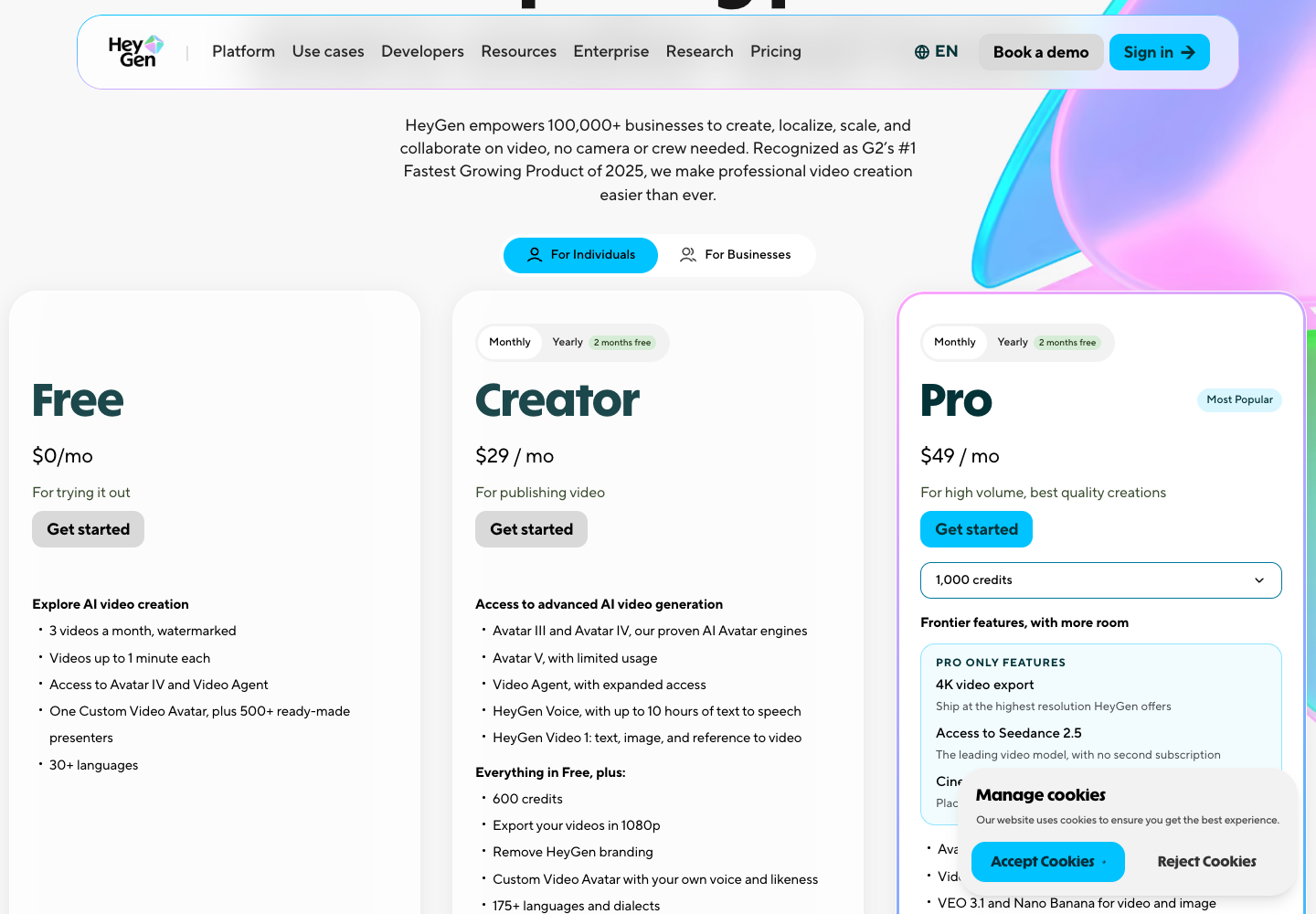
A free document to video converter trial is helpful for learning the workflow, but a business should budget for the format it actually needs to publish. HeyGen’s pricing page currently lists the following plans. These are advertised starting prices, not quotes for your account.
| Plan | Advertised monthly price | Relevant allowance or output |
|---|---|---|
| Free | $0 | Up to 3 short watermarked videos; actual availability may vary by region |
| Creator | $29 | 600 credits/month, up to 1080p export, watermark removal |
| Pro | From $49 | 1,000 credits at entry tier, up to 4K export |
| Business | $149 | 1,500 credits at entry tier, workspace collaboration, additional seats $20/month |
| Enterprise | Quote | Contract-specific scale, access and governance |
The public price page advertises three free videos per month and a one-minute cap. The subscription help article notes that free availability can vary by region and describes sharing at 720p. Other public HeyGen pages have described free resolution differently. Consequently, do not purchase on the assumption that a free MP4 export at a particular resolution is guaranteed. Check the actual account’s export dialog and plan terms.
For paid plans, HeyGen credits are shared across supported creation features. They are not a promise of a fixed number of documents or finished videos. The selected avatar engine, video duration, asset generation and additional effects can change the cost. HeyGen’s credit usage guide lists examples by feature and model, and the product may show an estimate before generation.
Here is a simple example of HeyGen Video Agent pricing. Suppose you make four one-minute training clips using Video Agent Standard mode. At a planning estimate of 80 credits per minute, four clips would require around 320 credits before any extra separately charged assets or rerenders. If you regenerate two one-minute clips at the same illustrative rate, the modeled total becomes 480 credits. A Creator allocation of 600 credits could fit that simple model, but the actual quote must be checked in the product. Do not apply the same rate to AI Studio avatar scenes or a different Video Agent mode.
If one clip runs longer or includes a more expensive generation mode, the budget changes. Keep a record of the estimate and actual usage for the first completed project. Multiply the actual cost by your expected number of similar videos, then reserve room for revisions. For a company that publishes one video every quarter, there is little reason to buy the most expensive plan merely to have more credits available.
If your goal is to convert PDF to MP4, the final export decision is equally practical. Creator lists watermark removal and 1080p output; Pro adds 4K. Business adds shared-workspace and learning-management capabilities, including SCORM export where supported. If a learning management system requires completion tracking or a packaged course, verify its requirements and the specific HeyGen export workflow before choosing a plan. An MP4 file alone is not a complete tracked course.
When exporting from AI Studio, select the destination folder, available resolution and supported output settings. Check the MP4 in a player outside the editing workspace. Verify that captions, narration, visual assets and timing survive export. Keep the project and source document together so a future update can be traced to the correct version.
Troubleshooting: what to do when the document conversion goes wrong
| Problem | Likely issue | Practical response |
|---|---|---|
| Import stops early | Slide count or file limit | Divide the deck into smaller modules; confirm every expected scene |
| PDF slides cannot be edited individually | Static PDF import | Use the source PowerPoint or create a fresh editable deck |
| Narration invents a policy detail | Generated script departs from source | Replace the sentence with verified wording and recheck related scenes |
| Text is clipped | Font substitution or dense layout | Use supported fonts, shorten labels and inspect the affected slides |
| Presenter hides information | Overlay conflicts with layout | Move the avatar or make a separate close-up scene |
| Export or credit estimate differs from expectation | Account, plan or model restrictions | Check current in-product settings before generating or upgrading |
A common failure is assuming a long document will become a complete video without editorial selection. A seventy-page manual may contain reference tables, appendices and procedures intended for different roles. Compressing it into a single short clip can remove essential distinctions. Divide the material by audience and task, and retain the source document as the detailed reference.
If the import does not preserve speaker notes, make sure you selected a supported PowerPoint file rather than a PDF export. A PDF does not carry PowerPoint’s notes into the documented import route. You can still paste or write the approved narration in AI Studio.
Another issue is changing the source after the project has been created. A team should not send a new PDF to colleagues and assume the older published video is now correct. Record a document version in the project notes, maintain an owner for the video and replace the published file when a substantive policy change occurs.
If a screen is unclear, do not generate a fake interface to compensate. Retake the screenshot using a sanitized demonstration account, crop to the relevant area or draw a clearly labeled instructional diagram. The goal is an accurate explanation, not merely a visually attractive sequence.
Final checklist before sharing
A HeyGen training video is ready when the source owner and a viewer can both understand what it says. Review the complete result rather than only the scenes that you recently edited.
- Check that every required factual statement matches the approved source.
- Confirm that the avatar and visual assets are authorized for the intended use.
- Watch the output on the smallest expected screen and test audio clarity.
- Verify the captions, script, pronunciation and scene transitions.
- Confirm the output settings, watermark, distribution permissions and expected credit usage.
- Keep the original document, project version, approved narration and final export together.
For more advanced work, use a small pilot before converting an entire training library. Start with one document that has a known audience and a clear outcome. Ask a few intended viewers to complete the task after watching the video. Their feedback can reveal missing steps or overly dense slides that a visually polished preview would not expose.

Frequently Asked Questions
1. Can HeyGen turn a document into a video?
Yes. HeyGen supports importing existing presentations and using documents as source material for generated presentations or Video Agent plans. Choose the workflow based on whether the source layout must be retained.
2. Can I upload a Word document directly to HeyGen?
The presentation-generation workflow accepts DOCX as source material. The existing-presentation import route is for PPT, PPTX and PDF, so a Word document should be used to generate a deck or converted to a suitable presentation first.
3. Can I convert PDF to video with narration?
Yes. Import a PDF presentation and add or edit the narration for its scenes. For a text-heavy PDF, generation can create a new deck based on its contents. Review the generated narration for accuracy.
4. Does HeyGen preserve PowerPoint speaker notes?
The documented PPT/PPTX import includes a speaker-notes-as-script option. It is not available for PDF import. Check the imported script segment for each slide before rendering.
5. How large can a presentation be before HeyGen cuts off the import?
The existing PPT/PPTX/PDF presentation import documents a 50 MB maximum file and a 50-slide limit. Longer decks need to be split or shortened. Other workflows may use different limits.
6. Can I edit individual objects after importing a PDF?
The documented editable-element import applies to PowerPoint files, not PDFs. You can work with static page backgrounds, replace the image or create a new editable presentation from the source.
7. Is HeyGen free for document to video?
HeyGen advertises a Free plan with up to three short watermarked videos and a one-minute duration limit; actual availability and export options may vary. Check whether the document workflow and desired output are available in your account.
8. How much does a document video cost on Creator?
Creator is advertised at $29 per month with 600 credits. The cost of a particular project depends on the chosen model, output length, generation features and revisions. Check the in-product credit estimate.
9. Can HeyGen export my document video as MP4?
The presentation workflow documents MP4 export, with resolution and other settings depending on the plan. Free sharing and download options can differ, so check the actual export dialog before assuming a particular output is included.
10. Can I use a PDF with confidential company information?
Only if your organization’s data handling rules and the service terms permit it. Use redacted or synthetic documents whenever possible, restrict sharing and obtain the necessary approval before uploading sensitive information.
11. Do I need Video Agent for every document conversion?
No. Existing decks are often easier to convert through the presentation import route. Video Agent is helpful when you need a new scene-driven narrative or supporting media. Choose the simpler route that produces the intended result.
How DigiOffly researched this guide
We used the vendor’s public workflow instructions, product pages and pricing documentation. The example source document, storyboard and credit calculation are original educational examples. We distinguish a documented feature from a feature tested inside a paid account and do not claim to have generated the example video.
- HeyGen PPT/PDF to Video
- HeyGen Academy presentation workflow
- HeyGen document to video converter
- HeyGen Video Agent prompting guide
- HeyGen Video Agent FAQ
- HeyGen AI Studio overview
- HeyGen pricing
- HeyGen plan and subscription details
- HeyGen credit usage
What to read next
Explore the tools and plan the complete video workflow before choosing a subscription.
Explore the product in depth
- HeyGen review — Avatar creation, capabilities and pricing.
- Synthesia review — Another approach to AI presenter videos.
Turn the research into a practical workflow
- AI & Tech — Explore AI software.
- Creator & Streaming — Editing and production tools.
Compare related software before subscribing
- Software Finder — Choose the tools for your project.
- Software Cost Calculator — Estimate subscriptions and recurring costs.