

Editorial note — October 2026. This review is based on current CapCut product and help documentation, its public pricing display and official interface illustrations. We did not purchase a subscription, run timed rendering benchmarks or operate a live client editing project. CapCut’s subscription offers vary by account, region, device and billing channel; feature limits and licensing conditions can change. Confirm the exact entitlement and checkout total before paying.
The hardest part of editing a short video may be deciding what to leave out. A creator can begin with ten minutes of phone footage, a few lines of narration and some background music, then lose an entire afternoon trying to make thirty seconds feel clear. The story has to start quickly, text has to stay readable on a phone, music cannot bury speech, and the final file needs to meet the rules of the platform where it will appear.
CapCut is designed to make that process approachable. It combines familiar video editing operations — trimming, splitting, arranging clips and changing sound — with a large set of templates, filters, captions and AI-assisted features. People encounter it through mobile apps, desktop software and an online editor, often arriving through TikTok or short-form video production rather than through a traditional film-editing background.
The promise sounds appealing: one application for preparing a social video without learning an advanced studio production system. But the buying decision is more complicated in 2026 than a simple free-versus-paid comparison. CapCut offers different subscription labels, including Standard in some mobile environments, a public Free, Pro and Ultra pricing ladder, and Teams for collaboration. Some features consume AI credits or are limited to particular devices. The same marketing label can refer to different entitlements depending on the account and platform.
Our CapCut verdict for 2026: It is a strong all-round candidate for creators who want to construct and polish shorts rather than spend hours assembling a traditional editing workspace. Free can be sufficient for basic edits. A paid tier becomes more reasonable when specific premium assets, AI operations, cloud capacity or recurring team functions genuinely save time. CapCut does not automatically replace a specialized professional editor, guarantee accurate captions or give the creator unlimited rights to music and templates.
It is also important to distinguish CapCut from AI video repurposing services. OpusClip focuses on finding potential shorts in longer material. CapCut gives the creator a more general editing environment for constructing a selected piece, adjusting its timing and making it visually coherent. A channel can use both, but should only pay for overlapping functions after seeing a benefit from the combination.
A sensible buying test is an ordinary 45-second video: a piece of footage, a second camera angle or image, spoken narration, captions, music and a final export. Build it on the device the creator intends to use regularly. Record which features interrupt the workflow with a subscription prompt, how long corrections take and whether the result looks right inside the target publishing app.
🎯 CapCut at a Glance: The Editorial Verdict
Best for: Short-form video creators working on TikTok, Reels or YouTube Shorts; small businesses making product demonstrations and announcements; casual editors who want approachable caption, timeline and template controls; social media managers maintaining a repeatable visual style; educators preparing simple explanatory footage.
Less suitable for: Teams needing intricate film finishing and delivery specifications; people who expect free, unrestricted AI generation; businesses assuming stock music or templates have universal commercial rights; users whose workflow requires identical mobile, desktop and browser interfaces; anyone relying on a fixed price across countries without verifying the checkout.
Core product: Video timelines, scene arrangement, transitions, filters, text overlays, templates, captions, voice tools, background adjustment and export controls. The exact operations visible in the interface depend on app version and account status.
Current public pricing: CapCut’s public comparison page presents Free, Pro, Ultra and Teams. At the October 2026 research check, its displayed reference prices included Free at $0, Pro at $19.99 per month, Ultra at $79 per month and Teams at $12.49 per seat per month in one selector. Those are reference figures from that page, not universal checkout prices. The same brand’s help articles describe a Standard plan in some platform-specific contexts.
Our recommendation: Begin with Free on the platform you actually use. If the editor does the required job without premium functions, an upgrade adds recurring cost without meaningful value. Choose Pro for specific advanced tools and resource needs, consider Ultra only after estimating serious AI generation use, and compare Teams if account access and shared assets are a recurring company problem.
🧭 What CapCut Is — and What It Is Not
CapCut is best understood as a family of editing experiences around the same brand, not as one unchanging desktop screen. The mobile version emphasizes touch-based trimming, templates and social publishing. The desktop application supports a larger workspace with a media library, preview, timeline and more precise controls. The online editor offers a browser approach whose tools and performance depend on its supported environment.
That range is useful. A creator might capture clips on a phone, draft a short edit during travel and later work with a full-width timeline at a computer. But it also creates confusion. A tutorial demonstrating a specific mobile button does not necessarily describe the same setting in the desktop version. Likewise, a subscription bought through a mobile store may have different plan naming or entitlements from an offer seen on a web pricing page.
The official CapCut help center advises users to inspect offers inside the actual web, desktop or mobile account. The company describes regional differences, promotional rates and taxes. We therefore distinguish public reference pricing from a verified local checkout. A 2026 article that pretends everyone in every country pays one permanent dollar amount would be unreliable.
The central editing jobs are fairly stable. You need to choose useful source footage, arrange it in a sequence, manage sound, decide when on-screen text appears, create transitions only when they help, and export a file at the desired dimensions. CapCut wraps these steps in a more approachable interface than many professional nonlinear editors, then adds shortcuts through templates and AI.
Where CapCut differs from a remote production suite is also important. It is not primarily a service for inviting a guest into a locally recorded interview. Riverside and StreamYard address that type of source creation more directly. CapCut becomes relevant after the material exists or when the creator is making a standalone video from smaller assets.
It is not a general broadcast encoder either. OBS Studio records and streams complex local scenes, games and hardware inputs. CapCut can help edit the resulting footage into a publishable piece. Comparing CapCut to OBS as though they were identical editing products would obscure each one’s purpose.
The best starting point is a decision about where the work happens. If the creator publishes mostly from a phone and values speed, mobile deserves a real pilot. If the videos require multiple layers, precise positioning, consistent audio and frequent changes, desktop may be more comfortable. If a team works across devices, check which projects and assets can be shared, and which permissions come with a paid workspace.
CapCut’s marketing is rich in AI features, but a creator should not overlook elementary skills. Clean framing, readable text and a deliberate edit are often worth more than a motion effect chosen because it is popular that week. Learning basic timing improves results even when an application automates part of the assembly.
🖥️ Desktop Editor: Media Bin, Timeline, Preview and Export
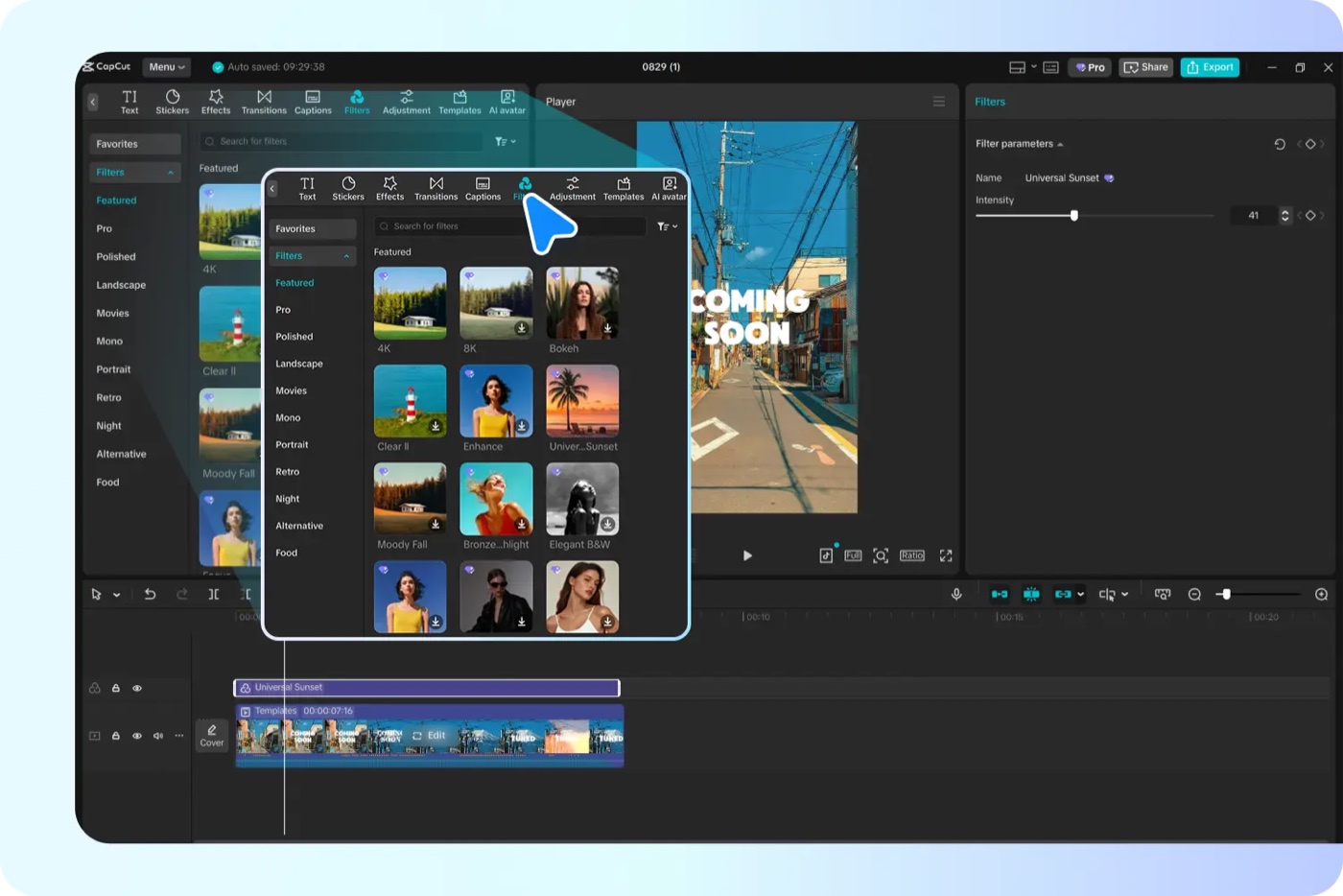
CapCut’s official interface examples show the familiar structure of a nonlinear editor. A workspace holds imported assets, a player displays the current frame, and the timeline shows clips and layers. Separate panels expose text, filters, transitions, captions and adjustments. That layout lets a beginner learn editing concepts without needing to memorize the terminology of a professional post-production application.
The first practical step is organizing the source. Import only footage intended for the project and label it clearly. An editor faced with twenty near-identical phone files is more likely to select the wrong take than a creator who names the sequence by scene or topic. Good organization matters even when the software automatically produces a project preview.
Build the main story before adding decoration. Put the strongest opening on the timeline, then arrange the rest of the sequence so each shot advances the explanation or emotion. A good 45-second tutorial usually needs fewer visual effects than a weak one. If the viewer cannot explain what happened after watching, another transition probably will not solve the problem.
Use trim and split operations to remove failed takes and unnecessary pauses. Be careful about making every cut too tight. A short breath before an important point can create anticipation, while a split in the middle of a consonant sounds abrupt. The ability to zoom into a timeline or preview the transition repeatedly is valuable for that final polish.
The timeline can support text, overlays, music and other resources. Each layer introduces another decision about the picture. A lower-third graphic could identify the presenter, a brief callout can point to a button, and captions can reinforce speech. But too many independent elements make a phone frame noisy.
CapCut provides template and filter libraries that help someone achieve a coherent look quickly. The quality of a template-based result still depends on how well it fits the footage. A high-energy travel transition might be distracting in a serious product tutorial; a polished corporate lower-third may feel out of place in a casual vlog. Begin with the meaning of the video and choose an effect to support it.
The official CapCut video editing software guide illustrates media import, editing and export with screenshots. These show what the software is designed to offer, but we do not claim the exact layout is identical on every operating system or account. The right evaluation uses the creator’s actual installation and a realistic source clip.
Before exporting, review the video from beginning to end. Check the first frame, the final frame, every transition, the loudest music segment and all captions that overlap a screen or person’s face. Viewing the entire project at normal speed catches errors that are easy to miss when repeatedly editing short sections.
Finally, export one realistic test in the intended orientation and format. Open it outside the editor. A smooth timeline preview does not guarantee that all viewers will see the same fonts, cropping, sound levels and colors in the final social app. The publishing destination is part of the workflow, not just a button after editing.
📱 Mobile vs Desktop vs Browser: Which Version Makes Sense?
A creator might assume all three CapCut environments share a single tool set because they use the same name. The company’s own support articles make that assumption risky. Membership levels and feature eligibility can vary across platforms, and a subscription labeled Standard may not apply across both desktop and mobile the way a Pro entitlement can under supported rules.
Mobile works well for fast, casual clips when the source is already on a phone. It makes trimming and applying templates accessible without transferring files to another device. The screen size is the constraint: precision keyframes, complex audio mixes and dense multilayer sequences are harder to manage with touch gestures.
Desktop offers more space for source selection, timeline changes and checking details. An editor can see several layers at once and fine-tune where a text element enters. It is particularly useful when publishing an educational video that alternates between screen recording, presenter footage and product graphics. The trade-off is setup, file management and computer requirements.
Browser editing can be convenient for a quick project or a collaborative workflow, especially where users cannot install software. It also depends on supported browsers, upload behavior and available server-side operations. Large source files can take time to transfer, and a poor connection may affect the editing session. A browser editor isn’t automatically the best choice for high-resolution footage.
The subscription relationship can matter more than the screen. CapCut’s Standard versus Pro support guide describes Standard as a lighter, often mobile-oriented subscription, while Pro is intended to provide a broader cross-platform set of capabilities. The exact use depends on the current account entitlement. Someone who edits on Mac and iPhone should not buy Standard only to discover that a key desktop feature is unavailable.
An efficient workflow can involve more than one version. A creator might assemble the rough sequence on mobile, finish captions on desktop and use a cloud space for handoff. But this is worth testing before moving an important project. Some media, effects or assets may require re-downloading or may have different permissions across environments.
For teams, consistent versions matter. If one editor saves a project using a newly introduced effect and another person uses an older app release, the handoff may not behave as expected. Keep the team’s minimum supported versions documented, export a reference file and maintain a copy of the source footage.
The best version is therefore not necessarily the one with the most tools. It is the version that handles the actual project without forcing unnecessary transfers, subscriptions or corrections. A phone-only creator and a small agency may reasonably choose different combinations.
🔤 Auto Captions, Transcription and Accessibility
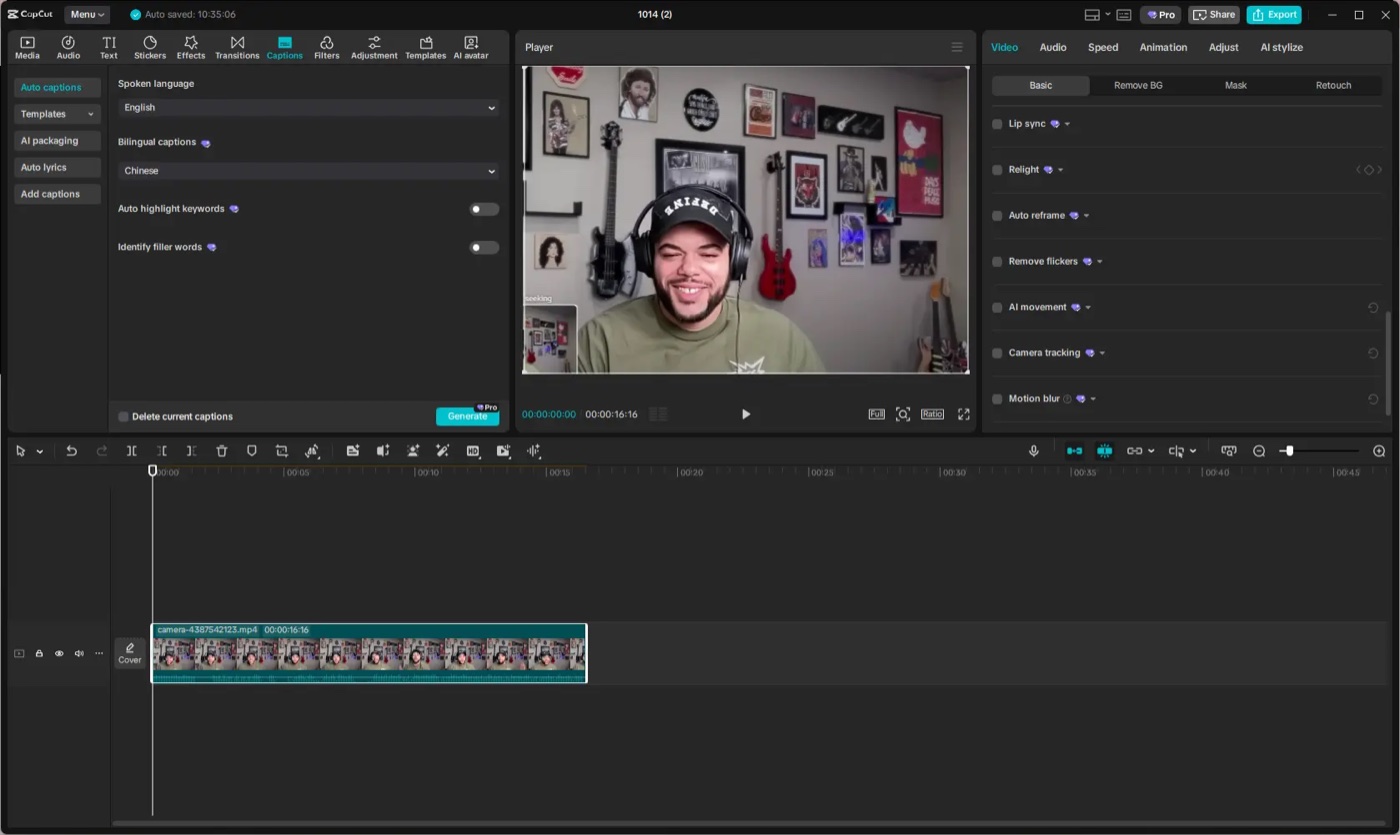
Automatic captions are one of the most immediately useful functions in social editing. Many people watch without sound, and a visible transcript can help viewers follow an explanation while on a train, at work or in a public place. CapCut includes auto-caption tools and styling controls in supported versions and plans.
Automatic speech recognition is a first draft, not a verified transcript. Accents, overlapping speakers, music and unfamiliar names can create mistakes. If the video discusses a product, a medical condition or a financial concept, an incorrect word can materially change the advice. Review every caption against the original audio, particularly numbers and words such as “not,” “never” and “only.”
The official CapCut auto-caption guide illustrates choosing the spoken language and changing caption appearance. It also shows examples of the editor working with a time-aligned text list. These are genuine product illustrations rather than screenshots of our own workspace, and their exact placement can change with future versions.
Good subtitles are not only accurate; they are readable. Use enough contrast, limit the number of words per line and position text where platform controls will not obscure it. A large animated subtitle that covers the demonstration may harm comprehension more than a modest static one. Templates should be adjusted to the message, not accepted as universal design.
Timing can be tricky. If captions lead speech significantly, viewers may read the answer before the speaker reaches it. If they lag behind, the viewer has to work harder to follow. Short clips can feel especially awkward when the animation speed fights with the speaker’s natural rhythm. Preview the export rather than trusting the editing interface alone.
Some content benefits from more than speech captions. A tutorial might need labels identifying interface buttons, and a story could require a short description of a meaningful nonverbal sound. Whether these are formal accessibility requirements depends on the intended destination and audience. An auto-caption switch does not automatically satisfy every standard.
For multilingual creators, test the actual language and speaker accent. A marketing page listing many languages is not proof that a particular word will be recognized correctly. Names, acronyms and code snippets often deserve manual correction even in clean recordings.
A useful caption review routine includes a spelling pass, a factual pass for all numbers and proper nouns, a timing pass and a final mobile preview. This is less glamorous than a viral text effect, but it produces work that is easier for the audience to trust.
💳 CapCut Pricing 2026: Free, Standard, Pro, Ultra and Teams
| Comparison | Free | Standard | Pro | Ultra | Teams |
|---|---|---|---|---|---|
| Reference price | $0 | Varies by offer | $19.99/month | $79/month | $12.49/seat/month |
| Core purpose | Basic edits | Mobile-focused membership | Premium editing | Higher AI allowance | Brand and team assets |
| AI credits | Limited | Plan-specific | 1,200/month | 8,645/month | 1,200/seat in reference |
| Platform access | Free tools | Check device eligibility | Cross-platform Pro | Verify chosen offer | Team access |
| Cloud storage | Variable | Help guide about 100 GB | Reference page 1 TB | Reference page 1 TB | Reference page 1 TB |
CapCut subscription pricing is unusually easy to misread because there are several layers: public web reference prices, mobile app-store offers, an individual editing subscription, AI generation credits and a collaboration product. Someone comparing the cheapest advertised annual equivalent with a month-to-month mobile checkout may believe the product is contradicting itself, even when the offers refer to different billing contexts.
The official CapCut pricing comparison displayed Free at $0, Pro at $19.99 per month, Ultra at $79 per month and a Teams reference price of $12.49 per seat per month in the observed selector. The page also says that its displayed figures are reference prices and that the buyer should sign in to see the exact final price, taxes and offers for the account. We have not completed a purchase and will not claim these are universal global rates.
Free is the right baseline. CapCut describes it as providing basic editing tools and free templates. It can be useful for cutting footage, arranging a timeline, adding text and preparing an ordinary social video, subject to the exact current version. The limits become apparent when the creator uses a premium template, effect, export option or AI operation. A creator should test the specific project rather than assume every menu item is permanently free.
Standard deserves a separate explanation because CapCut’s help center continues to describe it as a subscription option particularly relevant to simpler, mobile-first needs. The Standard versus Pro help article mentions basic premium functions and around 100 GB of cloud storage for certain Standard offerings, while the actual entitlements depend on the device and account. The main public web pricing page does not list Standard alongside Free, Pro and Ultra. We therefore do not invent one universal Standard dollar rate.
Pro is more relevant to people who repeatedly need premium effects, templates and tools. The observed reference pricing page advertises access to the Pro features, AI resources, a substantial cloud-space allowance and a default pool of monthly AI credits. It displayed 1,200 monthly AI credits and 1 TB of space storage under its particular reference configuration. These quotas should not be treated as permanent for every region or as proof that every generative operation is free after paying.
The company’s other help articles give inconsistent figures for Pro storage, including an older description of 100 GB in a generic monthly-and-yearly help page. That conflict is a reason to inspect the current account benefits before subscribing, not to silently select the largest number and describe it as guaranteed. Cloud space, AI credits and subscription price can be updated separately.
Ultra appears above Pro on the public reference pricing page. The displayed offer emphasizes a much larger AI credit allowance and additional generative features. At the time of review, the page listed 8,645 monthly AI credits in that selector and illustrated generation allowances for Seedance-based operations. These figures are vendor-reported examples, and the production price for an individual generation can depend on model, quality and current promotional conditions.
Ultra is not automatically the best video editing tier simply because it costs more. A creator who rarely generates AI footage but often trims and captions ordinary camera recordings may have no reason to pay for a large generation allowance. A marketer who produces many short AI scenes could evaluate the credit economics, but should first measure output quality and the need for manual correction.
Teams is about shared workflows and licensed seats. The reference page lists a starting per-seat figure, a brand kit and shared resources in its selected configuration. Separate help material explains that Teams pricing depends on seat count, region and billing cycle. A company’s monthly total is therefore not just the single number shown next to the plan name: multiply by the required seats and confirm the final billing term.
Additional seats are not always a substitute for project governance. Before adopting Teams, determine who owns the workspace, who can import customer files, who can edit or export them, and which assets are shared across brands. The cheapest possible collaboration plan is not suitable if it lacks a permission boundary the business needs.
The CapCut Pro cost help page explicitly warns about region, device and promotion differences. That is useful guidance for international readers. A price in a US-oriented reference table may not match a Romanian app-store charge, a desktop offer in another currency or a promotion attached to a new account.
Monthly and annual billing must be kept distinct. A discounted annual monthly equivalent is not the same as a cancellable monthly bill. An editor who needs a premium effect for one short campaign may be better off buying only a month, while a creator who publishes every week may save money with an annual offer after the workflow has proved itself. Calculate the actual amount charged and renewal terms before comparing.
For AI-heavy work, estimate total cost per approved video rather than cost per generated second. If a model produces a technically impressive scene that the company cannot use, those consumed credits did not generate a useful final asset. A smaller plan plus deliberate editing can sometimes be cheaper than a large generation subscription combined with extensive correction work.
We recommend a two-step purchase decision. First, edit an actual video with Free and record which limitations block publication. Second, compare only the paid plans that remove those limits, including AI credit consumption, storage, seats, taxes and renewal terms. Avoid paying for speculative functions that are unlikely to be used.
🎛️ Video Effects, Filters, Keyframes and Visual Consistency
CapCut offers the familiar visual building blocks of social editing: filters, transitions, graphic layers, moving text, templates and keyframe animation. These tools can help an inexperienced editor communicate effectively, provided the chosen effects support the story rather than compete with it.
A filter changes the visual character of footage, but consistency matters more than novelty. Two shots filmed under different lighting can look awkward when cut together. Adjust exposure, white balance and contrast before reaching for a heavily stylized preset. A dramatic filter may hide a color mismatch while distorting skin tones or product colors.
For a business showing physical merchandise, color accuracy is part of truthful presentation. A clothing seller should not choose a filter that makes an olive-green fabric appear bright gray, even when the resulting video looks fashionable. An educational creator showing a software interface should keep buttons and text clear. The same “popular” effect can be unsuitable for different purposes.
Transitions should communicate a change in scene or time. A jump cut may be perfectly appropriate between two concise teaching points. A slow dissolve could convey a more reflective shift. Applying the same spinning transition at every cut distracts from the content and may make the video feel like a template rather than a coherent explanation.
Keyframes allow the editor to change properties over time, such as position, scale and opacity. A useful example is a gentle zoom into the specific button a presenter is discussing. Another is moving a callout to follow an object as it enters the frame. The job is to guide attention. If the audience becomes aware of the motion more than the explanation, the animation is probably excessive.
Templates reduce setup time. They also impose rhythm and placement decisions made for someone else’s material. A travel template may demand five rapid shots when the creator only has three good ones. A product demo might require more time on a feature than the template allows. It is reasonable to customize or abandon a preset if it weakens the narrative.
The official CapCut video editing software page illustrates the template gallery, filters and timeline. These genuine product images are useful for explaining the controls without inventing screenshots. However, interface design, subscription badges and item availability may differ in the latest installed app.
Brand consistency can be simpler than a complex template collection. Pick an approved font, two colors, a consistent caption size and a limited set of transitions. A channel that uses the same recognizable title treatment from week to week can appear more professional than one constantly chasing newly released effect packs.
AI-generated templates and effects should receive the same editorial attention. A tool may automatically add visual elements that look attractive but make a factual explanation less clear. Review the video from the perspective of someone who does not know what the creator intended, and cut anything that adds confusion.
For regular production, save reusable styles where the selected version permits it, and keep a short guide outside the application. A project should not depend on remembering which hidden menu the previous editor used. Consistency helps a business scale short-form production without turning every video into an entirely new design exercise.
🧽 Background Removal, Subject Tracking and AI Retouching
Removing or replacing a background can be useful when a creator films in an imperfect setting. A product presenter might want a cleaner frame, or an educator could place a person over a screen demonstration. CapCut markets background removal and other AI-assisted visual tools for supported plans and products.
The result depends on source footage. Clear separation between the subject and the background makes edge detection easier. Wispy hair, transparent objects, motion blur and rapidly changing lighting can be difficult. An automated mask that looks acceptable in one static preview can flicker badly through the full clip.
A low-quality mask may be more distracting than the original room. Before publishing, inspect the video frame by frame around fast movement and detailed edges. A creator who removes a background solely because the feature is available may spend additional time fixing halos that were never a problem in the unedited footage.
Subject tracking can also support captions, stickers or a graphic that follows the main person. This makes short videos feel dynamic, but a tracking point can drift when another person enters or an object passes in front. Verify the entire motion path, particularly near the first and last frames.
For screen-based tutorials, manual positioning is sometimes better than tracking. If a teacher wants to highlight a settings button, the target is a stable interface element rather than a person’s face. Use a restrained callout and keep it visible long enough for a viewer to find the control.
AI cleanup and retouching functions can help improve a rough clip, but there is an authenticity question. A company presenting a product should not alter its appearance so substantially that the resulting video misrepresents the item. People may also want to avoid automatic appearance changes that they did not intentionally approve.
There is a further difference between free basic background options and advanced Pro or credit-consuming tools. The user should check the specific feature and output restrictions on the current account. Describing every AI function as unlimited because Pro is active would be an unreliable buying claim.
Try one realistic shot with challenging edges as part of the subscription pilot. Compare processing time, visual quality and the amount of manual repair necessary. A feature is valuable when it produces an acceptable result with less effort than the alternative, not when it merely appears in the menu.
🗣️ Text-to-Speech, Voice Processing and Music
Sound often determines whether an edited video feels professional. A technically sharp image can still be difficult to watch if dialogue is too quiet, music changes volume abruptly or the speaker sounds distorted. CapCut includes voice and audio tools intended to make those common tasks easier.
Text-to-speech allows a creator to generate narration from written text using available voices. It can be useful for a short informational video where recording an original voiceover isn’t practical. But a generated voice does not inherently understand which product term needs emphasis or how a sentence should feel. Proofread the script, test pronunciation and listen to the entire result before using it as an authoritative explanation.
A product name can be mispronounced repeatedly, making a professional demo sound careless. An uncommon place name or personal surname may need manual spelling or a phonetic workaround. Businesses should also check any disclosure or policy requirements for synthetic voices on their publishing platforms.
Noise cleanup and voice enhancement may help a recording made in a less controlled space. They cannot restore information the microphone never captured. A voice recorded with heavy clipping, distant placement or competing speech may remain unpleasant even after processing. Better input audio is often the most economical upgrade.
Music adds mood and pacing. The safest approach is to select a track that fits the topic and keep it below speech. A creator can use music to establish a calm tutorial or energetic recap, but the soundtrack should not mask numbers, instructions or disclaimers. Listen to the exported clip through ordinary phone speakers, not only through good editing headphones.
Rights deserve special attention. Music that is available inside an editing library may have a particular license scope. It might not permit every commercial use or every distribution channel. CapCut’s terms for assets can vary by source, template and subscription. Do not assume that a Pro subscription creates worldwide unrestricted ownership of all included music.
The same applies to imported sounds. A creator may be able to upload a track technically but not have the right to publish it in a paid advertisement. A client production should keep a basic record of where music was obtained and what use is permitted.
Good sound editing includes leveling voices, reducing abrupt jumps between takes and ensuring the final output isn’t unexpectedly louder than surrounding social content. Automation can help with these tasks, but a human listening pass is still required.
For a repeatable series, create a short audio checklist: selected microphone, voice clarity, music balance, no unintended background audio, correct pronunciation of key names and a final test of the exported file. This can prevent embarrassing errors that no amount of visual polish will compensate for.
✨ Generative AI, Seedance and the Credit Budget
CapCut’s 2026 pricing puts more emphasis on generative video than older versions of the product did. Its public table discusses Seedance-based video generation with a specified monthly AI credit allocation and different costs for certain quality settings. This makes it important to distinguish editing real footage from generating entirely new footage.
Traditional editing rearranges assets that already exist. Generative video attempts to create scenes from prompts, reference images or other inputs. The useful output may depend on the chosen model, allowed duration, resolution and the number of attempts needed. A creator can easily spend more processing capacity on unsuccessful generations than on an ordinary cut made from a phone recording.
The reference pricing page gives examples of generation seconds and credit rates, including promotional first-month figures. We would not convert those into a universal number of finished videos. Model pricing, output quality and credit allocation may change, and an accepted edit can involve several failed attempts before the creator reaches a publishable result.
AI-generated scenes can be useful for conceptual imagery, stylized introductions or background elements. They can also be inappropriate where viewers expect documentary truth. An educational video should not present a generated medical procedure or legal event as authentic evidence. Use clear editorial boundaries and disclose synthetic content when required.
Image-to-video tools create similar challenges. Animation can make a still product shot more engaging, but it may change product details, shape or scale. An e-commerce advertiser should verify that the final scene accurately represents what a customer would receive. A visually impressive but inaccurate demonstration can create consumer complaints and legal risk.
Prompt iteration consumes time even when the interface feels simple. A creator might try several versions to fix hand movement, logos, typography or object consistency. The economic comparison should include that work and any wasted credits. An attractive per-second rate is less meaningful if only one in several generations can be used.
Privacy also matters. Prompts and source uploads can contain confidential descriptions of upcoming products, customer identities or campaign plans. Teams should review the relevant service terms and access controls before putting sensitive information into a generative workflow.
For most short-form creators, the purchase decision should be driven by the real editing tasks first. If basic cuts, captions and effects are enough, Pro or Ultra generation capacity may not be necessary. If AI footage is central to the production model, run a measured pilot with several examples and calculate the cost of an approved minute of finished video.
The largest advertised AI allowance is not automatically the best value. What matters is how many useful, accurate, licensed and brand-appropriate assets reach the final project.
🤝 Teams, Cloud Projects, Version Control and Brand Libraries
For a solo creator, a video editor is mainly a place to work on footage. For a team, it becomes a system for deciding who can use the source, who approves an edit and where the final deliverable lives. CapCut offers cloud and collaborative features under supported plans, but a shared space is not automatically a complete production-management process.
The first issue is file organization. If five people upload variations of the same client clip, an editor can easily use an outdated version. Name the project consistently, identify the approved footage and maintain a reference export that shows what the final video should look like. A team with clear conventions can work effectively in many applications; without them, more cloud storage can simply mean more confusion.
CapCut Teams markets shared spaces, brand resources and subscription seats. The public pricing reference shows a per-seat cost, but the final rate depends on the selected number of collaborators and local offer. A team with one editor, one copywriter and one approval-only stakeholder should evaluate whether each person needs a paid seat or whether a simpler review process would suffice.
Brand kits can reduce inconsistency. If the organization publishes fifty social videos a month, repeating the correct font, color, opening label and logo treatment makes a real difference. However, a brand kit cannot determine whether a clip is appropriate, whether the claim is factual or whether a customer has approved the footage.
The next issue is revision history. A creator might need to undo an effect, return to a previous cut or compare a sponsor’s requested version with the original. Verify what project backups, shared edits and recovery functions are available in the selected product. Don’t assume every action can be reversed across all devices and collaborators without limitations.
Cloud storage is useful for collaboration but should not be the only archive of irreplaceable footage. Retain the source material and verified final masters in an organized location under the appropriate account. A failed sync, expired subscription or accidental deletion should not mean losing a client project that cannot be re-recorded.
Permission boundaries matter. A contractor preparing an Instagram ad may not need access to unreleased corporate product launches or another client’s recordings. Before inviting a collaborator, check what their workspace role can see and whether connected social accounts are exposed. Remove access when a project ends.
Large files create practical challenges, too. Uploading a 4K interview over an unstable connection can take longer than arranging the first rough cut locally. A team should estimate transfer time and whether its editing process requires downloading all assets again. The convenience of a shared space isn’t free if staff spend hours managing duplicate uploads.
For agencies working across multiple brands, use a separate naming and approval convention for each customer. A mixed asset library creates a real risk of publishing the wrong logo or licensed track. The team should also document which stock material is cleared for a particular client’s commercial usage.
A sensible collaboration trial involves at least two people: one creates the project, the other makes a small permitted edit, and a reviewer verifies that the right version can be exported. Record any permission or sync problems before buying additional seats. The goal is not the largest team plan; it is a predictable handoff with minimal friction.
📤 Export Quality, Aspect Ratios and the Final Mobile Check
Export settings are where an editor’s work becomes a file that other software and social platforms must interpret. CapCut provides export options, but the available resolution, frame rate and output formats can vary by source media, platform, app release and subscription. It is worth checking these options with a real project rather than relying on marketing terms such as “4K supported.”
A creator making a vertical short should usually plan its composition for a portrait canvas from the beginning. Reframing a widescreen interview after editing can cut off the speaker’s face or text. If the original screen share contains fine details, the result may remain unreadable even when the export is high resolution.
The crop should preserve meaning. In a gaming highlight, the important information might sit in a scoreboard or minimap outside the central action. In a tutorial, the relevant setting may appear near the edge of the application. A portrait crop that hides it creates a technically smooth but unhelpful video.
Frame rate can affect motion clarity, especially for fast sports or gaming footage. Simply exporting at a higher number does not create genuinely new original frames when the source lacks them, except through additional interpolation processing with its own artifacts. A trial should compare normal playback on the actual target device rather than assuming the largest value is always better.
Compression is a practical trade-off. A very large file may be inconvenient to upload and can still be recompressed by a social platform. An excessively small file may show blockiness around text or movement. Use the destination’s current guidance, inspect the output and avoid repeatedly encoding the same file through several applications without a good reason.
Audio settings matter as much as picture settings. A clip might look perfect but export with an unintended muted soundtrack or an abrupt volume spike. Listen to the final file from beginning to end, including on ordinary phone speakers. The export dialog is not evidence that every track survived the process.
Check the last frame for template watermarks or placeholder branding. Free and paid entitlements differ, and a project can accidentally retain an unwanted ending card even when the main edit is clean. A creator who promises a client a clean branded export should verify the exact resulting file.
The official CapCut product illustrations show export controls, but interface screenshots are snapshots of a particular product state rather than proof that every setting is free or available on all devices. Their purpose in this review is to help readers recognize the workflow, not to claim we performed a paid export ourselves.
A useful final routine is straightforward: review the full exported file; watch it on a phone; check subtitles under platform controls; verify voice and music levels; inspect the first and last frames; confirm the file matches the publishing orientation; and only then upload or schedule it.
🛡️ Licensing, Data Privacy and Commercial Use
A video can look polished and still be unsuitable to publish. Music, graphics, stock clips, AI-generated media, customer footage and personal information carry different rights and obligations. A capable editing application makes combining them easy, but it does not automatically grant every permission needed for a commercial campaign.
CapCut’s libraries include assets with different terms. The presence of a track or template inside an app is not proof that it is licensed for a paid advertisement on every social network worldwide. A business should inspect the asset’s usage terms and the relevant platform rules before using it in a sponsored video.
User-supplied footage can also have restrictions. A creator may have permission to edit a webinar for internal training without permission to publish snippets containing identifiable participants. A company might be able to use a product shot on its own website but not automatically use an influencer’s likeness in a separate ad campaign.
Screenshots and screen recordings pose privacy risks. A product demonstration can expose email addresses, order records, API keys and financial numbers. Blur or remove sensitive fields before export, then inspect the resulting file at normal playback speed. A single frame with an unredacted credential can be more damaging than hours of otherwise careful production.
Cloud editing and AI features may involve uploading media to a provider rather than keeping everything on the user’s device. A business handling confidential material should review the applicable terms, account permissions, data processing arrangements and retention options. We did not examine CapCut’s private infrastructure or certify compliance with any particular data protection law.
Generated voices and faces deserve additional care. A synthetic narrator should not be represented as a real customer. A generated product demonstration should not imply that the footage documents an event that happened. Where disclosure is required, integrate it into the editorial workflow instead of leaving it as an afterthought.
A team should also understand how public templates and sharing features operate. A reusable design containing customer information may not be appropriate for broad sharing. Check where drafts, assets and template exports become visible, and restrict access to the people who need it.
Commercial rights are often more complex than a single “Pro” badge suggests. Different media libraries may have different license boundaries, and third-party assets can impose restrictions even when the editing software itself allows export. Keep a simple record of important footage and music sources for client work.
The fastest way to reduce risk is to build checks into production. Confirm the source and consent before editing, verify the chosen assets during assembly and perform a privacy-and-rights review before publication. Automation should accelerate safe, approved work, not create an untraceable chain of reused materials.
🆚 CapCut vs OpusClip, Descript, Canva and Desktop Editors
| Workflow | CapCut | OpusClip | Descript | Canva | OBS Studio |
|---|---|---|---|---|---|
| Main job | Social video editing | Discover short moments | Spoken-media editing | Visual design | Local capture |
| Source | Footage and assets | Long recordings | Recorded speech | Templates and assets | Live devices and games |
| Tools | Timeline, text, effects | Clipping and reframing | Transcript and sequence edits | Graphic layouts | Scenes and encoders |
| AI focus | Editing and generation | Moment selection | Speech-based edits | Design support | Not main focus |
| Fit | Polished social shorts | Repurpose long archives | Edit podcasts and talks | Brand graphics | Record footage |
CapCut is often compared with products that overlap on some features but begin from different tasks. A useful comparison starts with where the source footage comes from and what the creator needs to deliver.
CapCut versus OpusClip: OpusClip is designed to discover candidate shorts inside longer footage and adapt them for publishing. CapCut offers a broad editor for constructing, layering and refining a chosen short. If the creator spends hours searching through recordings, OpusClip may help with discovery. If the creator already knows the desired story and needs precise captions, effects and timeline control, CapCut may be the more direct choice.
Some workflows use both tools, but that adds cost and file handoffs. A creator should compare how quickly a clip reaches the approved final state using each approach. If CapCut’s current AI tools already identify suitable moments, a separate clipping subscription might not justify its price. Conversely, automatic discovery can be valuable for a channel with a large archive.
CapCut versus Descript: Descript emphasizes editing through transcripts and is attractive for longer spoken-word content, audio cleanup and narrative restructuring. CapCut provides broader visual short-form editing with accessible effects, templates and mobile workflows. The ideal choice depends on whether most of the work involves changing what was said or changing how the chosen material looks.
CapCut versus Canva: Canva is strong at branded design assets, presentations and simpler visual production. CapCut gives creators a video timeline with more editing-oriented decisions about cuts, sound, transitions and motion. A company might create graphics in Canva and assemble the moving story in CapCut. It should not automatically buy both if one application can handle its actual volume and style.
CapCut versus a professional desktop editor: A dedicated advanced editor can offer more granular control over grading, audio, compositing and delivery formats. CapCut may be easier for fast social content. A demanding client project with strict broadcast specifications might justify specialist software, while a solo TikTok creator may have no use for the added complexity.
The same distinction applies to recording systems. OBS Studio captures the source. Riverside helps record remote speakers. CapCut edits the footage afterward. Trying to choose a universal winner across those categories confuses different parts of the production process.
A fair economic comparison includes software subscriptions, AI credits, time spent finding usable material, export restrictions, revision effort and any external assets. A free editor can be costly in human time if it makes a routine task unnecessarily slow. A paid tool can also be wasteful when its premium features remain unused.
Read our separate OpusClip review, Descript review and Riverside review for the workflows that overlap most closely with this one.
🧪 Three Practical CapCut Pilots — Illustrative, Not Measured Tests
Scenario one: A solo creator editing three shorts per week. The creator records vertical clips on a phone and needs accurate captions, consistent colors, a short title graphic and clean music. They begin with Free and complete one typical video from import through export. The test succeeds if the result is readable on a phone, the basic workflow is comfortable and paid assets are not required for the desired style.
If a specific premium caption template or frequent AI function saves measurable time, the creator can test Pro for a month. If the free workflow is already sufficient, paying simply because a subscription is available would not improve the channel.
Scenario two: A software founder preparing a product demonstration. The source includes a desktop screen recording, a short camera introduction and a few supporting images. The company needs a 60-second vertical video with readable UI and an accurate narration. CapCut’s timeline and captions may fit, but the editor must design the crop so buttons and labels remain visible.
The pilot checks whether the tool supports the required export, whether screenshots stay legible and how long it takes to correct captions. The company should keep confidential dashboard fields out of the source before importing it, rather than relying on a last-minute blur.
Scenario three: A small agency serving several product brands. The agency publishes dozens of short videos each month. It needs consistent brand templates, approved music, review steps, separate customer projects and predictable costs. Teams could be relevant, but the agency should first test seat permissions and whether its preferred assets can be shared without exposing another customer’s work.
A useful pilot involves a creator, an editor and a reviewer. They work on one low-risk project, make a revision, confirm the final version and calculate the total time saved compared with their existing workflow. Cloud storage and collaborative features are valuable only when they make that process simpler.
These are proposed tests, not claims that we completed production sessions using CapCut. The value of each scenario depends on the real creator’s material, devices, plans and audience.
✅ Pros, Cons and the Pre-Purchase Checklist
👍 What We Love
- ✅ Approachable editing: Timeline, text and templates help build social videos.
- ✅ Device flexibility: Desktop, mobile and web cover different creative workflows.
- ✅ Finishing tools: Captions, audio, effects and keyframes refine short clips.
- ✅ Optional AI: Premium generation and team features support some advanced workflows.
👎 Where It Falls Short
- ❌ Plan confusion: Standard, Pro, Ultra and Teams vary by device and region.
- ❌ AI quotas: Generation uses credits and may need additional spending.
- ❌ Rights restrictions: Template and music access is not universal commercial permission.
- ❌ Manual QA required: Caption errors and misleading effects still need review.

CapCut — Editorial Video Editing Snapshot
Good fit: short-form editing with captions, effects, timelines and optional AI. Reconsider: unlimited AI generation, identical cross-device features or unrestricted library rights.
Vendor-documentation research; no paid subscription or laboratory benchmark is claimed.
CapCut’s strengths include approachable editing tools, familiar timelines, templates, captions and options across mobile, desktop and web. It can make producing a straightforward short-form video less intimidating. A creator who frequently publishes social clips may appreciate the combination of manual control and AI assistance within one application.
Its limitations are practical rather than mysterious. Subscription naming differs by platform. Reference prices don’t guarantee a local checkout total. Some AI operations involve credits. Stock assets have usage conditions. Automatic captions can be wrong, and generated footage can misrepresent a real product if it is not reviewed.
Before paying, answer a few concrete questions. Which device will do most of the editing? Can Free export the required project? Are premium templates actually needed? How many AI credits will be consumed in a typical week? Does the client require a specific license or output format? Who approves publication? Do cloud projects need to be shared with others?
A complete trial should produce a real video, not merely explore the home screen. Import, cut, caption, adjust, export and publish a permitted test. Write down the parts that required manual correction. If the desired quality is achieved comfortably on Free, that is a legitimate and economically sound outcome.
If an upgrade is justified, choose the tier that solves those identified problems. Don’t assume Ultra is the best editor for every creator simply because it includes a larger AI allowance. And don’t subscribe annually before checking the actual recurring volume and renewal terms.
🏁 Final Verdict: Is CapCut Worth Paying For in 2026?
CapCut is a practical choice for social creators and small teams who want to make polished videos without beginning in a complicated professional editing suite. Its free editing environment makes a sensible starting point, while paid plans can be valuable for particular assets, AI tools, collaboration and recurring production.
The main caution is the subscription structure. A public Pro price is only a reference, and mobile, desktop, Standard, Ultra and Teams offers can differ. Confirm what is actually included in the account, whether credits reset or expire, how billing works and which features will be used each month.
We would not recommend upgrading solely for a large generation quota or a popular visual effect. A clean, accurate and readable short created with basic tools can outperform a more elaborate edit in serving a viewer’s needs. The best paid feature is the one that fixes a recurring problem and survives comparison with the current workflow.
For long-form creators, the ideal stack might involve a source recorder, a clipping service and CapCut for final edits. For a phone-first creator, CapCut alone might be sufficient. Let the format and publishing volume determine the software, not the other way around.
❓ Frequently Asked Questions About CapCut
Is CapCut free in 2026?
Yes. CapCut continues to offer a Free tier with basic video editing tools and access to free templates. The specific features and export options can depend on whether you use the web, mobile or desktop application. Premium assets and some AI functions require a paid entitlement or additional credits. The best test is to finish a representative video on the intended device and verify that the export meets your needs without a paid prompt.
How much does CapCut Pro cost in 2026?
CapCut’s public reference pricing page displayed Pro at $19.99 per month at our editorial check, but the company explicitly warns that final prices can vary by region, platform, tax and promotion. A checkout in a mobile store may differ from a web offer. Log into the correct account and confirm the final total and renewal terms rather than treating a single website figure as a universal global price.
What is the difference between CapCut Standard and Pro?
CapCut’s support center describes Standard as a lighter offering relevant to casual and mobile-first users, with a more restricted range of resources and platform eligibility. Pro is intended to offer broader premium tools and editing across supported devices. The main reference pricing page does not list Standard in the same ladder as Free, Pro and Ultra. Check your current mobile or desktop offer to understand the actual entitlement before choosing.
What is CapCut Ultra?
Ultra is a higher-priced offering on CapCut’s public pricing comparison page, where it emphasizes larger AI generation allocations and additional premium functions beyond Pro. At the checked selector, the reference price was $79 a month, but the exact cost and credits depend on the account and offer. Ultra is mainly worth evaluating if high-volume AI production is central to the workflow. It is not automatically necessary for ordinary trimming, captions or social video editing.
Does CapCut add watermarks to exported videos?
Watermark behavior depends on the version, selected template, premium resources and export workflow. CapCut provides ways to export clean videos in eligible situations, particularly under paid offers. However, an ending card, template credit or other branding can remain if the project contains it. Inspect the entire exported file, including the final second, before promising a client a clean result.
Does CapCut work on both Mac and Windows?
CapCut offers a desktop editing product intended for supported Windows and macOS computers, alongside mobile and web experiences. System requirements, available features and subscription eligibility can vary. A subscription bought on one platform should not be assumed to provide every tool on another without checking the account. Test the current app on the machine you’ll use for production.
Can CapCut generate subtitles automatically?
Yes. CapCut provides automatic caption generation in supported editing environments, including controls for text appearance and timing. Recognition can make mistakes with proper nouns, technical terms, numbers, accents and overlapping speakers. Review each caption against the audio and check that the text remains visible after publishing-platform overlays are added. Automatic text is a useful draft, not a guaranteed accurate transcript.
Can CapCut remove a video background without a green screen?
CapCut markets AI-assisted background removal and replacement tools for suitable footage and supported plans. Results depend on contrast, movement, source quality and difficult details such as hair or transparent objects. Review the entire exported sequence for flickering edges and unwanted artifacts. Premium or credit limits may apply to specific advanced functions, so check the selected tool in the current account.
Does CapCut include AI video generation?
Yes. CapCut’s current product and reference pricing pages describe AI video tools, including Seedance-based generation with specified credit and model allowances. The available duration, quality and processing cost can depend on the model, plan and promotional period. A subscription does not necessarily mean unlimited high-quality generations. Compare the total cost of useful approved footage rather than the advertised price per generated second.
Is CapCut Teams the same as Pro?
No. Teams is intended to support collaborative editing and shared brand or workspace resources, with pricing influenced by seats and billing terms. Pro is primarily an individual premium editing offer, while Teams brings additional coordination needs. A small agency should verify who needs a licensed seat, which assets are shared, what permissions exist and the exact account-level subscription total.
Is CapCut better than OpusClip or Descript?
The products prioritize different tasks. CapCut is a broad visual video editor for assembling and polishing clips. OpusClip emphasizes discovering short-form candidates from long recordings and reframing them. Descript focuses on transcript-led editing of spoken content. The best choice depends on where your team loses time: selecting excerpts, constructing visual edits or restructuring dialogue. A short pilot with real footage is more useful than a universal winner.
📚 Official Sources and Editorial Method
This review relies on the current CapCut public pricing page, the official Pro pricing guidance, Standard versus Pro comparison, Teams pricing support, video editing software guide, auto-caption documentation, and CapCut Help Center.
We describe vendor-reported features without claiming a paid hands-on benchmark. Illustrative examples are proposed user tests, not experiments performed by our editorial team. CapCut’s own documents sometimes provide different prices, storage figures and tier structures; we identify these differences and recommend verifying the current account benefits and checkout before purchasing.
EXPLORE NEXT ON DIGIOFFLY
Explore More After This CapCut Review
Choose compatible clipping and editing software without paying for overlapping subscriptions.
Plan a video editing toolkit
- Compare OpusClip — Find short moments within long recordings.
- Compare Descript — Edit recorded speech with transcripts.
Compare editing and AI costs
- Review Riverside — Record remote guest conversations.
- Record with OBS — Capture local footage and live streams.
Explore editing alternatives
- Explore creator software — Browse more video and audio offers.
- Find complementary software — Filter tools for your exact needs.
- Budget software costs — Estimate subscriptions and AI credit costs.
Published plan references change. Confirm usage, annual billing, video editing, AI credits, team seats and license costs directly with the vendor.