

Last researched October 15, 2026. This review evaluates public Streamlabs documentation, service descriptions and release notes. It does not claim we personally operated a Streamlabs account, ran a controlled benchmark or measured encoder frame rates. Subscription entitlements and platform support should be checked at the source before purchasing.
Streaming software creates a peculiar kind of first-impression problem. A new creator sees the colorful overlays, neat donation alerts and attractive screenshots, and understandably thinks the production work has already been done. Then the game starts stuttering during a high-motion moment, the audio arrives twice, an alert disappears, or a planned multistream destination turns out to require a different plan. The hard part is not making a stream look exciting for one screenshot. The hard part is keeping the same setup understandable and reliable from the first minute to the last.
That is the central question behind this Streamlabs Desktop review for 2026. Streamlabs combines a desktop broadcasting application with a family of hosted creator services. Some useful functions are available without paying; others live inside the Streamlabs Ultra subscription. That blend can be convenient because a user may keep scene production, alerts, overlays and elements of channel management in a familiar ecosystem. It can also make budgeting confusing. Buying a paid creator subscription does not automatically solve GPU load, capture-card compatibility or insufficient upload bandwidth.
The overlays are fun, but the real test of Streamlabs happens during a complete broadcast. Can it get a new gamer on air quickly? Does it make recurring live broadcasts less laborious? Which parts are handled on the computer, and which depend on services connected to a Streamlabs ID? When is the free edition enough? When would OBS Studio plus one deliberately chosen add-on be simpler? A generic star rating cannot answer those questions for your setup.
Our verdict is that Streamlabs Desktop offers a friendly path into streaming, particularly for individuals who want integrated overlays, alert widgets and supported account connections without assembling each component manually. But its all-in-one presentation should not obscure the distinction between an app you run locally and services billed or operated online. Start by knowing which parts run on your computer and which depend on online services.
🎯 Streamlabs Desktop at a Glance: The Short Verdict
Best for: New and intermediate livestreamers who value a guided setup; gaming creators with alerts and custom overlays; streamers who want scene capture, chat and monetization widgets in one desktop environment; recurring creators willing to learn a production console.
Less ideal for: People who primarily need remote multitrack interviews, automated short-video editing, high-volume media asset collaboration or dedicated browser-based guest production without running desktop encoding software. Those jobs often warrant a different product, or a complementary tool.
Core price: Streamlabs Desktop can be downloaded and used for free on supported Windows and macOS systems. Ultra is optional and extends premium features across several Streamlabs products. The official Ultra page described a starting price of $15.75 per month equivalent at our editorial check. The billing cadence and exact promotional terms behind that display must be inspected in the checkout selector; do not assume a $15.75 charge every month.
Platforms: Streamlabs Desktop is offered for Windows and Mac, including Intel and Apple Silicon Mac builds. The Streamlabs download site listed Windows 10+ and macOS 12+ for its application at the time of research; its May 2026 setup guide recommends newer OS and more substantial hardware. Streamlabs Console and Mobile are different products, not alternate names for the Desktop installer.
Notable 2026 product activity: Streamlabs continued updating the desktop interface, including a new customizable top navigation bar announced in October 2026. Documentation and support for account connections, capture sources, Replay and other creator features change over time. We rely on the documented feature list and point out where macOS support may differ from Windows or beta releases.
Quick verdict: Start with the free edition and build one realistic stream. Upgrade only when a particular Ultra feature, such as qualifying multi-destination output, premium tool access or added service storage, pays for itself in production time or workflow simplicity.
🧭 What Streamlabs Desktop Actually Does
At the desktop level, Streamlabs is a software video production environment. It receives sources such as games, webcams, screen captures, microphones, media files and browser widgets. You assemble the content into scenes, monitor audio levels, encode the resulting program and send it to a selected streaming destination or record it locally. That sounds similar to OBS Studio because the products address overlapping needs. The difference is how the surrounding creator services are presented, configured and monetized.
For example, a Twitch streamer may want a microphone, gameplay, a “Starting Soon” scene, follower alerts and an integrated view of recent channel events. Streamlabs brings a number of these concepts into its own onboarding and creator service ecosystem. There is a practical benefit when a newcomer can recognize those jobs quickly instead of researching several independent plugins. There is also a practical limit: account-linked widgets introduce web dependencies and may change independently of the desktop application.
It helps to break Streamlabs into four parts. The first is the local capture and production engine. The second is the arrangement of scenes, themes and widgets. The third is the relationship with streaming accounts, viewer-facing interaction and services such as cloud storage or premium creative tools. The fourth is what happens after the live session: the creator still needs to organize files, select highlights, edit recordings and publish derivatives.
Understanding these layers prevents two expensive mistakes. The first is subscribing to Ultra because a basic screen recorder feels intimidating; free desktop capture may already solve the immediate problem. The second is assuming that the free app gives access to every paid item in the Streamlabs ecosystem. A premium overlay library, certain streaming conveniences and editing tools have separate eligibility rules. Use the official plan comparison for each workflow, not the fact that Desktop itself says “Free.”
A final distinction is local versus hosted reliability. Streamlabs can improve the organization of a desktop broadcast without controlling every route between your computer and an online destination. The streaming platform still applies its own ingest configuration, bitrate guidance, moderation policy and account restrictions. The user still owns the physical microphone, encoder headroom, capture drivers and internet connection.
🖥️ First-Run Experience: Easier Onboarding, Same Production Fundamentals
The July 2026 official getting-started walkthrough outlines a sequence that beginners will recognize: grant microphone and camera permissions, choose whether to stream or record, select experience level, sign into Streamlabs ID or a platform account and import existing OBS settings if appropriate. That is a more welcoming entry point than requiring someone to hunt for each source type without context. It is not an instant finished broadcast.
The first setup decision should be the type of content, not the most dramatic overlay. Someone filming a coding lesson needs the text of an editor to remain legible. A competitive game streamer needs predictable frame timing and an audio mix that lets viewers hear important cues. A podcast host needs reliable speech levels. One default layout rarely optimizes all three. A template is a useful starting point. The final scene should fit the type of video you make.
Next, choose the streaming destination intentionally. Connecting a Twitch, YouTube or another supported service can streamline account settings, but do not mistake a successful sign-in for proof that the channel can use every destination-specific feature. Permissions, monetization eligibility, recording rights, platform terms and stream-key management remain external concerns. A private test stream is an essential bridge between the installer and a real public broadcast.
The option to import some OBS settings is particularly useful for a creator moving tools rather than starting from scratch. It can save time during a move, but check every source after importing. Missing plugins, fonts, local media paths, browser widget tokens or unsupported effects may still need manual attention. Keep the original OBS scene collection and assets intact until you have compared the result side by side.
Streamlabs’ October 2026 navigation update reflects an effort to make frequently used tools easier to reach. You can customize aspects of the top bar and pin supported applications, according to its own announcement. For a creator who performs the same handful of tasks every week, fewer clicks can be worthwhile. The updated menu reduces clicks. Your computer and internet connection still determine how well the stream handles high bitrates and moving images.
A sensible onboarding success criterion is concrete: one correctly cropped video source, one intelligible microphone, one verified destination, one short recording that plays outside the application and one scene change that does not expose private windows. Anything beyond that is an optional layer, not proof that setup is incomplete.
🎛️ Scenes, Sources and the Production Editor
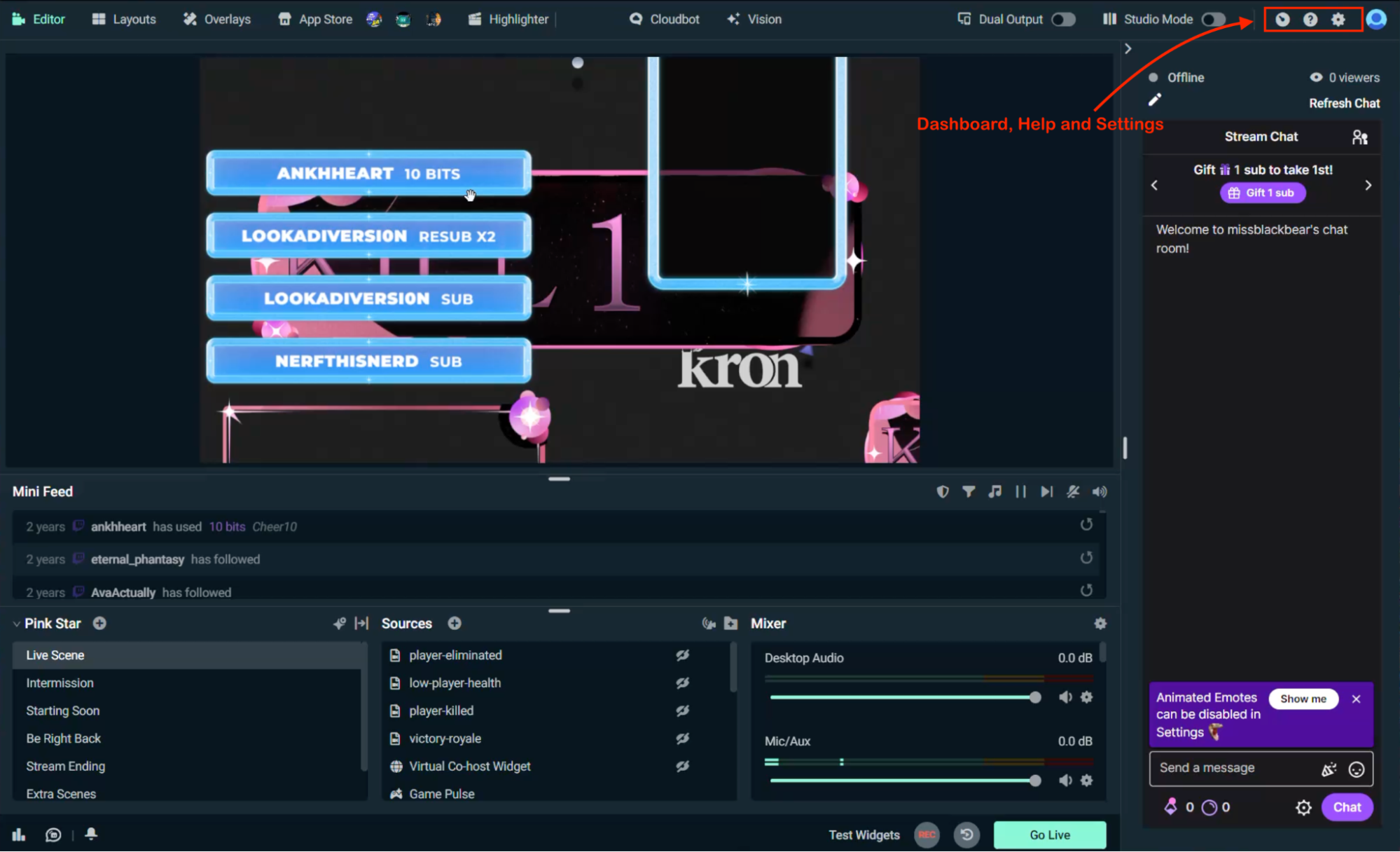
The Editor is where Streamlabs most visibly becomes a broadcasting product rather than a generic webcam app. You can work with scenes, add and arrange sources, check the mixer and prepare on-screen elements before you go live. A scene is the production composition the audience will see; sources are the individual ingredients. A full-screen game source might sit underneath a face camera, while text and an alert widget float above both.
The relationship between sources and layers is important. Put a solid graphic at the top of the stack, and you may hide the webcam completely. Scale a capture feed incorrectly, and you may cut off part of the game interface. Use the wrong monitor source, and a notification from another desktop can briefly appear in the broadcast. This is why real production discipline matters even when the editor has approachable controls.
Streamlabs provides controls for scenes such as a live view, starting screen, intermission and ending. It is tempting to build ten variations on day one because the themes look inviting. We suggest three: standby, main content and ending. Add a fourth only for a distinct workflow, such as a presentation or a separate desktop tutorial. Fewer scenes let a beginner identify the currently active microphone and capture path without second-guessing which copy of a source is live.
A window capture or screen capture can differ from game-specific capture. Streamlabs documented a unified Screen Capture workflow designed to simplify choosing an application, display or game feed. Which capture source works best depends on the game, operating system and permissions. Not every full-screen game or protected window behaves the same way across graphics APIs, and some window previews may be hidden by security policies. The correct test is a finished recording of the actual source, not a still preview in a marketing tutorial.
Be consistent when naming sources. “Mic — USB commentary” makes sense after three months; “Audio Input 2” does not. “Capture card — gameplay” is easier to troubleshoot than “Video Source”. Reusing labels across templates can reduce work when collaborating with an editor or a replacement operator. The same applies to file and scene collection backups, which are often forgotten until a computer is upgraded.
Pay attention to graphics formats and scaling. Transparent overlays may appear perfectly fine in a browser preview but acquire unexpected edges if their source assets were exported with the wrong alpha settings or size. A 4K canvas that is eventually downscaled to a 720p stream can make fine text hard to read. Choose a target output first, then test whether the scene communicates at the resolution viewers actually receive.
The production editor is a strong reason to consider Streamlabs. It combines familiar local recording tasks with interactive widgets. Yet the value lies in understanding how these parts relate, not in checking off every visible feature. A stable simple scene is worth more than an elaborate one that freezes when a new alert appears.
🔔 Alerts, Widgets and Viewer Interaction
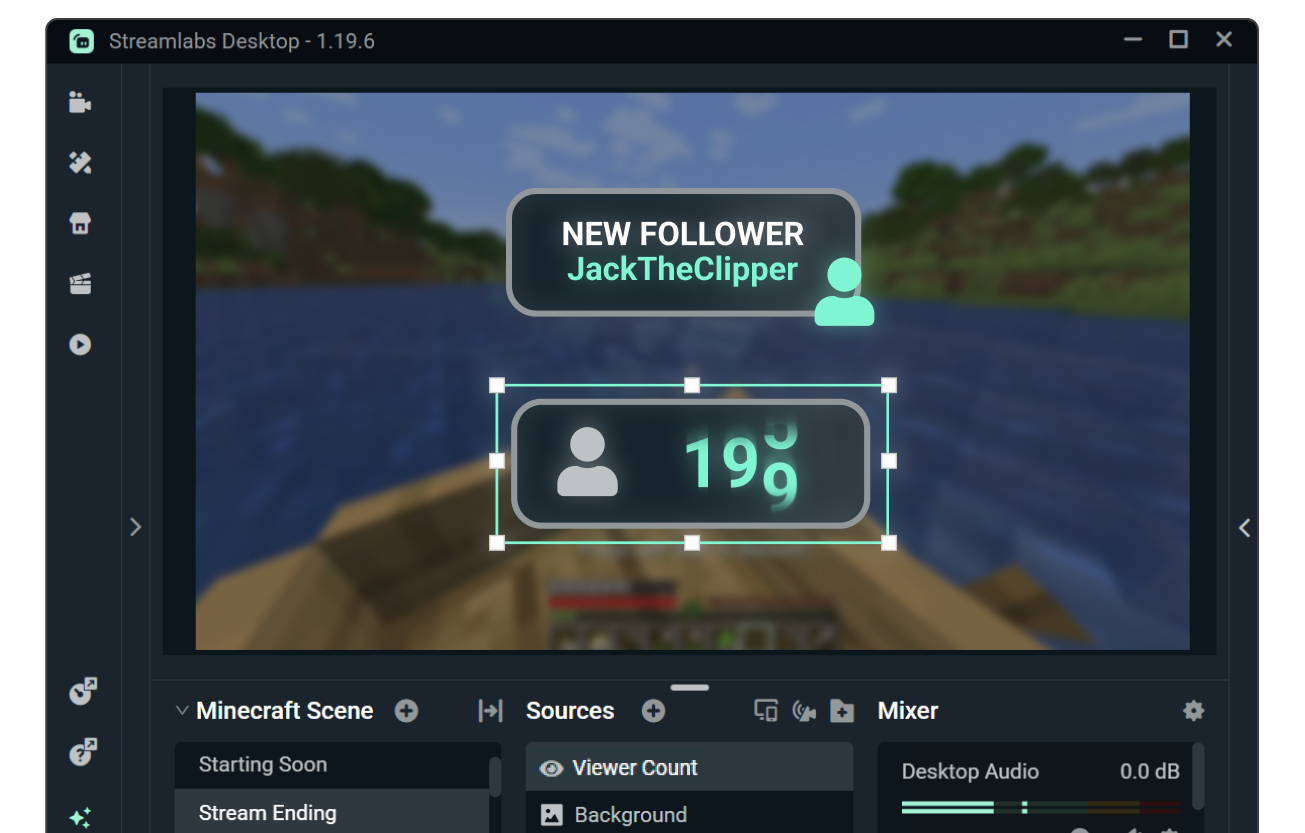
Alerts are a significant part of Streamlabs’ identity. An Alert Box can display activity such as a follow, subscription or another supported event. The getting-started documentation shows a direct workflow: add a source, select the Alert Box widget and place it inside the scene. For a creator who finds manual browser overlays confusing, that integration can make the first stream feel more complete.
However, alerts are not just graphics. They rely on an event source, an account connection, widget configuration and a successful visual/audio output path. If the widget is present but nothing appears during a test, investigate those layers separately. The connected account might not report the event, the widget might be hidden underneath another source, its audio could be muted, or its browser content could have failed to load.
Test widgets before the first live event using the service’s supported test function. A useful test verifies the position, animation duration, font readability, audio level and whether consecutive events queue rather than overlap. The most common mistake is making the alert louder than the microphone; the second is letting a large animation cover the critical part of the game screen. Engagement tools should enhance a broadcast, not interrupt the activity viewers came to watch.
Widgets may also handle chat overlays, viewer counts, goals or other on-screen status. The exact availability of a widget can vary with Streamlabs account services and destination permissions. Viewer numbers should be treated as platform signals, not audited business analytics. Counts can lag, exclude certain viewing contexts or differ between the app and a destination’s creator dashboard. It is better to use them as production cues than as evidence of advertising performance.
The design ecosystem matters for streamers who do not have a dedicated designer. A coherent overlay theme can make scenes look related, reducing visual inconsistency between starting, live and break states. Yet buying an overlay package is unnecessary if your content is primarily a clean game feed or a software tutorial. Consider whether the design protects essential information, uses accessible contrast and works in small mobile playback windows before purchasing premium assets.
There is also a security component. Widgets and browser overlays can display remote content. Avoid pasting private keys into public help requests, scene screenshots or shared source lists. Use official account connections when possible. If a community asset requests broad account permissions unrelated to its function, evaluate that request before granting it. A colorful interface is not a substitute for ordinary account hygiene.
Streamlabs can save time in the alert-and-overlay layer. The trade-off is dependency on an ecosystem whose service terms and app integrations may be separate from the local recording engine. Document which widgets are essential to the show and keep a clean backup scene that can still broadcast if one service is unavailable.
🎚️ Audio Quality: The Mixer Is a Diagnostic Instrument
A viewer will forgive an ordinary overlay sooner than distorted speech. Streamlabs supports audio sources and a mixer so a creator can balance a microphone, game sound, music, alerts and other inputs. Those controls are valuable, but the editor cannot repair every defect introduced before sound enters the computer. A microphone clipping at its physical preamp needs attention at the hardware or operating-system level, not simply a quieter slider downstream.
Start by identifying the exact signal paths. A webcam may expose an embedded microphone while a USB headset provides a second one. A capture card might carry the game’s sound over HDMI, even as desktop audio records a parallel version. If both tracks reach the program, the audience may hear echo. The right debugging technique is to mute everything, then enable each source one at a time and listen to the actual captured file.
The mixer shows which inputs are producing levels. That is not the same thing as knowing what the viewer hears. Monitoring routes, recording tracks and output configuration may differ. A microphone could move its meter yet remain absent from a selected recording track. A browser alert might play through local speakers and be picked up again by an open microphone. Use headphones during testing, then inspect a short file in a normal media player and the editor you intend to use.
Software filters can be helpful for a room with a steady fan, keyboard noise or changes in speech loudness. But stronger processing is not automatically better. Heavy suppression may make a quiet voice sound watery; an overaggressive gate can remove beginnings of words; compression without gain planning can emphasize background noise. Compare treated and untreated recordings at a consistent volume, using the animated commentary the streamer actually delivers.
Music deserves separate attention. It can give a starting screen atmosphere but should not mask commentary. It can also create rights and distribution problems even when a service calls a track “safe” or “royalty free.” Review the music provider’s license, destination policies and recorded-replay rights. A track permitted for a livestream is not automatically cleared for a downloadable compilation, an advertisement or a separate monetized clip.
The simplest reliable mix is often the most disciplined: commentary clearly audible, game cues preserved, alerts controlled, music restrained and every input named by role. That is not a glamorous product feature, but it is one of the strongest reasons to spend time in the editor before asking an audience to watch.
🎥 Recording Locally and Turning Streams into Publishable Videos
Streamlabs Desktop can record locally, with its own interface for selecting a recording path, format and quality. Its official support materials describe a straightforward flow: open output settings, choose the destination folder and start and stop a recording from the production controls. A successful recording operation produces a file; a successful content workflow produces a file that an editor can import, hear, trim and distribute without unexpected synchronization problems.
Do not confuse streaming output with the recording you should preserve. Live delivery has network constraints. Recording can be configured for a different quality target, subject to hardware capacity and selected encoder support. Simultaneously broadcasting and capturing a high-quality local file can create extra pressure on GPU, CPU, disk and memory. Test both together if both outputs are required for your real session.
Choose a file format based on recoverability and editing support. Different applications and builds expose different container choices, and a format available in one release might behave differently in another. Avoid asserting that a particular Streamlabs build has the exact same resilient recording defaults as OBS Studio without checking its current settings. Use the format officially offered, consider how the system handles an interrupted recording and verify import compatibility with the chosen editor.
A full recording may be the best raw material for a YouTube video, but it is rarely the final product. The opening countdown can be removed, silence can be tightened, dialogue can be cleaned up and the most useful chapter can be placed earlier. For gaming creators, the difference between a live stream archive and a compelling upload is often the editing decision, not the number of pixels recorded.
Streamlabs offers related creator products for editing, clipping and repurposing content, with access rules that vary by service and plan. Keeping these in a shared account ecosystem may simplify the handoff, but it is worth checking whether a favorite external editor or storage tool already handles the job better. Do not subscribe to several products purely to avoid moving a file between two folders.
Use a practical file naming structure, such as a channel name followed by date, game and session, and preserve the source file until edited outputs have been checked. A workflow that deletes raw media immediately after an upload can destroy a backup when captions, music rights or export quality need correction. An external drive or cloud backup does not need to be expensive, but it must have enough capacity for the actual bitrate and session length.
A short preflight can save hours: record 45 seconds, speak into the microphone, trigger an alert, perform a scene transition and check the output in the editor. If the result includes exactly the audio and video you intended, extend the rehearsal to the expected event duration. If not, fix one layer before adding another.
💻 Windows, macOS and Apple Silicon: Do Not Assume Feature Parity
Streamlabs Desktop is available for Windows and Mac, and the official download page offers distinct installers for Intel and Apple Silicon hardware. That is useful for creators who run production from a MacBook while playing on a separate system or capturing a tablet. It does not mean every available capture method, encoder or plugin behaves identically across operating systems.
Windows may provide different game-capture paths and graphics interfaces than macOS. On a Mac, screen recording, camera and microphone permissions must be granted through the operating system. Audio loopback behavior can also depend on which source options the installed version exposes. Someone following an older Windows tutorial may end up installing unnecessary routing software or searching for a source type that does not exist on their computer.
The May 2026 official quick-start guide suggests newer macOS releases and substantial memory for more demanding production. A machine meeting a minimum installation requirement may still be unsuitable for a specific combination of game, resolution, browser widgets and recording output. Apple Silicon hardware can be efficient at some media workloads, but a thin laptop under long sustained load may behave differently from a desktop computer with better cooling.
A capture card presents its own compatibility matrix. The source device, HDMI output mode, card USB connection, supported frame rates, audio transport and pass-through features all matter. Streamlabs may recognize a video input and still be unable to deliver the latency or refresh rate a competitive gamer wants. Test the card on the operating system with the intended source before committing to hardware purchases.
A frequent Mac workflow involves taking gameplay from a console or mobile device through capture hardware and combining it with a separately recorded voice. Build that path in steps. First confirm video; then embedded game audio; then external microphone; then overlays. If the result fails after adding overlays, you know where to investigate. If the initial signal never appears, the issue is upstream of any Streamlabs theme.
Creators who hide their faces should still think about privacy. Omitting a webcam removes one video source, but notification banners, player names, account emails and direct messages can appear in game or desktop capture. Choose a deliberately limited application source, disable sensitive notifications and keep a standby scene available. An appealing overlay can sometimes hide information visually, but it should not be your only privacy protection.
Mac-specific behavior can change from one version to another, so keep the build number alongside any reproducible setup guide. If a Streamlabs update changes an encoder menu or a capture permission, a dated checklist allows you to compare the change to a known-good production. That documentation is worth more than another animated border.
🎮 Gaming Streams, Hardware Headroom and Dropped Frames
A gaming streamer has two competing jobs running on the same system: the game needs resources to stay responsive, and the streaming application needs resources to produce a stable encoded frame sequence. When both demand nearly all available GPU time, the output can stutter even when the network is fast. That is a hardware scheduling problem, not evidence that a destination dislikes the particular streaming software.
The temptation is to select the highest possible resolution, frame rate and bitrate because the platform supports them in theory. In practice, stable output is more valuable than an impressive settings panel. A clean 1080p stream at a sustainable frame rate is usually a better audience experience than a nominally higher-resolution feed that drops frames during hectic gameplay. A beginner should build upward from tested settings.
Encoder choice is a practical variable. Supported hardware encoding can reduce some CPU load, but it still consumes resources and depends on drivers, the graphics device and service codec support. Software encoding shifts more compression work to the CPU. There is no honest universal ranking of encoder performance that ignores specific computers and workloads, and this review does not invent frame-rate benchmark scores for hardware we did not test.
A useful experiment has three conditions. First, run the game without streaming or recording and note behavior. Second, record locally using the intended capture settings and compare. Third, stream privately while recording only if both outputs are part of the plan. If the second condition already causes stutter, focus on render and encode capacity. If only live delivery fails, inspect upload stability, destination requirements and dropped network frames.
Widgets can also affect performance. Several live browser sources, animated backgrounds, complex filters and video transitions make the production richer but add moving parts. Temporarily disable them during troubleshooting. If performance improves, restore elements individually until the expensive source is identified. This is more reliable than upgrading to a paid subscription on instinct or blaming every issue on an unproven memory leak.
If a creator has a second computer, dividing game and encoding work can improve isolation, but it introduces capture-device costs and synchronization complexity. A dedicated production system is a workflow decision, not an automatic requirement for Streamlabs Desktop. Many creators will get better results by simplifying the scene and output settings before buying another computer.
Storage belongs in the performance discussion. High-quality recording generates substantial continuous writes, especially during long sessions. An almost-full disk, slow external drive or unstable connection can compromise a file even if the livestream itself looks fine. Monitor free capacity and verify file integrity after the session rather than assuming every recording is post-production-ready.
The most useful output of a performance test is not a feeling that one brand is “lighter.” It is a repeatable configuration: particular OS version, capture source, scene complexity, encoder, output settings, game workload and result. Keep that reference when comparing Streamlabs to OBS Studio, and avoid treating a single anecdote from another computer as your own benchmark.
🌐 Multi-Platform Streaming: What Ultra Can and Cannot Solve
Many creators outgrow a single streaming destination before they outgrow their production computer. A channel might want to reach Twitch and YouTube at the same time, while also preparing clips for vertical platforms. Streamlabs promotes multistreaming as part of its broader creator toolkit, with free and Ultra eligibility that can differ by destination and plan. The 2026 subscription comparison is therefore central to a purchasing decision.
The important distinction is between one local output and multiple destination feeds. A service that redistributes one uploaded feed can save upstream bandwidth compared with generating separate streams for every channel. Software that supports multiple native outputs may behave differently. Whether Streamlabs routes, transcodes or manages a given configuration depends on the product feature and account eligibility. Read the current workflow documentation rather than assuming a single architecture.
Platform policies are another constraint. Services may impose conditions on simultaneous broadcasting, advertising, moderation or chat behavior. A multistream account connection does not grant an exception to those policies. The creator should also decide how to handle conversations that happen in two places. A shared chat view can help, but it may not merge every moderation feature or viewer identity cleanly.
At a higher production level, a streamer’s brand experience should remain coherent across destinations. Overlay graphics may need to keep text legible on small screens. Platform-specific alerts can be irrelevant or confusing when shown to an audience on another site. A sponsorship disclosure may require particular treatment under destination rules. The creator must design for the mixed audience, not simply check several destination boxes.
Before paying to multistream, perform a simple demand test. Are there existing viewers on each additional destination? Is the team able to moderate several chats? Does the creator have a scheduling strategy for each channel? If the answers are no, starting with one reliable destination may be a better use of time than sending a low-quality feed everywhere.
Ultra may be worthwhile when bundled premium editing, branding and distribution tools replace several services already being paid for. It may be wasteful when the only reason to upgrade is curiosity about a feature that has not become part of an established workflow. Compare included output capabilities and cancellation terms against alternative distribution services, including Restream as a separate product category.
The best way to compare these platforms is with a checklist of actual destinations, destinations’ required formats, stream scheduling, chat aggregation, account permissions and recurring cost. Do not compare on “supports multistreaming” alone. That phrase hides the operational details most likely to determine whether the purchase saves time.
💳 Pricing in 2026: Free Desktop vs Streamlabs Ultra
The free price on Streamlabs Desktop’s download page is genuine at the level of installing and using the base broadcasting application. A creator can set up sources, build scenes, record and begin supported live workflows without buying a core Desktop license. What is not free is every service and add-on under the Streamlabs brand. Ultra aggregates eligible premium features from a suite of creator products.
The official Ultra page was advertising access from $15.75 per month at our October 2026 check. “Starting at” deserves careful interpretation. It may represent a monthly equivalent under annual billing, a selected promotion or a contract-specific amount. We will not convert that into a guaranteed month-to-month card charge. For an accurate budget, open the current billing selector and record the checkout subtotal, currency, tax treatment and renewal conditions.
A creator deciding between free and paid should identify the exact feature that is unavailable in the free workflow. Is it a premium overlay or theme? A multistreaming entitlement? A creator tool elsewhere in the Streamlabs suite? More storage? A particular support option? Only after naming that feature can its value be compared to alternatives. The answer may be different for a person streaming once a month and a team running live shows every weekday.
Ultra’s cross-product access can be attractive because it may replace separate charges for editing, clipping, podcasting or other Streamlabs products. But that value depends on which parts are actually used and what their usage limits allow. A bundle that offers five tools is not necessarily worth five subscriptions. If the editor remains in an external product, the bundle’s editing entitlement contributes no direct savings.
Consider two simplified cases, without inventing prices for hardware. In the first, someone already owns a headset and a capable computer, and all they want is a Twitch gameplay stream with modest alerts. The free desktop app can be a sensible first experiment. In the second, a creator already pays for multiple services that Ultra genuinely replaces, streams regularly and needs a supported multi-destination setup. A paid plan may reduce both cost and administrative friction.
The decision should account for lock-in and cancellation. If overlays, widgets and premium features are linked to the subscription, ask what continues functioning after cancellation and whether local recordings and assets remain usable. Do not assume a custom setup disappears, but do not assume premium entitlements remain active either. Test and document the limits with a noncritical production first.
Support has value for creators who cannot tolerate extended troubleshooting. Yet paid access does not make third-party streaming destinations or internet providers part of the Streamlabs support responsibility. Preserve your own recovery runbook: configuration backups, audio test, scene list, destination account access and a fallback recording path. Those controls remain important whatever the subscription tier.
Finally, avoid confusing Ultra pricing with the purchase of a computer, camera, mic, capture card, licensed music or other production service. None of those becomes included merely because the desktop app offers premium features. The cheapest reliable setup is the one that meets the output requirement, not necessarily the one with the smallest visible subscription fee.
| Decision point | Free Desktop | Ultra | Ultra+ |
|---|---|---|---|
| Subscription model | No subscription to run Desktop | Optional paid creator subscription | Higher paid tier |
| Multistream routing | One portrait and one landscape destination via Dual Output | More destinations, including eligible custom RTMP | Ultra routing plus higher service allowances |
| Overlay & widget themes | Hundreds of free themes and core widgets | Full premium library, including Reactive Overlays | Ultra library included |
| App Store tools | Limited free Desktop apps | Full Desktop App Store access | Ultra App Store access |
| Sidekick interactions | 100 total included | 1,000 per month | 5,000 per month |
| Stream automations | Up to 5 | Up to 10 | Up to 30 |
| Cloud storage | 1 GB | 10 GB | 30 GB |
| Collab Cam | One guest or camera | Up to 11 guests/cameras | Ultra allowance included |
| Published pricing | Free | Starts at $15.75/month equivalent on advertised pricing; monthly list $27. Check checkout for annual amount and term | Check live checkout for current price and currency |
🆚 Streamlabs vs OBS Studio, Restream and StreamYard
Side-by-Side: Features That Actually Affect a Streaming Workflow
| Decision factor | Streamlabs Desktop | OBS Studio | Restream | StreamYard |
|---|---|---|---|---|
| Core production | Desktop scenes, mixer, recording and streamer widgets | Free local capture/recording with extensible sources | Multi-destination stream routing and hosted tools | Hosted browser-based live-show and guest studio |
| Entry access | Desktop app free; optional Ultra creator services | Free open-source desktop app | Limited free plan with paid delivery tiers | Limited free plan with paid studio tiers |
| Alert widgets | Integrated Streamlabs widgets and account services | Browser sources and connected plugins/services | Varies by plan and integrations | Hosted overlays and branding by plan |
| Local recording | Available in Desktop | Available with multi-track options | Check particular cloud recording tier | Hosted cloud recording by plan |
| Remote guest interviews | Requires a separate or supported guest workflow | Not an integrated guest platform | Studio guest feature depends on service | Guest invitations are a core feature |
| Best user | Gamers prioritizing integrated alerts and themes | Creators preferring open local production control | Creators sending content to multiple platforms | Interview/event hosts avoiding local scene setup |
| What to verify | Ultra feature entitlement and billing cadence | Encoder support, sources and hardware | Channels, output limits and billing term | Guests, branding, quality and recording limits |
Comparing these tools by price alone leads to the wrong answer. OBS Studio is a highly flexible, free local production application. Streamlabs Desktop overlaps with OBS in capture, scenes, mixing and desktop output, while placing greater emphasis on integrated creator widgets and its suite of surrounding products. Restream is best understood as a distribution and hosted production service. StreamYard focuses on browser-based guest and live-show workflows. All four can participate in a streaming workflow, but they solve different sections of it.
Streamlabs versus OBS Studio is the most direct decision for a gaming creator. Streamlabs offers a guided product ecosystem: overlays, account connections, alerts, themes and services may feel easier to discover. OBS gives a creator very broad control and an open plugin ecosystem without imposing a core license subscription. For an experienced operator with stable scenes and independently chosen add-ons, OBS may be the more transparent foundation. For a new creator who values integration and wants one account for several related jobs, Streamlabs has a coherent advantage.
This is not a claim that one application always uses less memory. Scene complexity, encoder, operating system and specific game often matter more than a generic brand comparison. Benchmark your own source feed in both applications if performance is the deciding criterion. Use identical output resolutions, rates and scene inputs for a meaningful comparison; otherwise the test measures two configurations rather than two software packages.
Streamlabs versus Restream is frequently a complement question rather than a replacement question. A desktop production tool assembles the program. A distribution service can route content to multiple destinations. Restream also has hosted production features, so there may be overlap, but a creator should ask whether their main need is a better local scene engine or simpler distribution and channel management. Paying for a hosted service does not automatically provide the flexibility of locally compositing external video devices.
Streamlabs versus StreamYard is most relevant for interviews and panels. Browser studios are often attractive when remote guests need an invitation link and a familiar web interface. Streamlabs Desktop is typically more natural when the operator owns the capture equipment and performs scene composition locally. A business running occasional webinars with several remote participants may value guest convenience more than a sophisticated game-capture source. A solo Twitch gamer may reach the opposite conclusion.
Streamlabs versus Riverside illustrates the difference between a live program and a recorded interview. Riverside emphasizes remote participant capture and post-production-oriented tracks. Streamlabs can record a local production but is not, merely by virtue of that feature, a complete substitute for remote recording infrastructure. If the finished product is a carefully edited conversation rather than a live event, the recording workflow can matter more than overlays.
The strongest shortlist starts with the intended output. Build a graph with the physical source, scene processing, live destination, recording location and editing handoff. Choose the tool that removes the largest remaining bottleneck. When two tools serve different steps, a combined stack can be more rational than forcing one application to do everything.
🧪 Three Realistic Streamlabs Workflows
Scenario A: A new gaming channel with minimal equipment. The creator owns a decent gaming computer and a USB headset. The immediate goal is a clear gameplay stream with one starting screen and a follower alert. Start with the free Desktop app. Connect one supported streaming account, build a simple gameplay scene, add the microphone and create the alert. Before buying a theme, record a demanding five-minute section, inspect microphone levels and test the alert’s volume. The first spending decision may be a better microphone or a more stable network, not Ultra.
This scenario has a common hidden failure: the game looks smooth to the player, but the preview stalls when action becomes intense. Diagnose rendering and encoding load separately. Reduce browser source animations, test a less ambitious output format and compare recording-only behavior. A creator who understands why the scene fails will spend better money later.
Scenario B: A recurring educational livestream with presentation material. The creator runs a webinar every Wednesday using slides, an application demonstration and an external microphone. Streamlabs Desktop provides scenes for the agenda, presentation, application and ending card. The operator wants clean switches between them and a local recording for future editing. Start with a full rehearsal that includes switching out of presentation mode, playing an embedded video, pausing to answer questions and ending the recording cleanly.
Here the hidden cost is not only encoding capacity but also maintaining predictable content sources. If a slide deck opens in a different window title every week, an application capture may fail. If a guest is joining from another city, the operator needs a separate guest transport or may find a browser studio more convenient. Streamlabs can still be part of the path, but choosing it should not prevent an honest assessment of remote participation requirements.
Scenario C: A growing creator publishing to several channels. The creator already has an established scene collection and wants livestreaming, clip production and multiple destinations. Ultra may become relevant because the bundle covers features elsewhere in the Streamlabs ecosystem. But the economic test must be based on actual use: which destinations are supported, how many output channels, what clip editing quotas apply, and which existing subscriptions can be cancelled without losing essential functions?
For this creator, we recommend a seven-day decision log. Track each paid feature used, the time saved and the output produced. Record not just the app opened, but whether the feature changed a publishing decision. If the week ends without needing premium functions, continue on the free version until the workflow demonstrates a need. If Ultra replaces multiple frequently used services, calculate the full annual commitment before upgrading.
These scenarios avoid a frequent mistake in software review writing: treating every available feature as useful to every customer. A hobbyist, an educational team and a cross-platform gaming channel have different operational constraints. Their “best” purchase may be three different stacks, even though all can technically run the same desktop program.
🔒 Privacy, Account Connections and Operational Safety
Streaming software is privileged software. It can capture a display, read from microphones and cameras, connect to accounts and publish material instantly. That combination justifies careful permission management. Start by narrowing capture to the necessary game or application rather than sharing an entire desktop that may contain passwords, client names or personal messages.
Keep a standby scene ready. A reliable standby scene is not merely branding; it offers a safe output when the wrong window appears or a source crashes. Give it a keyboard shortcut that can be used without hunting through menus. Test the shortcut in the actual game mode, because global hotkeys and platform permission requirements are not identical everywhere.
Third-party overlays and widgets deserve scrutiny. A widget can load remote content into a browser-like source; a malicious or compromised source could behave unexpectedly. Use official integrations, avoid passing private tokens through publicly visible URLs and document which assets were installed from external marketplaces. Premium branding does not establish security trust.
Back up scene collections, media files and configuration before major software updates. Streamlabs Desktop’s official patch notes distinguish platform changes and explain that updates roll out in phases. A release date for Windows does not guarantee an identical build has reached every Mac. Preserve a working copy and schedule a short production test after a substantial update. If a plugin or source changes behavior, you will have a known comparison state.
Accounts should use strong, unique authentication and appropriate two-factor protections where offered. A live stream key or account connection is more sensitive than a logo asset. Do not include credentials in screenshots sent to editors or technical support. Rotate a stream key if it is accidentally displayed, and review the connected platforms list periodically. If several people manage a channel, assign the least privileged roles that still let them do their job.
The most important privacy habit is rehearsing the failure path. Deliberately hide a source, disconnect a nonessential widget and switch to standby. Confirm that the application remains controllable while the public output is safe. A polished show is not one where nothing can ever fail, but one where a minor failure does not turn into an uncontrolled broadcast.
✅ What We Like and What Needs Improvement
👍 What We Love
- ✅ Free desktop production: Scenes, recording, mixing, and supported broadcasting can be started without Ultra.
- ✅ Integrated alerts: Follower widgets, overlays and scenes are accessible through Streamlabs workflows.
- ✅ Mac and Windows: Separate supported downloads and onboarding for computer-based broadcasting.
- ✅ Creator ecosystem: Optional Ultra access can replace multiple separate creative-service purchases.
👎 Where It Falls Short
- ❌ Subscription boundaries: Free Desktop and paid Ultra services have different feature entitlements.
- ❌ Performance still matters: Widgets, effects, encoding and games share limited computer resources.
- ❌ Remote guests require planning: Desktop production is not a substitute for a managed guest-recording studio.
- ❌ Ecosystem dependencies: Account-linked widgets may fail or change independently of local recording.

Streamlabs Desktop — Editorial Streaming Snapshot
Good fit: desktop game streaming, live scene control, recording and interactive viewer widgets. Reconsider: guaranteed encoder performance, unrestricted Ultra services or a built-in complete guest studio.
Independent documentation-based workflow analysis.
The strongest argument for Streamlabs Desktop is convenience. It combines local production with services that streamers frequently want anyway: scene layouts, alert widgets, themes, account connections and related creative products. The free entry point is meaningful because a beginner can build a real scene and determine whether the app fits before subscribing to Ultra.
A second strength is recognizable workflow language. A first-time broadcaster can think in terms of a stream preview, sources, mixer, widgets and go-live controls. These match the visible jobs. The surrounding tutorials and official guides give usable starting steps. An integrated environment can reduce the cognitive overhead of maintaining separate browser overlays and plugins when those features are supported directly.
A third advantage is the ecosystem’s breadth. A creator who needs editing, clipping, visual assets and distribution may prefer consolidated access to several tools, especially when the subscription replaces services already in use. But the calculation must be personal: bundling features that nobody uses has no value, regardless of how large the marketing comparison table looks.
The main weakness is that the product family can obscure cost boundaries. An app promoted as free sits beside an optional subscription and separate creator products. A beginner may not know which feature is native, which is a hosted service, and which requires Ultra. Pricing comparisons should distinguish one-time hardware needs, paid seats or storage, billing term and any destination-specific requirements.
A second weakness is ordinary desktop production complexity. No theme library can guarantee clean audio, low encoding latency or compatible capture hardware. Streamlabs simplifies many choices but does not remove the responsibility to test the entire signal path. A managed web studio can sometimes be a faster solution for remote guests, while OBS might give a technical operator more control over the underlying production.
Another trade-off is reliance on account-linked services. Integrations may be convenient, but can change or fail separately from the desktop software. Creators whose show depends on a premium widget should know what their fallback looks like, and should not modify core settings in the minutes before going live.
Our recommendation is to consider Streamlabs highly if interactive live production is a regular activity and the integrated tools reduce real work. Do not upgrade merely to signal that a channel is “professional.” The audience notices clarity, consistency and useful content first.
🛠️ Twelve-Point Preflight Checklist for a Reliable Streamlabs Broadcast
1. Define the output. Write down which destination or destinations matter, the planned duration and whether a separate local recording is required. This determines almost every later choice.
2. Confirm your app version and hardware. Check the Windows or macOS release, GPU driver, free storage and capture-device compatibility. Distinguish minimum launch requirements from sustainable production.
3. Connect the right account. Use official sign-in flows where possible and confirm that the selected channel has permission to go live. Keep account credentials and stream keys private.
4. Build a standby scene. Keep this simple and safe: no personal desktop source, no unfamiliar plugin, no remote guest window. Create a tested shortcut for switching to it immediately.
5. Build one main scene. Add the game or application, microphone and only the overlays necessary for communication. Check the order of sources and whether each element covers important screen content.
6. Isolate audio inputs. Mute sources individually, confirm only one intended path carries game sound, and listen to the microphone in a file rather than trusting the level meter alone.
7. Test widgets. Trigger an alert, check volume and duration and ensure unexpected bursts of events will not obstruct gameplay or overload the stream.
8. Start conservatively. Choose an encoder, resolution and frame rate with margin for the most demanding moments, not only the opening scene.
9. Record locally. Capture a short file and open it in the editor you actually use. Check audio synchronization, text legibility and whether the recording survived a normal stop.
10. Perform a private stream. Verify the ingest destination, chat interaction and stability while the game runs at its normal load.
11. Test a recovery. Switch scenes after deliberately disconnecting a noncritical widget or source. Confirm that the core show remains live without exposing private information.
12. Freeze changes before the event. Avoid untested plugins, new overlays or app updates on the morning of an important broadcast. Keep a stable backup and review changes afterward.
These twelve checks take less time than troubleshooting a failed long recording. More importantly, they can be reused across tools. Streamlabs, OBS and a managed studio have different interfaces, but the core safety and output questions remain.
🏁 Final Verdict: Is Streamlabs Desktop Worth It in 2026?
For someone who wants to broadcast gameplay with integrated alerts and overlays, Streamlabs Desktop is worth trying. The free application provides a substantial starting environment, while the Ultra ecosystem may simplify premium production and publishing for creators who actually use the included services. The choice is not between “free beginner software” and “serious paid software.” A disciplined free setup can produce excellent content; a poorly configured premium setup can still fail on air.
The strongest reasons to choose Streamlabs are a preference for guided creator features, a desire to manage related services within one account and an established need for interactive broadcast elements. The strongest reasons to choose OBS are local flexibility, a fully free core application and the freedom to assemble independent tools around it. For remote panel shows, consider whether a browser-based studio would reduce operational friction more than either desktop application.
Begin with the free Streamlabs Desktop installer, one clean scene and a complete rehearsal from capture to edited file. Upgrade only after a specific limitation affects your regular workflow. When comparing costs, treat the Ultra starting price as a provider display rather than an invoice guarantee; evaluate billing term, tax, recurring commitment and feature entitlements at checkout.
For complementary reviews, see our published OBS Studio review and Descript review. To explore other production jobs, visit Creator & Streaming, or use the Software Finder and Compare once the relevant tools are included in the structured catalog.
Frequently Asked Questions About Streamlabs Desktop
Is Streamlabs Desktop completely free to use?
The Streamlabs Desktop application is free to download and provides usable live-streaming and recording features. The wider Streamlabs ecosystem includes premium assets, subscription entitlements and separate services. You do not need Ultra merely to install the Desktop app, but not every advertised creator function is part of the free level.
How much does Streamlabs Ultra cost in 2026?
At our October 2026 research check, the official Ultra page advertised a starting price of $15.75 per month. Treat that as a displayed starting monthly equivalent, not proof of a month-to-month charge at that amount. Check the current subscription selector, annual commitment, renewal terms and any promotion directly with Streamlabs.
Is Streamlabs Desktop better than OBS Studio?
Neither is universally better. Streamlabs emphasizes integrated streaming widgets, themes and creator services, while OBS Studio provides open, flexible local production with a free core and broad community ecosystem. Decide by the workflow that creates the most repeated work, then compare both using the same sources and output settings on your computer.
Does Streamlabs work on Macs with Apple Silicon?
Streamlabs offers a Desktop build for compatible Apple Silicon Macs as well as Intel Macs. Confirm current macOS requirements, screen and microphone permissions, encoder support and capture hardware for your specific setup. Some Windows capture tutorials will not apply directly to macOS.
Can I record videos in Streamlabs without going live?
Yes. Streamlabs Desktop supports local recording, including selectable output destination and quality settings. Record a short test and check the file in your actual video editor before planning a long session. Running recording and livestreaming simultaneously may impose additional hardware demands.
Can Streamlabs stream to Twitch and YouTube at once?
Multi-destination functions are available through supported Streamlabs workflows, but destination eligibility and free versus Ultra terms can vary. Confirm the exact platforms, account permissions and subscription limits before budgeting for simultaneous output. Platform policies and moderation responsibilities still apply.
Are overlays and follower alerts included?
Streamlabs Desktop includes tools and widget integrations for interactive broadcasts, while some themes, premium assets and service entitlements require separate payment. Test the exact alert widget in the free workflow first, including animation timing, audio level and visibility over gameplay.
Will Streamlabs cause more lag than OBS?
There is no reliable universal answer without controlled testing on the same hardware and scene. Browser sources, video sources, effects, encoder, output resolution and game load can affect both applications. Compare the actual workload under identical settings and check dropped frames, rendering load and encoding stability.
Does Streamlabs replace a video editor like CapCut?
No. Streamlabs Desktop captures and produces live or recorded video. Related Streamlabs editing products exist, but a dedicated timeline editor may offer a better workflow for complex trimming, captions, graphics and vertical social clips. Choose editing software according to the final deliverable.
Do I need a capture card for console or mobile gaming?
A separate capture path is often required if a computer will assemble a video feed from a console or phone, but exact hardware needs depend on the device and available transport options. Verify output resolution, frame rate, audio and pass-through compatibility before buying a card.
What is the best first Streamlabs setup for a beginner?
Start with one streaming platform, a clean gameplay or desktop source, one microphone, a standby scene and a simple alert. Record a short rehearsal, inspect audio, test a live private session and only then add more animated widgets or paid services. Stable output matters more than the number of theme assets.
Official Sources and Editorial Research
Streamlabs Desktop product and downloads. Streamlabs Ultra and plan comparisons. Streamlabs Desktop getting-started guide, July 2026. Streaming setup and hardware guidance, May 2026. Streamlabs Desktop patch notes. October 2026 top navigation update. Research date: October 15, 2026.
EXPLORE NEXT ON DIGIOFFLY
Explore More After This Streamlabs Review
Complete your creator workflow with a reliable capture setup, informed editing choices and sensible subscriptions.
Complete your creator workflow
- Compare with OBS Studio — Read our published assessment of free local production.
- Browse Creator & Streaming — Explore the eight creator tools in this category.
Check monthly and annual costs
- Edit recorded conversations — Consider a transcript-first editing workflow.
- Find the right software — Filter by documented features and actual needs.
Explore production options
- Design channel graphics — Explore layout and branded asset creation.
- Compare software tools — View side-by-side documented alternatives.
- Plan your subscriptions — Distinguish per-seat charges and annual commitments.
Published plan references change. Confirm usage, annual billing, streaming hardware, production services, editor seats and add-ons directly with the vendor.