

Fact-check date: October 24, 2026. This Loom review is based on Loom’s official pricing page and product guides. It is a documentation-led analysis, not a claim that DigiOffly purchased Business, shared private customer videos or tested the AI meeting workflow in a real organization. Screenshot images reflect public vendor pages. All reference prices are US dollars; checkout currency, annual billing and team entitlements must be confirmed.
A checkout button shifts on smaller screens, but the engineer cannot reproduce the bug from a written description. A short screen recording shows where it happens and what triggers it. A twenty-second screen recording can show the behavior, annotate the context and give a developer a link to inspect. Loom makes that kind of asynchronous explanation its central workflow.
But a screen recorder isn’t automatically worth paying for. Loom’s free Starter tier limits recorded videos and recording length, while Business and Business + AI charge per user. The interesting decision is whether the team needs unlimited recordings, administration, advanced editing or AI-generated recaps. This Loom review 2026 looks at those distinctions against everyday collaboration tasks.
📊 Loom Review Summary: The Short Verdict
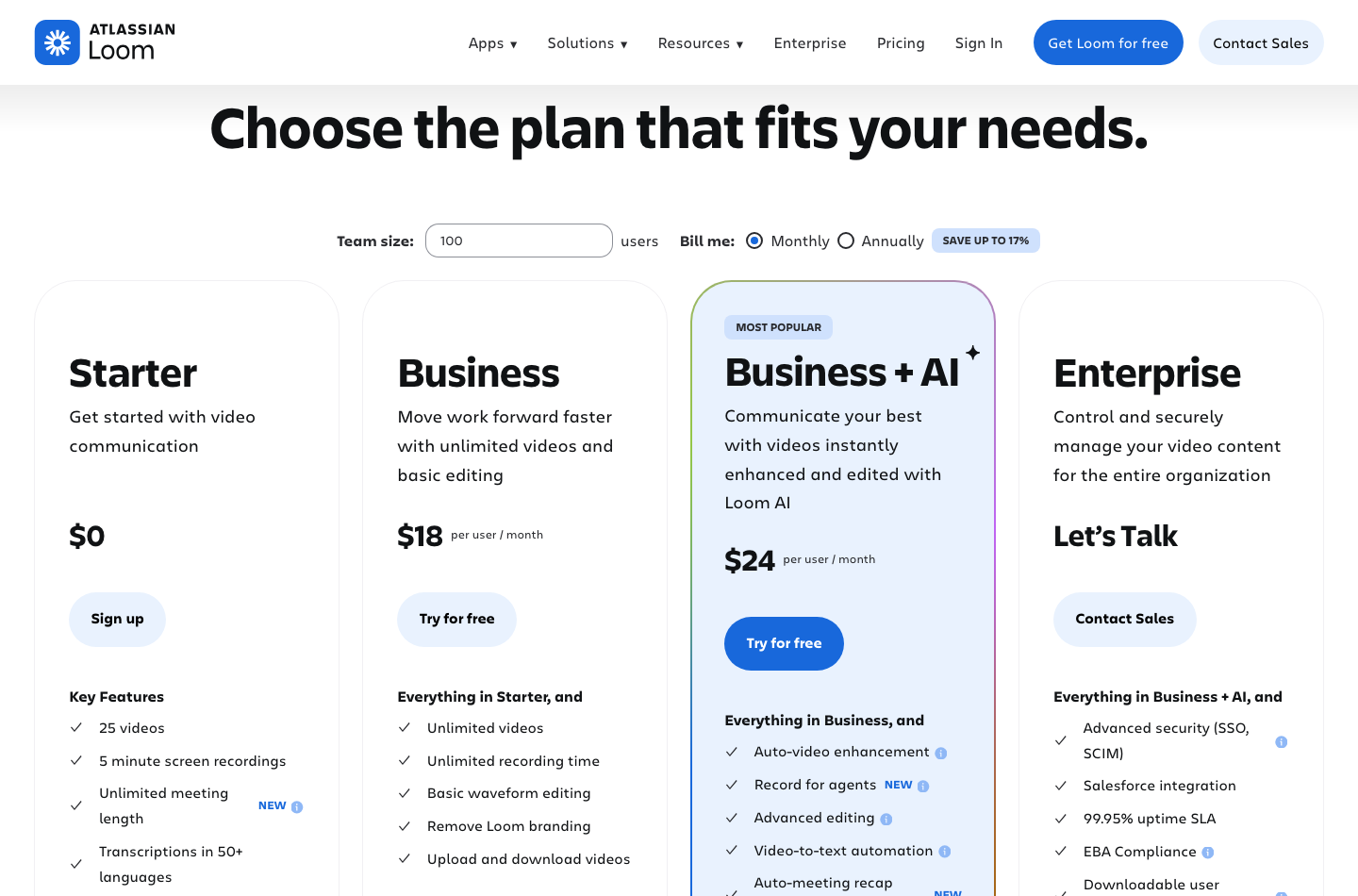
| Question | Current answer |
|---|---|
| Main purpose | Record and share screen, camera and audio for asynchronous communication |
| Entry plan | Starter, $0 |
| Starter limits | Up to 25 videos per person and 5 minutes per screen recording |
| Business | $18 per user/month in official monthly pricing display |
| Business + AI | $24 per user/month in official monthly pricing display |
| Enterprise | Contact sales; customized controls and procurement |
| Integration examples | Slack, Jira, Confluence, GitHub, Gmail, Notion |
| Best fit | Remote teams, customer support, product walkthroughs, internal training |
| Main limitation | Video libraries need retention, security and accessibility policies |
Verdict: Loom is valuable when a quick recorded explanation reduces unnecessary meetings or repeated written instructions. Free Starter is enough for occasional recordings. Paid Business becomes attractive for regular recordings and team workflows, while Business + AI deserves a separate value calculation based on transcription, summaries and administration.
🎯 What Is Loom and Who Uses It?
Loom combines a recording interface with video hosting and shareable playback links. Its central format is often a screen with an optional camera bubble and microphone. It is not a replacement for advanced video editing or a professional live streaming switcher.
A support agent can record a product walkthrough, a developer can reproduce a bug, and a manager can explain a dashboard without scheduling a meeting. Those tasks benefit from visual clarity and short response times. However, important decisions still need a searchable written record; a recording should not become the only accessible copy of a company policy.
🧩 Loom Screen Recorder for Remote Teams
Loom screen recording software is built for concise asynchronous explanations. When comparing Loom video recording software with a professional editor, look at how quickly colleagues can watch, comment and act on the recording.
An asynchronous team often spans time zones. A five-minute Loom recording might replace a thirty-minute status meeting if the recipients can understand and respond at their convenience. That comparison is only plausible when the speaker prepares a concise demonstration and the audience actually watches it.
A useful recording structure includes the problem, the exact step being shown and a requested action. Avoid capturing irrelevant desktop windows, browser notifications or customer data. Screen sharing convenience should not become permission to reveal confidential information.
🎯 Loom for Product Demos and Customer Support
An onboarding specialist may use Loom to explain the first login, a settings change and the place to find account reports. Short visual guides can be easier to follow than an unstructured knowledge-base article. But a video quickly becomes outdated when the product interface changes.
Assign ownership and a review date to customer-facing recordings. If the software’s checkout or security settings change, archived Loom links should not continue telling customers to follow old instructions. Transcripts help searchability but do not automatically keep guidance accurate.
💰 Loom Pricing 2026: Starter vs Business vs Business + AI
The official Loom pricing page lists Starter at $0, Business at $18/user/month and Business + AI at $24/user/month in its monthly-billing view. It also displays an annual-billing toggle with potential savings, so these monthly references must not be interpreted as universal prices for every billing setting.
| Loom plan | Monthly list reference | Included emphasis | Buying caveat |
|---|---|---|---|
| Starter | $0 | Limited recording library, five-minute screen recordings, comments and captions | 25 videos per person, not an unlimited business archive |
| Business | $18 per user | Unlimited videos and recording length, downloads and basic waveform editing | Charge applies to billable users |
| Business + AI | $24 per user | Business plus AI editing, summaries, chapters and task extraction | Check actual AI workflows and eligible seats |
| Enterprise | Custom quote | Organizational controls and support terms | Procurement and contractual scope require written quote |
Loom Starter’s current pricing matrix lists a workspace size of up to 50 members, up to 25 videos per person and five minutes per screen recording. It separately lists unlimited meeting length, which should not be confused with unlimited ordinary screen-recording length. These are materially different product capabilities.
💳 Loom Free Starter: Is 25 Videos Enough?
The Loom free plan is sufficient for a small pilot, but assess the number of recordings people really need and how they will organize or delete them.
A freelancer sending one product walkthrough a week might reach 25 active videos in roughly six months unless they archive or otherwise manage the library. A software team creating several demonstrations every day could hit that ceiling much sooner. The user’s real pattern is more informative than the label Free.
The five-minute screen recording limit can encourage brevity. But slicing one lesson into many clips just to avoid upgrading may cause more confusion than it saves. If a training module genuinely needs fifteen minutes, either plan a coherent series or choose a paid product that supports the intended format.
🎥 Loom Business Pricing for a Team
Compare Loom enterprise pricing with per-seat Business costs on the same headcount and billing cycle. If the job is only Loom desktop recording, a local recorder may be enough; the cloud review workflow is what can justify an extra subscription.
The $18 per-user monthly reference gives a five-person team an illustrative charge of $90 per month, or $1,080 over twelve months if the same monthly price continues. The computation excludes taxes, annual discounts and any special company agreement.
| Illustrative Loom monthly-billing scenario | Monthly cost | Twelve-month equivalent |
|---|---|---|
| 1 Business user | $18 | $216 |
| 3 Business users | $54 | $648 |
| 5 Business users | $90 | $1,080 |
| 5 Business + AI users | $120 | $1,440 |
| Difference: five seats, AI vs Business | $30 | $360 |
The $360 premium in the last row is a model of listed monthly charges. It does not mean a team automatically receives $360 in additional productive output, and it is not a quotation for every organization’s billing environment.
✨ Loom Business + AI Pricing: Does the Upgrade Pay?
Business + AI adds workflows such as automatic video enhancement, summaries, chapters, tasks, filler-word removal and meeting recaps. A team that processes many recordings might save time extracting action items. A casual user recording one screen demo monthly probably will not.
Consider an onboarding manager making sixty internal recordings each month. If an AI summary saves only two minutes of note-taking per recording, that is two hours of effort. But this is an illustrative assumption, not an observed Loom benchmark. Review the accuracy of names, tasks and sensitive meeting details before sharing a generated summary.
🎙️ Loom Annual Billing vs Monthly Billing
Annual billing can reduce the apparent per-seat rate, but it also increases commitment if headcount drops. For a growing organization, the most costly mistake may be assigning a paid seat to every occasional viewer. Determine which users need recording and editing capabilities versus who only needs to receive links.
Ask how Loom’s billing handles new members, guest accounts, deactivated users and ownership of videos. A subscription spreadsheet should distinguish actual creators from internal viewers rather than multiplying the entire payroll headcount by $24.
🎬 Loom Screen Recording Features
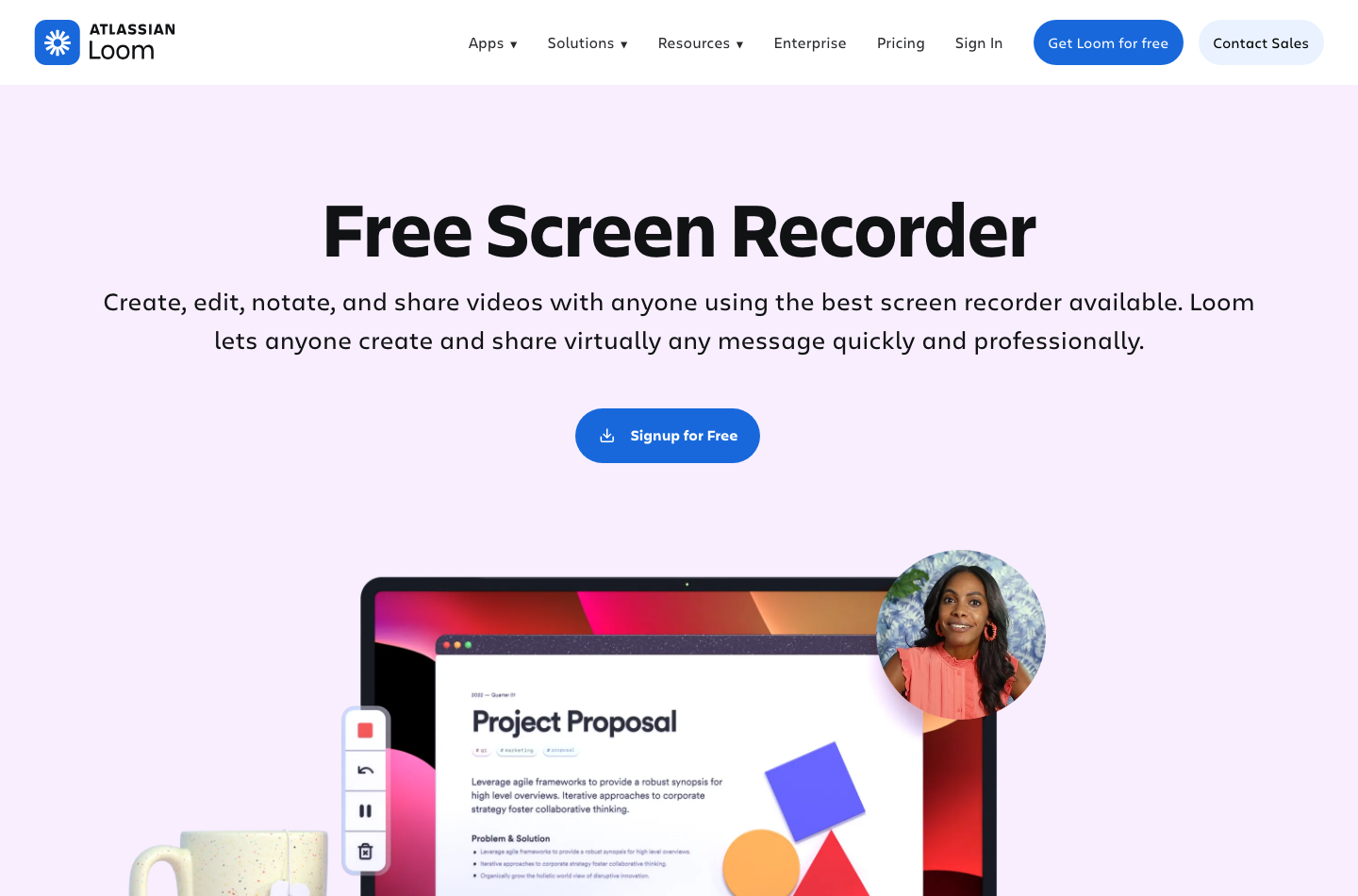
A Loom screen capture is easier to follow when irrelevant tabs and notifications are hidden first. Use Loom for screen recording when showing the actual interaction will be clearer than a written description.
A good recording should answer a specific question. Loom’s screen-and-camera format supports a personable introduction and a visual demonstration, while automatic transcription can help viewers navigate the material. However, long recordings still require planning, and clear audio matters more than a decorative camera frame.
Before recording, close unrelated applications and confirm whether system audio is needed. If an employee is demonstrating an account settings page, use a test account rather than a production account containing real client names or billing records.
📱 Loom Screen and Webcam Recording
The Loom screen recorder extension is convenient for browser demonstrations. Before rolling out the Loom screen recorder Chrome extension to employees, check what access it requests and whether company-managed browsers permit it. A Loom screen and cam recorder setup also needs a microphone test and a webcam bubble that does not cover important controls.
A screen recording with a camera bubble can help establish who is explaining a workflow. It can also obscure a button or text in the corner. Test bubble placement on a narrow mobile player before sharing the clip with a client.
For accessibility, do not convey a critical step only by pointing and saying “click here”. State the control name and position verbally, and include a written note when the interface might differ by platform.
🧠 Loom Transcripts and Closed Captions
Loom Starter already includes transcription and caption features, with its pricing material referring to support across more than fifty languages. Transcription is valuable for searching a tutorial and making spoken explanations more accessible, but automated text needs review for acronyms and accented names.
A support video that teaches an API configuration could be actively harmful if the transcript converts a parameter or product name incorrectly. Check technical terms against the source material, and provide a written command or configuration value where exact spelling matters.
🛠️ Loom Basic Editing and Video Downloads
Business adds unlimited recording length and basic editing such as waveform operations, with upload/download functionality. These are practical improvements for teams that reuse instructional recordings and need backups. They are not equivalent to the color grading or multitrack effects in DaVinci Resolve or Premiere.
When the company expects to preserve a training library for years, verify downloadable file formats and caption exports. A playable link is convenient today, but a company needs a recovery plan if the platform or the employee account changes.
🤖 Loom AI Features: Summaries, Chapters and Tasks
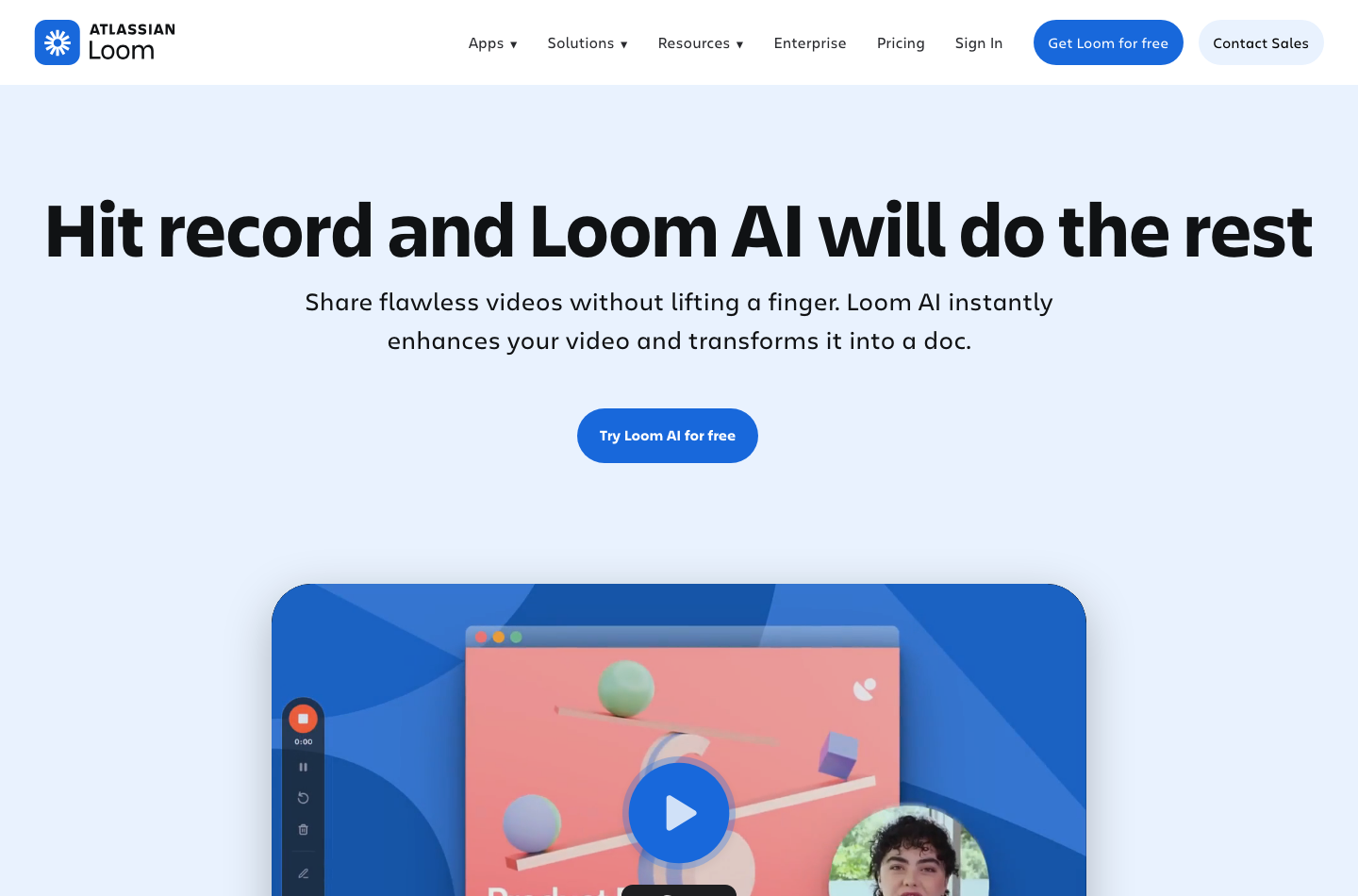
Loom AI can generate titles, summaries and chapters so viewers can find the relevant part of a recording more quickly. The stated capabilities include titles, summaries, chapters, tasks and filler-word removal in different plans. Which ones actually work well depends on speech quality and the language used.
If a manager discusses a future launch, an AI-generated task may appear confident even when the meeting was speculative. Require a human to approve action items before importing them into Jira or distributing them as commitments.
⚙️ Loom AI Meeting Notes and Recaps
Meeting recaps can reduce the time an organizer spends turning a call into a summary. But a recorded conversation contains more context than a list of bullets, including tentative ideas, disagreements and private information. The recap should record uncertainty rather than inventing decisions.
A reliable evaluation compares Loom’s generated recap with the recording and the meeting agenda. Mark incorrect owners, deadlines and unresolved questions. Judge success by whether the recap is safe to send, not just whether it sounds polished.
📁 Loom Filler-Word and Silence Removal
AI editing can remove hesitations and pauses from a recorded tutorial. That’s useful when an instructor loses their place, but excessive removal can change meaning, emotional tone or the pacing required to understand a difficult step.
Review the final cut with a second person. A two-second pause may be essential while viewers locate a control on their screen. Faster playback is not automatically better teaching.
🔊 Loom Integrations: Slack, Jira, Confluence and GitHub
Loom’s pricing matrix mentions integrations with collaboration and developer applications including Slack, Jira, Confluence and GitHub. An organization can link recordings to tasks or documentation rather than sending bare URLs that vanish into a chat.
Integration does not guarantee permanent access. A ticket with a Loom link may remain open after the original account owner leaves or the video’s privacy settings change. Determine whether videos live under a shared organizational ownership model and how external participants are restricted.
🔗 Loom and Atlassian Workflow
Loom belongs to Atlassian’s product ecosystem, making Jira and Confluence relevant places for instructional recordings. A product manager might attach a Loom reproduction clip to an issue, while a support team embeds onboarding material in a documentation page.
A sound process still stores the written issue summary in Jira, including expected and actual behavior. Loom supplements the evidence; it should not be the only explanation of acceptance criteria.
🔎 Video Permissions and Sharing Links
A link can be private, workspace-restricted or shareable according to the specific account settings. Verify whether external viewers must authenticate, how access is revoked and whether comments expose names or internal context. Do not equate a difficult-to-guess URL with strong access control.
Before recording sensitive content, ask whether the platform supports appropriate administrative settings and what happens to videos when an employee account is deactivated. Use test content when evaluating external invitations.
⚖️ Loom vs OBS Studio, VEED, Camtasia and ScreenPal
| Tool | Primary role | Choosing factor |
|---|---|---|
| Loom | Async screen and camera messaging, share links, transcriptions | Best for quick explanatory team communication |
| OBS Studio | Scene-based recording and live broadcasting | More flexible production controls, but no built-in async collaboration workflow |
| VEED | Browser editing, subtitles, templates and AI short videos | Better for polishing externally published marketing clips |
| Camtasia | Desktop recording plus instructional editing | Better for more complex tutorial postproduction |
| ScreenPal | Screen capture and teaching workflows | Consider when education-focused editing or licensing fits better |
| Adobe Premiere | Professional multitrack video editing | Overkill for a simple product feedback message |
🚀 Loom vs OBS Studio for Screen Recording
OBS Studio is free, capable and highly configurable for recording and live production. It can capture complicated scenes, camera feeds and audio sources, but does not automatically provide Loom’s sharing, viewer-comment and team-library experience.
A technical creator might prefer OBS for tutorials that require elaborate overlays or controlled audio routing. A product manager simply explaining a bug may finish faster with Loom. These are different jobs; a checklist of overlapping “screen record” features will not settle them.
📺 Loom vs VEED for Edited Tutorials
Loom is ideal for a quick screen demonstration that must be shared immediately. VEED offers broader browser editing, styling and AI video creation. If every tutorial needs subtitles, transitions, logos and branded exports, VEED may be the better production environment after recording.
For internal-only usage, avoid buying a second editing product unless the existing Loom features demonstrably create friction. The goal is understandable communication, not assembling the largest tool stack.
📝 Loom vs Zoom and Google Meet
Video meeting tools emphasize live conversation. Loom emphasizes asynchronous recording and playback. A team may still need meetings for negotiation, high-stakes decisions or ambiguous problems; a recording cannot ask clarifying questions in real time.
The most useful balance is to record predictable updates and reserve live meetings for work that benefits from interaction. Measure meeting hours saved while checking whether employees actually watch and respond to the clips.
🔐 Loom Adoption Playbook: Making Asynchronous Video Actually Useful
⚖️ Deciding When to Record and When to Write
A screen recording can spare everyone a meeting. Too many unsorted recordings, however, create a different kind of backlog. Choose the message format before you press Record. Record when motion, visual context or a human walkthrough helps the recipient understand the message. Write a short note when the information is a single date, a simple approval or a fact the team will need to scan repeatedly. Use a live call when a complex disagreement needs immediate back-and-forth.
For example, a designer explaining three changes to a website can record a screen walkthrough, highlighting exactly where a button looks misaligned and showing the intended behavior. A colleague can watch in their own time and respond with a timestamped comment. By contrast, a procurement approval that requires a durable amount, contract reference and designated signer belongs in a structured record, even if a Loom video provides additional context.
Aim for one core message per video. Open with the intended outcome, show the relevant screen, explain the decision or request and finish with a clear next action. If the viewer must follow three unrelated tasks, split the recording into focused clips or add a written summary with direct links. An excellent recording makes it easy to act without scheduling another meeting.
Do not assess adoption purely from videos created. A team can produce hundreds of recordings without reducing interruptions. Track whether recipients understand the next action, whether decisions are documented and whether videos avoid redundant calls. A useful Loom library should improve communication, not become a substitute for writing down important commitments.
🎛️ Building a Searchable Library Without Creating Video Clutter
Loom’s Starter limit of 25 videos per person and five minutes per ordinary screen recording can be enough for small experiments, but long-term organizational use needs an archive policy. Decide which recordings are temporary explanations, which contain reusable training knowledge and which should become maintained written documentation. A six-month-old screen capture of an application may show a menu that has since moved, so freshness matters as much as storage volume.
Organize reusable recordings by task, not only by the employee who made them. Titles such as ‘How to approve an invoice in the current workflow’ are more discoverable than ‘Quick update for Tuesday’. Include the applicable software version and a review date in accompanying notes for important training material. When a process changes, update the canonical document and replace or deprecate the obsolete video.
Automatic transcripts, summaries and chapters can help viewers find key details, but searchable AI text may contain misheard names or incorrect action items. For frequently reused training, review the generated summary and add a written checklist of the actual steps. That checklist remains usable by colleagues who prefer text or cannot access audio in their environment.
A practical onboarding library can have three layers: a two-minute orientation, several task-specific walkthroughs and a concise text index. New colleagues can find the exact step they need instead of watching a forty-minute recording each time. As the library grows, assign owners for accuracy and deletion so no one mistakes outdated demonstrations for current company policy.
🧩 Privacy, Permissions and Sensitive Screen Recording
Screen captures frequently contain more information than the speaker intended. Browser tabs may reveal client identities, notification banners can display messages and shared dashboards may contain commercial or personal data. Prepare a demonstration account or sanitized test dataset whenever possible. Close irrelevant tabs, turn on do-not-disturb, remove visible tokens and rehearse the screen path before starting.
Before sharing, inspect the recording and link permissions. A URL that is convenient inside an organization may become a problem if forwarded externally. Confirm whether viewers need authentication, who can invite more people, whether downloads are permitted and how the workspace handles departing employees. Internal instructions should distinguish between public-facing tutorials and confidential operational recordings.
For customer support videos, avoid showing real credentials, payment information or identifiable client records. If confidential content is genuinely necessary, follow the employer’s policies for retention, consent and approved storage. A communication platform is not automatically an authorized repository for regulated or highly sensitive material. Also consider whether local laws or organizational policies require consent before recording participants in a meeting.
Deletion and offboarding deserve equal attention. Decide how long routine troubleshooting clips remain available and what happens to videos owned by a departing employee. Export or document critical training content before restructuring the subscription. The goal is reliable institutional knowledge without accumulating a permanent archive of every incidental screen share.
🎯 Calculating Per-Seat Value and AI Upgrade Economics
The official Loom monthly pricing references are $18 per user for Business and $24 per user for Business + AI. For an illustrative eight-person team, Business would be $144 per month or $1,728 over twelve months at those monthly rates. Business + AI would be $192 per month or $2,304 over twelve months. The difference is $48 per month, or $576 in a year, before taxes, region-specific terms or annual-plan discounts. Actual billing can differ; use the checkout for a real quote. Official Loom plans.
The question is whether AI features save at least that difference in useful staff time. If summaries and automatic action-item extraction reduce manual follow-up for a team recording many walkthroughs, they may be valuable. If people make only a handful of simple videos each month, the free plan or standard Business edition may be enough. Do not calculate savings from the theoretical number of features enabled; measure changes in meetings avoided, repeated support questions and time spent documenting decisions.
Run a small pilot across two comparable weeks. Agree in advance on the types of communication suitable for Loom, record the number of active creators rather than everyone with an account and capture outcomes such as response time and follow-up clarity. Ask recipients whether the video helped more than a written note would have. Include the extra effort of editing mistakes and correcting AI summaries.
Finally, compare Loom with the team’s existing tools. OBS Studio may be a better choice for advanced local screen capture and live production; VEED may be better for polished marketing edits. Loom fits quick asynchronous communication, not every kind of video production. Keep both Loom and a video editor only when the team regularly needs two different workflows: quick screen messages and polished finished videos.
✅ Loom Pros and Cons
| Strengths | Limitations |
|---|---|
| Fast screen-and-camera explanation workflow | Free tier caps videos and screen-recording duration |
| Shareable links, playback and viewer comments | Link access requires privacy policy and administration |
| Transcripts and captions aid navigation | Auto-generated text can mishear technical language |
| Business enables unlimited recording | Pricing scales with paid creators |
| AI summaries and task extraction for frequent users | AI output can misstate decisions or deadlines |
| Integrations with collaboration tools | Video ownership and retention require management |
🧪 How to Test Loom With a Small Team
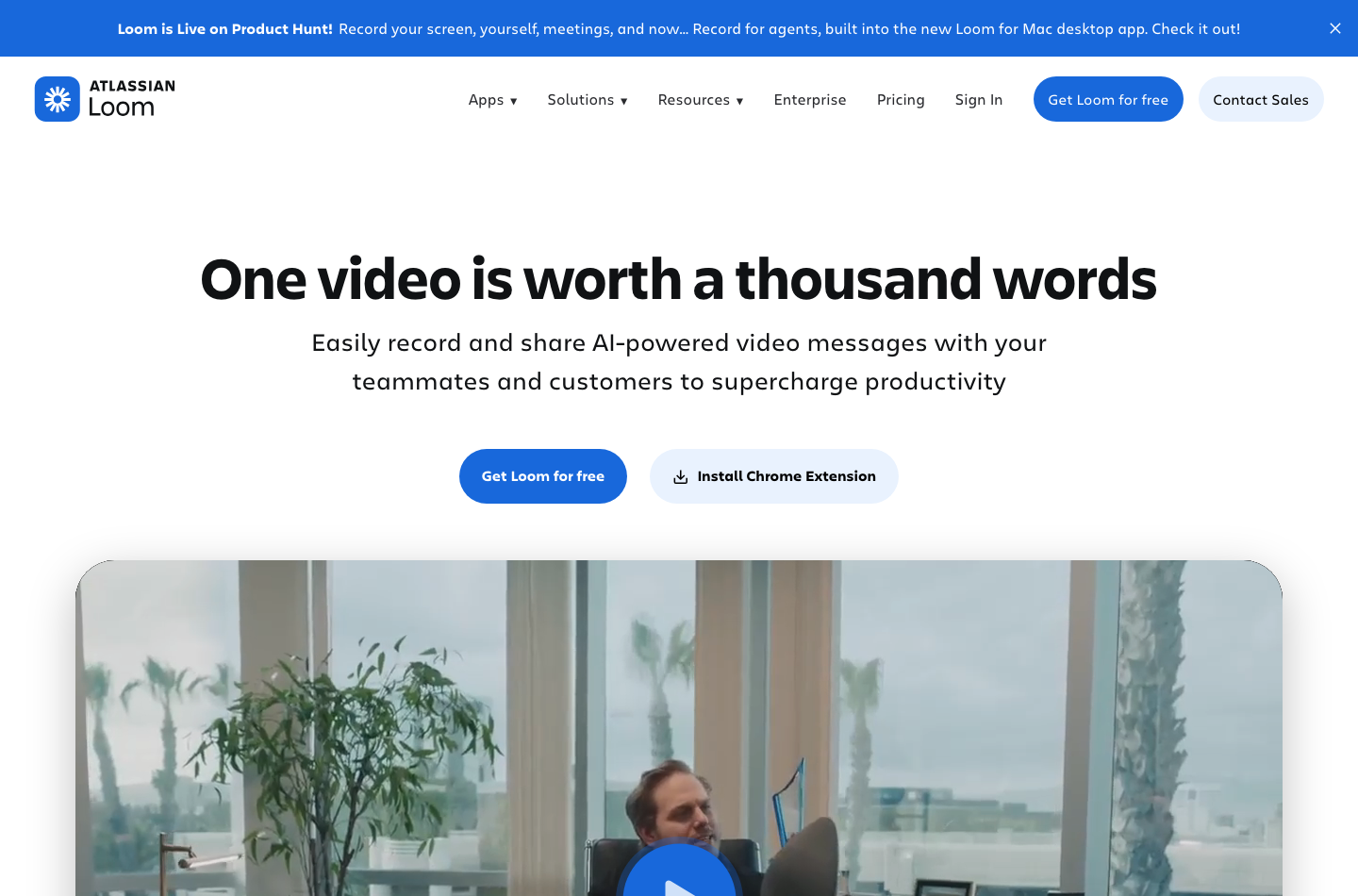
DigiOffly’s proposed test is not a report of a paid-account experiment.
Have an authorized employee create a ninety-second clip demonstrating a harmless task in a test application. Record screen, camera and microphone. Share it with another person and inspect whether the playback experience is clear without a meeting.
Then test a five-minute instructional recording on Starter. Note whether a recording over the free limit requires upgrading. Review transcript accuracy for one product name and one technical instruction. If eligible for an AI trial, generate tasks and compare them with what the speaker actually said.
Finally, ask the administrator to revoke the viewer’s access and check that the URL no longer works for them. Export a sample recording and transcript if the relevant plan permits it. These checks matter more than an abstract count of template features.
🏁 Privacy, Accessibility and Records Retention
Screen recordings can capture confidential documents, personal conversations, names, account numbers and sensitive application states. Establish a policy for masking private data, who may record customer sessions and whether consent is required under the company’s legal obligations.
Auto-generated summaries should not be considered authoritative when they contain personal or financial information. Define a retention period for internal recordings and provide a way to correct outdated training materials. The organization also needs a written alternative when accessibility requirements make video-only explanations unsuitable.
🎨 Final Verdict: Is Loom Worth It in 2026?
Loom is a worthwhile addition for remote teams and customer-support workflows that regularly communicate through visual explanations. Its main benefit is making work easier to understand without requiring a synchronous meeting, not replacing a full editing studio.
Start with Starter to measure video volume and duration. Choose Business when unlimited recordings, downloads and organization features are needed. Pay for Business + AI only if the generated summaries, chapters and tasks reliably save time after review. Check per-user billing and how member changes affect the total.
💳 Official Sources Used
Loom pricing · Screen recorder · Loom AI · Enterprise · Loom home.

Frequently Asked Questions
Is Loom free in 2026?
Yes. Starter is $0 and currently includes up to 25 videos per person and five-minute screen recordings.
How much is Loom Business?
The official monthly-billing pricing display shows $18 per user per month. Annual billing may differ and regional taxes can apply.
How much is Loom Business + AI?
The official monthly-billing reference is $24 per user per month, with AI features and other usage/eligibility conditions.
Can Loom record longer than five minutes?
Paid Business and Business + AI have unlimited screen recording length; Starter lists a five-minute screen-recording cap.
How many videos can I make on Loom Starter?
The current pricing page lists up to 25 recordings per person on Starter.
Does Loom include automatic transcription?
Yes, Loom advertises transcription and captions on its plans, but exact names and technical terms may require manual review.
What can Loom AI do?
Depending on plan, Loom AI supports summaries, chapters, action items, edits and meeting recaps. Generated outputs should be verified.
Does Loom integrate with Slack and Jira?
The vendor lists Slack, Jira, Confluence, GitHub and other collaboration integrations. Integration access and permissions depend on setup.
Is Loom better than OBS Studio?
Loom is faster for async recording and sharing; OBS offers more detailed recording/live production controls.
Is Loom better than VEED?
Loom suits rapid explanatory screen videos, while VEED offers browser editing, captions and social-oriented production.
Can I use Loom for confidential company videos?
Only after evaluating access controls, retention, organizational ownership and the content shared. Do not rely on link secrecy alone.
EXPLORE NEXT ON DIGIOFFLY
Compare Creator & Streaming Tools
Compare Loom with streaming, creator and editing software while preserving meaningful cost and feature distinctions.
Explore creator software
- Creator & Streaming — See the published production and streaming categories.
- OBS Studio review — Compare free recording and live production.
- Streamlabs review — Check overlays, live alerts and streaming workflows.
- Synthesia review — Compare casual screen messages with reusable training videos.
Choose the right tools
- Software Directory — Browse confirmed software categories and plans.
- AI Software Finder — Filter tools by verified production needs.
- Compare software — Compare published capabilities and costs.
- Zoom review — Compare live team calls with Loom asynchronous updates.
Plan a practical stack
- Software Cost Calculator — Model monthly costs, seats and annual payments.
- Best Value Advisor — Shortlist products for the work you actually do.
- Ready-Made Software Stacks — See ways to avoid duplicating creator subscriptions.
- Compare team communication and productivity software — Combine async video updates with a shared task system.
- Ecamm Live — Mac-focused live video, interviews, scenes and isolated recording
Public software pricing and features change. Verify regional licensing, usage credits and invoice terms on the vendor site before buying.