

Google Sheets to HubSpot Automation with Make
Google Sheets to HubSpot automation is useful when a small team has approved prospect records in a spreadsheet but needs one reliable CRM record for follow-up. This guide connects a restricted Google Sheet, Make, HubSpot and Slack. The spreadsheet is an intake queue, not a competing CRM. The goal is a repeatable import with a clear audit trail, not automatic marketing enrollment.
By Alex Wright, DigiOffly · November 15, 2026 · Source-led implementation blueprint. We checked official connector and billing documentation; no paid-account integration or live automation benchmark is claimed.
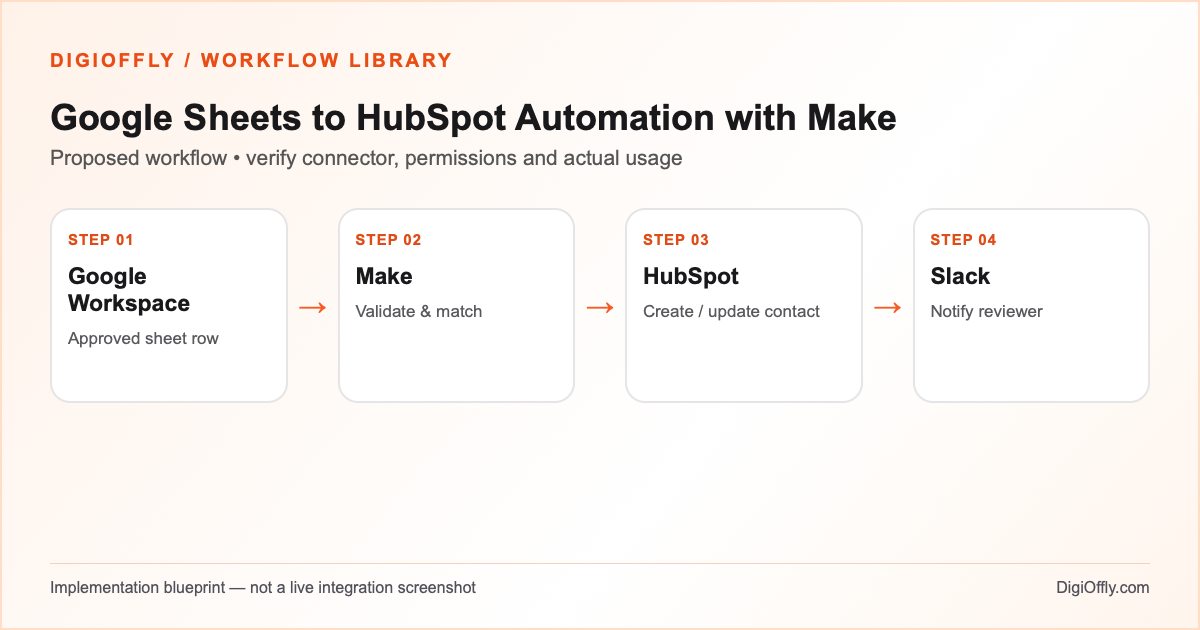
Google Sheets to HubSpot automation: what you will build
An eligible row produces one confirmed HubSpot contact ID and a recorded processing outcome. The automation rejects incomplete or ambiguous records, and a restricted notification alerts the reviewer to exceptions. A later correction to a sheet cell does not silently overwrite the customer record.
Use Google Sheets to HubSpot automation when a team collects structured records from an approved source such as an event registration export or a manually reviewed research list. If the original source already connects directly to the CRM, compare that simpler route first. Do not use a spreadsheet to bypass the customer data policies of your organization.
Decide what a row is allowed to change
A Google Sheets to CRM automation needs a stable source identifier and a separate CRM identifier. A row number can change after sorting, inserting or deleting rows, so it is not a permanent key. Store a generated source ID, approval state and last completed import stage in a controlled table. A changed email address is a review case unless the source identity and target contact are unambiguous.
For Google Sheets to HubSpot automation, define field ownership before opening the connector. HubSpot owns the final customer record; the sheet may propose name, company and a permitted contact purpose. Existing CRM consent, owner assignments and verified properties should not be replaced with blanks or unapproved changes. Distinguish a successful record update from a successful status write back to the sheet.
Software and prerequisites for Google Sheets to HubSpot automation
Google Workspace
Google Sheets input (Google Workspace)
Make
Orchestration
HubSpot
CRM records
Slack
Exceptions and review
Before connecting any production account, confirm access, the exact connector event and action, supported plan and test environment. Treat the following field names as your own design; adjust them to the actual source and destination schema.
Google Sheets to HubSpot automation: data mapping
| Source | Destination | Mapping rule |
|---|---|---|
| Immutable source row ID | Processing register | Stable across row sorting and replay; use a separate ID column. |
| Email and customer reference | HubSpot contact match | Normalize email; use a documented identity rule and review conflicting matches. |
| Company and name | Contact properties | Map only approved, nonblank fields; preserve existing authoritative values. |
| Approved / Ready | Eligibility condition | Exclude drafts and rejected rows; recheck before write. |
| CRM contact ID | Source status / mapping register | Persist the actual destination ID before marking completed. |
| Failure category | Restricted Slack notification | Include row ID and review link, not the full spreadsheet. |
How to set up Google Sheets to HubSpot automation
1. Prepare a controlled intake sheet
Create a dedicated tab with explicit headers: row ID, email, company, approval, status, contact ID and error reason. Populate a small set of fictional rows for the pilot. Use a durable row ID rather than the index shown on screen. Make documents that blank rows can interrupt Watch New Rows processing; keep the watched data contiguous. If approvals can change after a row is inserted, a scheduled search for eligible records may fit better than a new-row trigger. Decide how the schedule will handle already processed rows.
2. Connect the apps with restricted access
Authorize Google Sheets for the intended spreadsheet and HubSpot for the actual CRM account. The Make HubSpot connector documents contact search, creation and update actions. Confirm the relevant app approval, scopes and property access in your account. Create a Slack channel available only to the review team. Google Workspace is the budget entry for the spreadsheet tool, not an extra connector subscription. Avoid sharing a broad drive or the entire customer database just because the scenario needs one source tab.
3. Build the Make Google Sheets workflow
Use the documented row trigger or scheduled search. Inspect the output from a test row to verify how header names, dates and empty values appear. Require Ready and a nonempty stable identifier. Validate a contact email and check the source purpose. Look up the row ID in your processing register before proceeding. A previously completed ID should go to reconciliation rather than to another contact creation. Preserve a clear reason when validation stops a row; the operator must be able to distinguish invalid input from a connector failure.
4. Match the customer before writing
Search HubSpot using the agreed identity rule. CRM contact deduplication depends on the quality of that rule and safe writes, not merely a lookup module. If exactly one record matches, update only approved fields. If no record matches, create according to the documented policy. If several records or a changed address create uncertainty, route the row for review. A lookup followed by a create can race under concurrent runs; use serialized processing or a destination operation that enforces safe uniqueness and test it. Do not infer marketing permission from the spreadsheet.
5. Record the destination ID and result
Persist the actual CRM contact ID and the last completed stage in a durable mapping. Only after that write succeeds should the sheet display Completed. If a status write fails, retry the status write using the existing mapping rather than starting over. Send a compact Slack alert when a record needs human attention; include a row ID, issue type and authorized record link if present. Avoid copying the sheet payload, raw contact notes or account credentials into the alert.
6. Pilot the Google Sheets HubSpot integration
Run the Google Sheets to HubSpot automation against synthetic rows first: a new valid contact, an existing one, a duplicate row ID, a blank gap, an unapproved row and a changed email. Compare the resulting CRM IDs with the source register. Force a status-write failure and confirm that retry does not create another contact. Once the responsible owner approves the test, run a small production batch and reconcile before increasing frequency. Record actual credits and any exception handling overhead.
Google Sheets to HubSpot automation: test cases before launch
These are acceptance criteria for your pilot, not test results. Record the source event ID and the destination ID in each test. Compare the intended outcome with the actual one before enabling the scenario.
| Test case | Expected result |
|---|---|
| Approved new row | One contact with correct properties and a recorded CRM ID. |
| Same source ID replayed | No duplicate creation; existing mapping is reconciled. |
| Existing CRM contact | Only authorized fields updated; consent and owner preserved. |
| Blank row or draft row | No unintended write; eligible records not silently skipped. |
| Changed email or multiple matches | Human review, not a guessed identity merge. |
| Status update fails after CRM write | Retry the status stage with the same destination ID. |
Google Sheets to HubSpot automation: failure recovery
If Google Sheets to HubSpot automation stops after the CRM write, the last successful destination ID is your recovery anchor. Resume the pending sheet update rather than replaying creation. Keep a separate error state for invalid input, revoked credentials and temporary service failures. Fix invalid mappings or access before retrying. For scheduled searches, reconcile eligible source IDs against completed IDs so a missed event is visible. The team must decide who owns failed rows and how long test records are retained.
Security and ownership in Google Sheets to HubSpot automation
Keep the intake sheet restricted to authorized staff. Limit the CRM connector to necessary contact permissions and do not distribute private notes to Slack. Store only the minimum audit evidence required for deduplication and review. Handle correction and deletion requests in both systems according to the applicable rules. Google Sheets to HubSpot automation must not turn an imported email into marketing consent; preserve the existing CRM consent state and separate approved marketing workflows from sales record preparation.
Google Sheets to HubSpot automation: usage and pricing
The sample uses 800 approved rows, four credits per row, 100 additional monthly credits and a 20% reserve: (800 × 4 + 100) × 1.20 = 3,960 credits. A row search, CRM match, write and status update are plausible components of the average, but notifications, processing-register writes and repeated searches can add operations. Empty scheduled checks may also consume credits. The estimate is not measured usage.
Compare HubSpot CRM pricing and Google Workspace account costs separately from Make consumption. The calculator imports the four catalog products and three-seat example, then lets you review each plan. Account allowances, contact limits and annual commitments differ. For an automation cost comparison, include the time spent resolving failed or ambiguous rows; a cheaper plan that loses approved records may be more expensive operationally.
Calculate Google Sheets to HubSpot automation cost
Illustrative workload, not measured consumption. Change each input for your design.
3,960 estimated credits / month
Calculate stack cost & optimizeMake normally charges ordinary module operations; some modules are exempt or use other rates. Polling, multiple bundles, AI and code can change demand. The calculator applies the catalog’s documented plans, not a vendor invoice.
Measure Google Sheets to HubSpot automation after rollout
Measure accepted source IDs, confirmed CRM IDs, duplicate contacts, records routed to review and time from approval to completed import. Review the count of rows left in Processing at the end of each day. Google Sheets to HubSpot automation is successful only if the source and destination agree, not simply because the scenario reports a green run.
Google Sheets to HubSpot automation: frequently asked questions
What is Google Sheets to HubSpot automation?
It transfers approved spreadsheet records into the CRM through a documented workflow. This blueprint uses Make to validate, match and write contacts while maintaining a separate source-to-destination mapping.
Can Make connect Google Sheets to HubSpot?
Yes, official connectors cover spreadsheet rows and CRM contacts. Configure the intended account, supported module, permissions and field mapping, then test with synthetic records.
Should I use Watch New Rows or a scheduled search?
Use a new-row event for records already eligible when added. If approval is set later, a scheduled search may be more appropriate; account for empty checks and repeated rows.
Why can blank spreadsheet rows be a problem?
Make warns that Watch New Rows may stop processing subsequent rows after a blank row. Keep the source contiguous or choose another documented search method.
How does Google Sheets to HubSpot automation prevent duplicates?
Maintain a stable source ID, confirm the customer identity and persist the CRM ID. Test overlapping executions and enforce safe uniqueness before allowing automatic creation.
Can I use the row number as an ID?
No. Sorting, deletion and insertion can move records. Use an immutable source ID in a dedicated column and retain the actual CRM identifier.
Does an imported contact have marketing permission?
No. A contact record is not proof of consent. Keep marketing authorization independent and do not overwrite suppression or opt-out information.
What if Slack fails after the CRM update?
Retain the confirmed contact ID and retry the notification independently. Do not repeat the CRM write merely because an alert failed.
Can the spreadsheet update existing CRM data?
Only if the field ownership policy allows it. Preserve CRM-owned values and route ambiguous or unauthorized changes to human review.
How many credits does the example use?
The Google Sheets to HubSpot automation estimate is 3,960 credits for the stated workload. Actual operations, polling, bundles and retries must be measured.
Where can I calculate the subscription cost?
Use the editable budget below and select appropriate plans in the calculator. Unknown vendor prices and account-specific fees require separate confirmation.
Official sources for Google Sheets to HubSpot automation
Vendor documentation checked on November 15, 2026. The workflow design, sample field mapping, acceptance tests and budget arithmetic are DigiOffly editorial examples. Verify your exact account entitlements, current modules and actual operation counts before enabling production. No automation has been installed or executed by this guide.
- Google Sheets modules
- HubSpot CRM connector
- Slack connector
- Make credit consumption rules
- Make error handling
After Google Sheets to HubSpot automation: related workflow guides
- Workflow Library — compare all eight practical blueprints.
- AI Content Workflow Automation with Human Review
- Mailchimp Email Marketing Automation with Make
- QuickBooks Invoice Automation: Approval and Reconciliation
- Software Finder — choose tools for another workflow.
- Software Cost Calculator and Stack Optimizer — compare annual billing and alternatives.
- Make vs Zapier — compare the two automation platforms.
- Workflow Builder — customize the proposed stack and compare usage assumptions.
- Software Stacks — plan the rest of your business software.