

Editorial research note: DigiOffly checked OBS Project documentation and its version 32.2.2 release information on October 15, 2026. This is a researched workflow and buying analysis, not a claim that we completed controlled benchmarking, operated the latest OBS build on every operating system, or tested a production broadcast with live viewers. Figures about required hardware, streaming bitrates and connected services are conditional; actual results depend on the computer, encoder, capture method, network and destination.
Price and licensing note: OBS Studio itself costs $0, uses a free/open-source software license, and does not sell an Ultra, Creator or Pro subscription. A complete creator workflow can nevertheless incur costs for cameras, capture cards, audio hardware, internet connectivity, restreaming services, overlays, editing software and paid third-party plugins. Download only from the OBS Project website or another source the project explicitly endorses.
A good streaming setup is judged by what happens during the worst sixty seconds, not by the number of glossy overlays on the screen. Your game suddenly spikes GPU usage. A viewer says the microphone sounds metallic. A guest arrives five minutes late, and the recording needs to survive a laptop restart. This is why the question behind an OBS Studio review is not simply whether the program can stream to YouTube or Twitch. It is whether a creator can build a reliable, understandable workflow without creating a fragile collection of settings.
OBS Studio remains a remarkable deal in 2026: a full desktop capture, production and recording environment with no software subscription. Scenes can combine a game feed, capture card, camera, browser source, text and graphics. Audio can be mixed and filtered. A separate local recording can support editing, while a live output goes to a streaming destination. Studio Mode, hotkeys, the Replay Buffer and plugins let a one-person producer operate something closer to a compact control room than a simple screen recorder.
The drawback is that OBS rarely finishes the job for you. It does not include a complete web-based guest booking system, cloud multistreaming distribution, automatic viral short generation or a managed library of paid sponsorship workflows. Its free price also cannot repair an overloaded encoder, noisy room, weak upstream connection or incorrect audio routing. Those are real setup responsibilities that may cost more time than a monthly subscription elsewhere.
Our position is straightforward. For creators who can invest in a thoughtful setup, OBS is an excellent production engine with unusually generous control. For someone who needs to go live from a browser with remote guests in ten minutes, another product may get a workable result sooner. The right answer depends on your signal path, not the popularity of a software logo.
🎯 OBS Studio at a Glance: The Short Verdict
Best fit: Gamers streaming or recording gameplay; educators teaching from screen capture; technical presenters; solo creators producing tutorials; podcasters who already have clean input feeds; small studios comfortable with an encoder, scenes and audio routing.
Poor fit: A team expecting OBS to manage remote guest invitations, web-hosted recordings, direct multistream distribution, branded video editing, audience monetization and automatic short-video publishing as one turnkey subscription. Those functions can be added around OBS, but they are not all native capabilities.
Core price: Free forever for the software itself; no paid tiers or official paywall for recording, scenes, filters or broadcasting. OBS Project funding is separate from software licensing. For a business, the relevant financial calculation is equipment, staff time, hosting and external software.
Operating systems: Windows, macOS and Linux. The official download homepage for the 32.2.2 build lists macOS 13 or newer and Windows 10/11; minimum supported versions can change across OBS releases. Always check the current OS-specific download and the manufacturer’s encoder requirements rather than assuming an older computer can run the newest build.
What changed in 2026: OBS 32.1 overhauled the audio mixer and introduced WebRTC support. OBS 32.2 changed the process for adding sources, including a new source dialog, plus other production refinements. The latest stable release shown by the OBS Project when checked was 32.2.2, dated August 14, 2026. These are specific release-history facts, not invented promises of faster rendering.
Buying decision: Choose OBS when local production flexibility matters more than an integrated commercial workflow. Budget for capture and audio equipment before spending on overlays or optional services. Run a complete private rehearsal, including a finished recording, before committing to a public livestream.
🧭 What OBS Studio Is — and What It Is Not
OBS stands for Open Broadcaster Software. OBS Studio is a local desktop application that takes audio and video inputs, arranges them in scenes, processes them and produces an encoded output. That output can be a live feed, a file on disk or a virtual camera signal for another application. The distinction between local production and online delivery is fundamental: OBS controls how your broadcast looks and sounds, while the destination controls viewer access, moderation, platform policies and many playback decisions.
Imagine filming a live technology demonstration. You need to show your laptop screen, place the microphone signal above background music, display a title and cut to a camera when answering questions. OBS handles this composition. If you want a producer to invite four remote guests by a browser link, automatically generate a video page and distribute recordings to a shared editing workspace, that requires additional infrastructure or another service. A useful OBS setup often combines several products instead of replacing them.
This division also explains why comparing OBS to a cloud streaming studio solely by monthly price is misleading. The cloud studio is selling access, workflow, hosting and convenience. OBS is giving you an extensible production engine running on your own hardware. A zero-dollar subscription can represent outstanding value and still demand eight hours of learning before the first polished event. Conversely, a paid browser studio can feel inexpensive if it saves a busy team from supporting capture drivers and remote connections.
OBS is not designed to be a full nonlinear video editor. It can record multiple sources and tracks, replay recent footage and send video to applications, but complex timeline editing, subtitles, color grading, multicamera post-production and publication workflows are usually better handled elsewhere. For post-production, consider a dedicated editor such as CapCut, or research the published Descript review for a different editing philosophy. A recording pipeline and an editing pipeline are adjacent, not identical.
Nor is OBS’s visual interface a guarantee of a private broadcast. You remain responsible for the stream key, selected window, notification visibility, personal documents in view and any background audio. The project gives you precise controls; using those controls safely is part of being the producer.
💻 Download, Licensing and Supported Computers
The official OBS homepage describes the software as free and open source for video recording and live streaming. There is no official paid Basic or Pro plan to unlock recording or additional scenes. Be skeptical of pages charging for an “OBS subscription”: they may be reselling related services, training or a different product. A legitimate paid overlay pack is not the same thing as paying the OBS Project for the application.
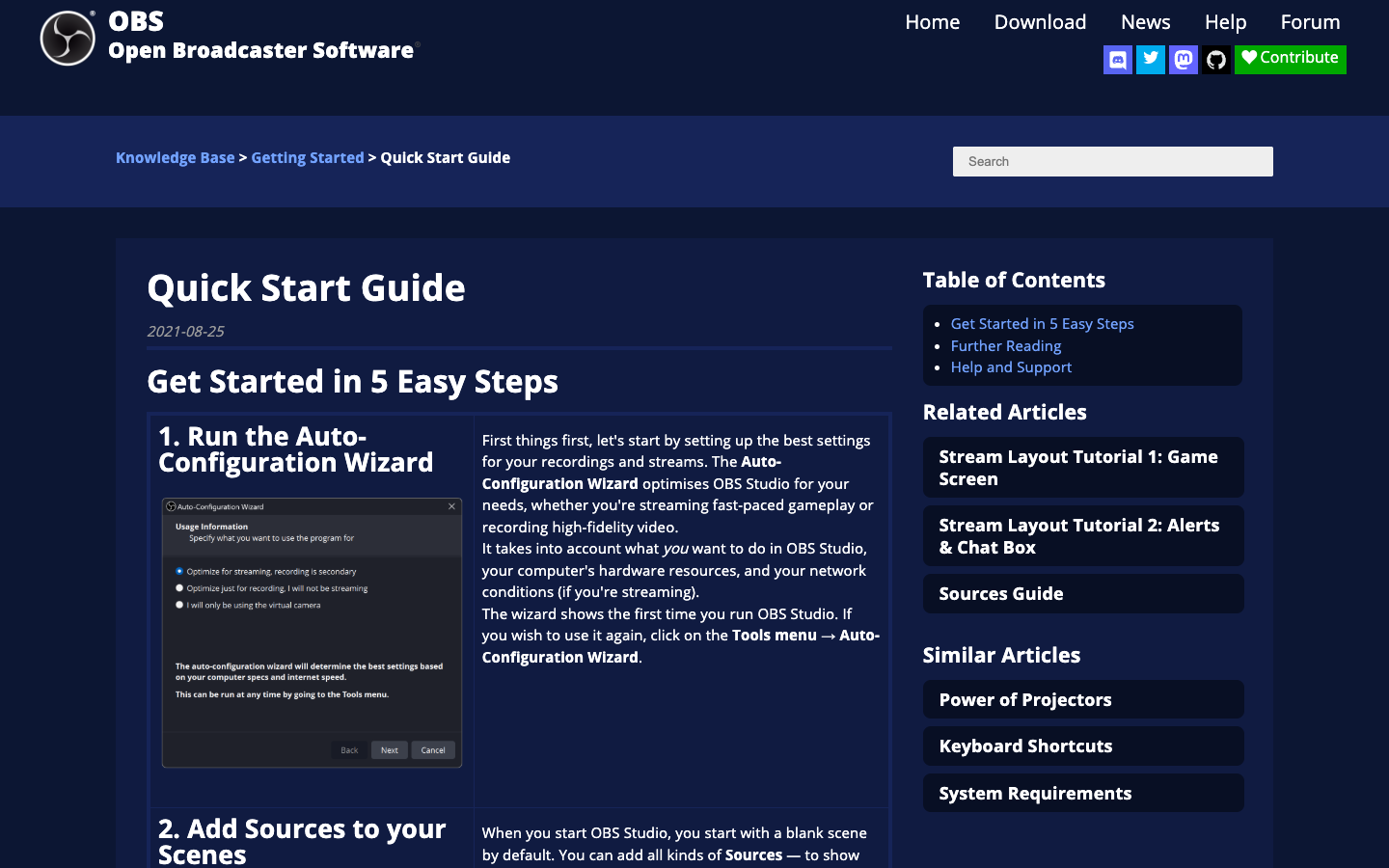
OBS operates on Windows, macOS and Linux, but platform coverage is not feature parity. Windows has a native Game Capture source that can efficiently hook compatible games. macOS uses different screen and application capture facilities and explicit system privacy permissions. Linux capture behavior depends on the desktop environment, graphics stack and whether the session runs under X11 or Wayland. A tutorial written for Windows may therefore be wrong on a Mac even when both use the same OBS version.
Hardware suitability cannot be summarized by a single minimum CPU. A modest computer may capture a static slide deck at 30 fps easily but struggle when running a demanding game, layered browser sources, noise suppression, scaling and a simultaneous high-quality recording. The encoder, GPU driver, upload capacity and heat management matter. An OBS installation that opens successfully is not proof that the intended production settings are sustainable.
The current official download shows version 32.2.2 as the latest stable release at the time of this review. Its release notes warn about macOS 12 compatibility and NVIDIA driver requirements for newer NVENC usage. If your machine is older, consult the OBS update notes and the official hardware requirements. The homepage’s current download requirement may supersede older knowledge-base examples.
A practical purchasing rule is to verify your encoder first, then choose recording and streaming targets. Do not buy a capture card before confirming that it works with your operating system, source device, available USB or Thunderbolt bandwidth, chosen resolution and OBS capture inputs. Some cards deliver preview and recording at different quality ceilings; others cannot pass through the frame rate you want to play at.
There are operational costs even when the license is free. You may need sufficient storage for long recordings, an audio interface for clean microphones, safe lighting for a camera, backup connectivity and an upload speed with headroom above your stream’s combined bitrate. Those costs belong in your decision spreadsheet instead of being concealed under the attractive headline of “$0/month.”
🎛️ The Scenes and Sources Model: OBS’s Greatest Strength
The first workflow concept worth learning is the difference between a scene and a source. A source is an input or visual element, such as a screen capture, microphone, camera, media file, title or browser widget. A scene is an arrangement of several sources. You might have “Starting Soon,” “Gameplay,” “Desktop Tutorial,” “Break” and “Ending” scenes, each presenting different layers to the audience.
That sounds simple until a project contains several audio paths. A webcam could have an embedded microphone, your headphones could expose another capture device, and the same browser alert might appear in multiple scenes. Duplication can create audio echoes or performance overhead. A disciplined creator labels sources by origin and job, such as “USB mic — commentary” rather than “Audio Input Capture 3.” Consistent labels are an engineering convenience, not cosmetic tidiness.
Source order determines what covers what. Put a privacy mask above the sensitive portion of an application; put gameplay below camera and overlay elements. Use crop and transform tools to make the content fit its canvas. But do not let a crop masquerade as a security control. If a desktop is still captured behind the mask, accidental transformations or scene changes can reveal what was intended to remain hidden. Capturing only the necessary application is typically safer than capturing an entire display.
The 32.2 source-creation change matters because choosing an input is one of the first actions a newcomer performs. A dialog with a clearer preview can reduce mistaken selections, but it does not replace permissions or compatibility checks. On macOS, for example, a screen source may appear correctly configured while the operating system still denies access to the desired window.
Another choice is whether to reuse a shared source in several scenes or create distinct inputs. Reuse can simplify microphone consistency and overlay updates. Separate instances can provide independent crops, effects or visibility rules. The correct decision depends on how isolated your scenes need to be and whether the device tolerates multiple simultaneous capture requests.
We recommend starting with three scenes: a safety/standby scene with no sensitive desktop source; a main production scene with essential inputs; and an ending scene. A creator who understands those three reliably is better prepared for a broadcast than one who imported twenty animated layouts and cannot tell which microphone is live.
📡 Streaming Setup: Choosing an Output That Can Survive Your Network
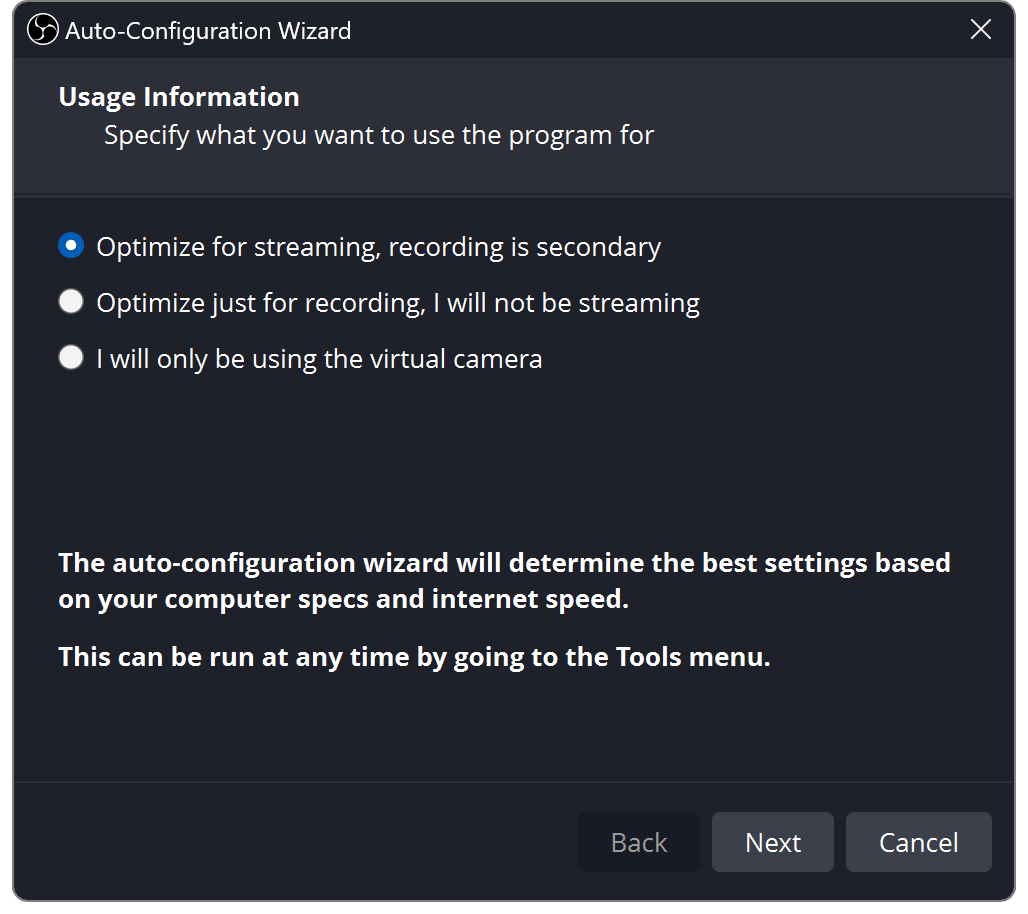
The Auto-Configuration Wizard is the right starting point for most newcomers. OBS analyzes available resources and proposes a workable recording or streaming configuration. It is not a one-click quality certification: the wizard cannot know every future game scene, sudden background download, destination policy change or thermal limitation. Treat its result as a baseline and make decisions from a controlled rehearsal.
A stream is a chain of dependent systems. Content must be captured, combined into a frame, encoded, uploaded and accepted by the receiving service. If any stage is unstable, the viewer sees a problem. Choppy motion could mean the game consumed nearly all GPU rendering time, the encoder failed to keep pace, the connection lost packets or the destination negotiated an incompatible setting. Simply raising bitrate because “1080p should look sharper” can make poor upload conditions worse.
Start by choosing a target resolution and frame rate appropriate to your content. A talking-head lesson may be perfectly legible at 30 fps. Rapid gameplay can benefit from 60 fps if the computer and destination support it. The relationship between base canvas, output resolution and frame rate matters: an elaborate 4K scene scaled down for a 720p connection wastes resources if the source arrangement is not deliberate. Higher settings are useful only when the viewer receives a stable stream.
Then select the encoder. Hardware encoding can offload some compression work to supported GPU or media hardware; software encoding can be flexible but often costs more CPU time. Which is better depends on the exact device and desired quality, not on a universal “always use NVENC” rule. Check available encoders in the current OBS build and the target platform’s codec policies. NVIDIA’s 32.2-era driver requirement is particularly relevant when a new release changes its SDK dependency.
Stream keys and connected accounts deserve basic security hygiene. Never paste keys into a public screenshot, support forum or shared scene-collection document. A stolen stream key can let someone transmit to your channel even if your OBS scenes are immaculate. Use the provider’s account connection when appropriate, restrict who can manage it and rotate any key that may have been exposed.
Before your first real event, run a private test at the intended time of day. Play the most demanding segment of the game or demonstration, trigger an alert, switch scenes and record locally at the same time. Watch OBS statistics for rendering lag, encoding lag and dropped frames. The pattern will indicate which part of the signal chain to investigate. A ten-minute rehearsal catches more meaningful failures than staring at an idealized upload speed test.
🎥 Local Recording: Formats, Tracks and Editing Handoffs
Recording and streaming are related outputs, not the same task. A livestream needs to arrive in real time at a bitrate the network can sustain. A local file can prioritize editing flexibility, higher quality or better separation of audio, subject to available storage and encoder resources. OBS can run both workflows simultaneously, but doing so is a deliberate extra workload.
The official OBS recording guide recommends MKV as a safer format when there is a risk of the process ending abruptly. Unlike an ordinary MP4 write that may become unusable after an unexpected interruption, an MKV recording is designed to preserve more recoverable data if recording is not closed gracefully. You can remux a finished MKV to MP4 inside OBS without re-encoding the media. This is a very practical default for someone broadcasting for several hours from a laptop.
Don’t confuse remuxing with transcoding. Remuxing changes the container around existing encoded media; it does not magically raise its quality or make every codec compatible with every editor. A downstream editing application might still need conversion. A short import test with the target editor is more valuable than assuming that “MP4” guarantees an effortless post-production workflow.
Advanced Output mode provides more control over recording tracks and encoder settings. An editor may want a microphone on one track, game audio on another and a combined monitoring mix on a first playback track. The official multiple-track guide emphasizes that ordinary media players may only play one track at a time. If your first track contains only game audio, you might wrongly conclude that the microphone was not recorded at all.
A reasonable separation plan is to use track one for an intelligible combined reference and additional tracks for separately editable sources. But confirm that the source-to-track assignments actually match the Output recording track checkboxes. If you record only the tracks selected in the wrong configuration panel, you can lose the very separation you wanted. Always inspect a short captured file in the editing application before recording a long event.
Storage planning is easy to underestimate. Lossless video or high-resolution recording can produce very large files; OBS documentation describes a lossless preset that can consume several gigabytes each minute. A local disk that is almost full may cause dropped frames, failed recordings or disruption when another application writes data. Reserve capacity for the entire planned session and a safety margin, and store important completed recordings separately from the original capture drive.
The Replay Buffer deserves mention for gamers who rarely know in advance when something spectacular will happen. It retains recent encoded content so a hotkey can save a segment after the event. That is ideal for highlights, but not a substitute for recording an entire competitive match. The buffer uses memory or storage resources and requires correctly configured hotkeys and duration. Verify that the captured audio includes what you intend before treating a saved replay as publication-ready.
🎚️ Audio Control: One Bad Route Can Ruin a Perfect Picture
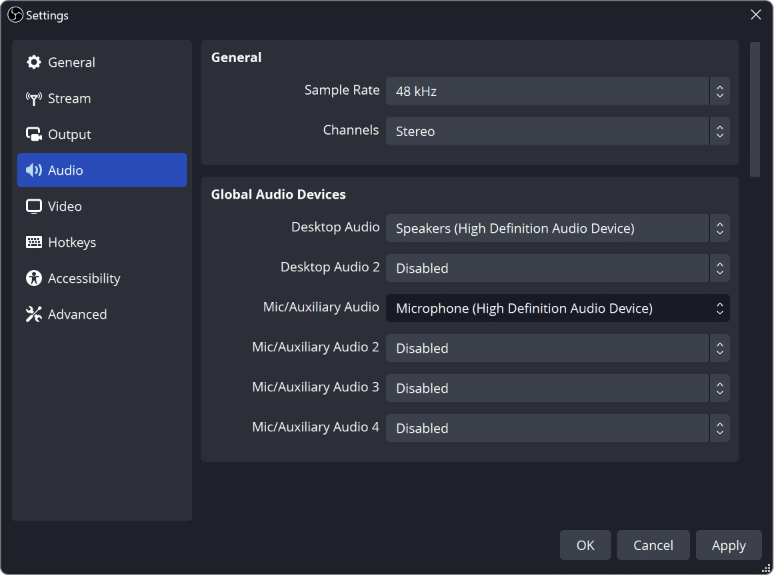
Sound is frequently the least glamorous part of OBS and often the most important. A stream with ordinary visual quality can still communicate clearly. A stream with clipped speech, doubled microphone input or inaudible guests quickly becomes exhausting. The audio mixer, source filters and advanced properties are therefore production controls rather than optional decorations.
Start with device discovery. Plug in the microphone, headphones, audio interface and capture card, then identify which device actually supplies each signal. A webcam might expose an unwanted microphone channel. A USB headset might change the computer’s default output after reconnecting. A capture card may include its own stereo audio source. If several are active inadvertently, sound may echo or drift out of sync.
Per-source filters can improve usability, but the order matters. Noise suppression may reduce a steady fan, while a noise gate can close between speech passages. An expander may be gentler than a hard gate; gain can bring a weak signal into range, while a limiter can reduce the risk of sudden clipping. None of these can rescue badly distorted audio from an overloaded physical preamp. Adjust input gain on the device first, then fine-tune software processing.
There is also a risk of overprocessing. Stack strong noise reduction, a gate and aggressive compression, and the voice may sound watery or chopped. AI-assisted noise filters can be useful, but the result is only as good as the tested speech conditions. Rather than applying every filter because a tutorial recommended it, make a 30-second sample of normal conversation, excited speech and silence. Compare the untreated and treated recordings at a consistent listening level.
OBS Studio 32.1 substantially changed the audio mixer interface, adding navigation and layout conveniences. These changes can make more sources manageable, especially in larger productions. They do not mean automatic normalization for the listener. A consistent mix still requires you to check level meters, monitoring pathways and the relative loudness of speech, gameplay, alerts and background tracks.
Monitoring can create a feedback loop if the microphone picks up speaker output or audio is routed twice. Use headphones and check the Advanced Audio Properties window. Distinguish what the operator hears locally from what the audience hears on stream and what a multitrack recording stores. These may be three different signals if you deliberately set them up that way, and confusion between them explains many apparently mysterious failures.
For a solo game streamer, a useful priority order is commentary first, important gameplay cues second, alerts third and music last. The ratios are judgment calls, not fixed decibel laws. For interview recording, guest intelligibility outranks dramatic transitions. An excellent visual scene cannot compensate for words that listeners cannot understand.
🎬 Studio Mode, Transitions and Live Production Discipline
Studio Mode separates a preview from the program output. You can prepare a scene without immediately showing the audience every change, then transition when ready. It is particularly valuable when switching between a presentation and camera, revealing sponsor graphics or rearranging sources under time pressure. OBS’s own overview makes this distinction explicit: preview edits need not be visible to the live audience until you perform the transition.
This creates a simple but powerful habit. Keep the current output stable while checking the next scene. Confirm that its screen capture is pointing at the right application, its camera framing is acceptable and its overlays do not cover crucial information. Only then send it to program. A streamer running directly from the scene list without preview can still perform well, but must be more careful about accidental exposure.
Transitions add continuity, yet excessive animation can obscure content. A fast cut is useful for a close shot; a short fade is often sufficient for moving to a break scene. Elaborate stingers and browser transitions may be justified for esports events or branded shows, but the production can become less reliable if complex sources are constantly reloaded. Favor repeatable behavior over a spectacle you have never stress-tested.
Hotkeys are essential for a one-person operator. Assign distinct shortcuts for starting and stopping recording, switching to the privacy scene, muting the microphone and saving a replay. Test them when the game or full-screen application has focus. The OBS overview also documents configurable mute and push-to-talk behavior, but not every application respects keyboard shortcuts in the same way, and macOS accessibility permissions can be relevant.
A Stream Deck or similar external controller can simplify operations, but is not required. Before buying hardware, try a hotkey plan that you can remember without looking down. If a stream lasts several hours, reduce the number of controls you must manage simultaneously. Less cognitive load is itself a reliability feature.
For collaborative events, establish who owns each cue. A guest should know when they are live. The producer should have a standby scene prepared before an external application unexpectedly displays confidential information. A local operator should keep a checklist for restarting a crashed source without cutting the microphone. OBS provides flexible controls; operational procedure turns those controls into a professional show.
🧩 Plugins, Profiles, Scene Collections and Automation
One reason OBS has endured is extensibility. Plugins can add new sources, integration controls, filters and production behavior. Scripts and OBS-related control APIs can automate repetitive operations. The built-in facilities for profiles and scene collections help organize separate broadcast contexts. This is a strength, but each extension introduces another software dependency that someone must maintain.
A profile generally manages output-related settings for a particular workflow, while a scene collection organizes scenes and sources. Someone streaming competitive gameplay and recording training courses should not have to rebuild the same interface every day. Separate collections and profiles make the differences explicit. Still, verify what settings actually travel with each export or backup: capture-device drivers, plugin binaries and local media paths may remain machine-specific.
OBS Studio 32.0 introduced a basic plugin manager, followed by additional development in later releases. That is not a promise that every community plugin has been reviewed by OBS developers or that plugin updates can never break a scene. Before installing a plugin, confirm operating-system support, compatible OBS version, project maintenance and what external permissions or accounts it needs.
For a small production, the best plugin policy is conservative. Add an extension because a real capability is missing, not because a list of twenty “must-have plugins” looks exciting. Document its version and function. Keep a stable recovery profile or collection without it. After an OBS update, test each plugin-dependent scene locally before the next live event.
Automation is particularly attractive for creators who stream frequently. A controller can change scenes on a schedule or react to stream status; a separate workflow service can publish notifications or organize recorded files. However, confusing production automation with business automation creates risk. For external tasks, review tools such as Make, Zapier or n8n. They serve different purposes than OBS’s frame-by-frame capture engine.
A practical cross-tool design uses OBS for local media production and an automation tool for low-risk administrative tasks. For example, after a recording file has finished and passed a file-integrity check, a workflow can notify an editor or create a processing ticket. Avoid actions that delete originals immediately or post content publicly without a review step. Streaming automation should reduce repetitive labor without taking away the ability to recover.
The broader decision is about ownership. With OBS you control much of the local production stack, but you also inherit maintenance. With a managed cloud studio, you trade some fine-grained flexibility for support, service-level terms and simpler remote collaboration. Neither architecture is inherently superior. The number of people involved and the failure modes you can tolerate should guide the choice.
🍎 OBS Studio on a Mac: A Different Capture Workflow
Mac users deserve a dedicated section because many popular OBS tutorials silently assume Windows. On Windows a dedicated Game Capture source can access compatible graphics output. On macOS that Windows-specific path is not available; you typically build a scene from macOS Screen Capture, a camera or capture-card input, application audio sources and selected media. This is a functional difference, not evidence that OBS is broken on Mac.
The first potential blocker is permission. The official macOS permissions guide covers Screen Recording for display or application access, Camera for video inputs, Microphone for audio and Accessibility for hotkeys outside the focused app. If an input displays black or silent, inspect these permissions before installing a collection of third-party workarounds. A system update may also change how a permission is presented.
Audio capture is more workable on modern macOS than older tutorials imply. OBS’s macOS desktop audio documentation describes an Audio Capture Source for recent OBS releases on macOS 13 and newer, including per-application capture. A creator following a much older setup guide may install extra virtual audio devices unnecessarily. There remain valid advanced reasons to use virtual audio routing, but first understand what the installed OBS version supports natively.
Recent OBS releases also show continued work on macOS rendering. The OBS Project described a Metal renderer as experimental in the 32.0 generation, with development continuing afterward. An experimental graphics backend is a reason to test demanding sources, not a reason to promise better frame times for every Apple Silicon device. Test the exact Mac, capture resolution and encoder you intend to use.
Thermal behavior matters on laptops. A MacBook that records a quiet desktop tutorial can behave differently during a video game, screen sharing, multiple external displays and a simultaneous high-quality encoding task. Use a safe power supply, provide airflow, avoid filling internal storage and watch for thermal throttling in long sessions. A ten-minute test is helpful; a two-hour pre-event rehearsal is better for a production that will actually last two hours.
A common use case is receiving gameplay from a phone or tablet through a capture path and adding commentary on the Mac. The capture card supplies one video source; the external microphone supplies another; the game device may offer its own audio channel. The entire result depends on cabling, device output standards and capture compatibility. OBS does not turn an incompatible dongle into a real capture device.
For someone who prefers not to show their face, OBS makes it straightforward to omit the camera and use gameplay, screen content, text overlays and a microphone instead. That reduces one form of privacy exposure but does not eliminate risks from desktop notifications, profile names, messages or accidentally displayed personal documents. Use a standby scene and test the visual crop before going live.
🎮 Three Detailed Creator Workflows Worth Building
Scenario A — A solo game streamer who also makes highlight clips. Start with a gameplay scene and a separate standby scene. Capture the game through a supported local method or external card. Add a dedicated microphone, one alert source and a minimal overlay that avoids covering the game’s important information. Stream at a stable setting matched to the network rather than maxing out frame rate. Record locally to MKV, route microphone and game audio to independently useful tracks, and configure a Replay Buffer hotkey for highlights. When the session ends, remux the good recording if your editor requires MP4. Keep the first three clips in a review folder before handing them to an editing tool.
The hidden cost in this scenario is rarely OBS licensing. It is the capture hardware, audio quality, time spent reworking overlays, disk space and the editor’s workflow. The chief failure is audio duplication: a capture card and desktop audio path may both hear the game, causing echo. The mitigation is to solo each audio source during rehearsal and confirm only the desired path reaches the final track.
Scenario B — A teacher recording repeatable software lessons. Create one scene containing the application window, a modest talking-head camera and a visible title. Use a separate scene for diagrams or prepared slides. Record at a resolution where interface text remains legible rather than automatically selecting the highest available frame rate. Keep the microphone separate from application sound so editing is possible if a notification interrupts the narration.
The teacher may gain more from deliberate file naming than from advanced transitions. Record short segments, include a consistent start marker and ensure the editor can identify which lesson belongs to which module. OBS helps make the raw lesson; the Descript review explains a different post-production approach for refining spoken material. The two tools can complement each other without being direct substitutes.
Scenario C — A small live business event. A presenter shares slides while an operator switches between introductions, speaking views and an ending card. Studio Mode is useful because the operator can inspect the next scene before transition. Each scene should be named by purpose; external video sources should be tested before attendees arrive. Establish a primary microphone and backup path. Run a rehearsal that includes playing embedded video and switching from slides to a demonstration application.
The most consequential decision for this event is whether remote guests will connect through an external meeting platform or whether the team should use a dedicated browser-based studio. OBS can output a Virtual Camera feed for compatible applications, but inviting guests and managing their isolated remote recordings still involve separate systems. Our eventual StreamYard, Restream and Riverside reviews will examine those managed workflows separately. Do not buy a microphone or camera package until you know where guests will actually connect and how recordings are handed off.
These three cases illustrate the difference between feature availability and operational fitness. OBS offers the tools in all three, but the right scene architecture, audio plan and recovery checklist are different. Your first reusable template should match your real job instead of imitating a famous streamer’s visual design.
📷 Capture Cards, Cameras and Phones: The Hardware Boundary
Video Capture Sources allow OBS to work with compatible webcams, external input devices and capture cards. That does not mean every device claiming “USB video capture” can provide the frame rate, color range or latency the creator expects. Test the actual incoming signal. A card may advertise 4K pass-through while recording at a lower resolution, and a cable may support less bandwidth than its connector shape suggests.
An external console or gaming phone introduces additional questions. Can the source device output clean HDMI or another supported video feed? Does the capture path introduce enough delay to disturb commentary or monitoring? Is audio embedded in the same signal? Can a second screen remain useful for gameplay? These are purchase and compatibility questions, not settings OBS can solve after the wrong card arrives.
Camera choice should follow the scene. A small webcam can work well with good lighting and a restrained crop. A more expensive camera with unreliable continuous output is a poor broadcast tool. Check whether it can stay powered for the whole session, whether it shuts down due to heat, and whether autofocus or exposure hunts visibly. The viewer often notices harsh lighting or a poor microphone before appreciating a premium lens.
For a phone-as-camera workflow, consider whether you are capturing the phone’s camera feed or the phone’s screen. The first needs a compatible camera transport or dedicated app; the second may involve wired capture or mirroring with additional latency and display artifacts. Do not assume a smartphone app’s connection or subscriptions are provided by OBS itself.
An effective rehearsal separates the signal chain into elements. First display the capture card alone. Next confirm synchronized audio. Then add the microphone and monitor for echo. Only after those pass should you add overlays and animated sources. This isolates faults and avoids a common mistake: blaming OBS for a cable or device setting that fails outside OBS too.
🔐 Privacy, Security and Reliability Risks You Actually Control
Open source does not automatically mean safe, and paid does not automatically mean dangerous. OBS’s transparent development and well-known project history are meaningful strengths. Yet a local broadcasting application handles powerful inputs: screens, cameras, microphones, browser pages and potentially remote-control extensions. The creator decides which inputs are permitted and when they are live.
A simple privacy rule is to share the narrowest possible source. Choose an application window rather than an entire desktop if the presentation does not require system-wide navigation. Disable intrusive notifications, close chat windows, remove private names from overlays and place a safety scene within one easily remembered action. Do not assume that hiding a source in one scene means every other scene is also safe.
Third-party browser overlays deserve the same skepticism as browser extensions. An alert widget that runs remote code can show untrusted material to viewers; a source can be redirected or compromised if its provider changes. Verify the service, use reasonable permissions and avoid placing private credentials directly in visible widget URLs or screenshots. Keep secrets and production assets separate from publicly shareable scene-collection files.
Plugin security and stability are connected. A plugin with deep OBS access can potentially read inputs, control scenes or introduce crashes. Prefer actively maintained plugins from credible sources and keep a backup that opens without them. If an update breaks a critical scene, you need to know how to roll back safely rather than discovering dependency problems during the broadcast countdown.
There is a less obvious risk of file loss. An unattended recording process can fail if storage fills, power disappears or a recording directory becomes inaccessible. Use a resilient format, confirm the target drive before each session, and keep an independent backup for finished work. A cloud streaming destination is not an archival plan; an online replay may be compressed, limited or removed according to platform policy.
A useful incident checklist includes: stop unneeded sources; move to standby; check OBS statistics; confirm storage and connection; verify whether recording continued; and document what failed before changing multiple settings at once. A reliable operator diagnoses one layer at a time. During a public event, a clean recovery in thirty seconds is often more professional than insisting on an elaborate overlay while the screen remains frozen.
💰 OBS Studio Pricing: Truly Free Software, Not a Zero-Cost Studio
This is the clearest part of the financial analysis. OBS Studio has no official monthly plan, annual subscription, paid per-seat package or recording export fee. Using scenes, audio filters, screen sources, local recording, Studio Mode and the core application does not trigger a software subscription. Some businesses will buy hardware and optional services, but that should not be mislabeled an OBS subscription.
| Decision factor | OBS Studio license | External hardware | Hosted services |
|---|---|---|---|
| Software access | Core OBS application: $0 | Paid capture or camera hardware may be needed | Subscriptions depend on destination and services |
| Typical payment | No OBS monthly invoice | Usually a separate purchase | May renew monthly or annually |
| What it covers | Local sources, scenes, mixing and recording | Console/phone video capture and clean audio | Guest rooms, multistreaming or editing workflows |
| Check before buying | OS permissions and encoder compatibility | Cable, pass-through and capture limits | Account limits, video quality and cancellation terms |
What does a beginner pay? Potentially nothing if the computer, microphone and existing internet connection are already sufficient. A screen tutorial with a capable laptop and headset can begin without a purchase. Even here, the creator’s time has value. The correct comparison against a commercial studio includes the time needed to learn OBS, maintain a clean system and troubleshoot capture problems.
What does a creator with a console or phone pay? Capture equipment may be required, and an audio interface or dedicated microphone can be beneficial. Those prices are highly variable and should be calculated against the actual devices. There is no honest universal “$99 OBS streaming setup” because a person who already owns the hardware has a different cost base from someone buying everything for the first time.
What does a professional team pay? A technical operator may be needed, plus backups, storage, licensed visual assets, external guest software and editing. OBS does not supply all those components. Calling the application free while ignoring its surrounding labor would overstate its economic advantage in a team environment.
What about multistreaming? OBS normally sends an encoded stream to a configured destination. Additional endpoints can require a managed distribution service, a dedicated plugin, custom infrastructure or other supported implementation. Each approach has different upstream bandwidth, platform-rule and failure implications. Our planned Restream and Streamlabs assessments will separate those purchases from the free OBS core.
A fair buying worksheet has four columns: owned equipment, new one-time equipment, recurring third-party services and operating time. Mark the OBS license line as $0. Add only costs that really apply. A small creator may have a negligible running bill; an events company may invest heavily in production infrastructure while still paying nothing for OBS itself.
⚖️ OBS Studio vs Streamlabs, Restream, StreamYard and Riverside
OBS and Streamlabs Desktop address much of the same starting problem: local live production. OBS emphasizes an open, extensible production environment without core subscription tiers. Streamlabs wraps local production in a broader streamer-service ecosystem, including commercial offerings. A newcomer may prefer guided commercial conveniences; a creator who values independence may prefer OBS’s more neutral base. Compare the features you actually need, not a screenshot of a default interface.
| Decision factor | OBS Studio | Streamlabs Desktop | StreamYard |
|---|---|---|---|
| Core workflow | Local recording and livestream scene production | Local streaming with integrated creator services | Hosted browser studio for live shows |
| Typical use | Game and desktop capture with audio tracks | Game broadcasts with alerts and overlays | Remote guests and interviews |
| Software billing | No OBS license subscription | Free software capabilities; optional commercial services | Subscription and plan-based cloud features |
| Operational constraint | Device capture, encoder and audio need local setup | External services and ecosystem configuration | Less granular local capture and encoder control |
Restream occupies a different place in the stack. It focuses on distributing a stream to multiple online destinations and offers other hosted workflows. OBS can serve as the upstream production source for a distribution service. In that arrangement they are complements. The extra subscription needs a reason: simultaneous audiences, service-specific integrations, team workflow or reduced complexity relative to managing independent endpoints.
StreamYard is generally closer to a browser studio than a local encoder workbench. Its appeal is getting an interview or panel on air with guest-facing workflow handled in the web service. OBS can be integrated into sophisticated productions but asks more of the operator. Someone comparing only camera layouts misses the biggest distinction: where guests connect, who owns the session and what fails when a participant’s network drops.
Riverside puts a different emphasis on remotely capturing quality video and audio for later editing. For a recorded interview with guests in different cities, that approach may be more relevant than sophisticated live overlays. OBS remains useful for local capture or a composited video feed, but it does not become a remote recording service simply because it can receive an application’s virtual camera output.
CapCut and Descript are better viewed as editing tools around the capture stage. CapCut’s audience often wants quick vertical edits, captions and visual effects; Descript provides workflows organized around spoken content. Both can process files created by OBS. Neither should be advertised as a straightforward replacement for OBS’s local scene switching and encoder control.
There is no single winner across these five product categories. A Twitch gamer prioritizing frame timing and scene control has different needs from an agency running webinars with ten rotating guests or a podcast host who wants separately recorded interviews. Start by drawing the source-to-destination path. Then purchase the components that fill the gaps.
🤝 Strengths and Trade-offs: What We Would Actually Recommend
👍 What We Love
- ✅ Truly free production: Core recording, stream output, scenes, and mixing do not require a paid OBS subscription.
- ✅ Flexible scene composition: Local application, webcam, game, capture-card and graphic sources can share one output.
- ✅ Useful recording options: MKV, multitrack audio, replay capture and independent output controls support editing.
- ✅ Open extensibility: Profiles, plugins, hotkeys and control integrations allow repeatable creator workflows.
👎 Where It Falls Short
- ❌ Setup responsibility: Hardware compatibility, screen permissions, audio routes and performance require testing.
- ❌ No integrated guest platform: Remote interviews and studio collaboration may require a separate tool.
- ❌ No automatic cloud distribution: Multistreaming and hosted production can require external services.
- ❌ Maintenance burden: Plugins, capture drivers, and scene files may break after OS or software updates.

OBS Studio — Editorial Production Snapshot
Good fit: desktop streaming, game capture, screen recording and complex local scene composition. Reconsider: instant browser guest rooms, cloud editing, automatic multistreaming or zero-configuration studios.
Official-source research; local benchmarks and live production tests are not claimed.
A product with no license fee can still deserve criticism. OBS’s biggest benefit is deep control over local production. Its biggest cost is the time required to understand that control and keep it working. A person who streams every day may easily justify learning it; a nonprofit that hosts one presentation each quarter may struggle to preserve the knowledge between events.
The software’s open ecosystem allows very different types of creator to find a workable configuration. A competitive gaming creator can use stable scene switching and recorded audio tracks. A technical educator can keep application demonstrations crisp and repeatable. A small team can use Studio Mode for more orderly presentation. These are meaningful capabilities even if the market now offers paid products with slicker onboarding.
But the flexibility can encourage endless tweaking. A creator can spend days optimizing filters and transitions without publishing anything useful. Use a sensible “production freeze”: once the microphone, scene architecture and capture path pass rehearsal, stop changing them immediately before a public event. Test experimental plugins in a separate profile, not during the actual program.
Our practical verdict is that OBS should be the default shortlist candidate for anyone who can manage desktop production and wants free local control. It should not be the automatic recommendation for every creative business. If your main bottleneck is guest scheduling, centralized editing or team approvals, choose software that directly solves those problems rather than making OBS serve as an awkward substitute.
🛠️ A 12-Point OBS Setup and Preflight Checklist
A useful OBS configuration is one that can be repeated reliably by someone other than its original builder. The checklist below works as a decision framework; adapt it to the system and event.
1. Define the output. Decide whether the priority is a live audience, a local recording, or both. Record the intended resolution, frame rate, duration, destination and editing handoff. The right settings follow these requirements.
2. Verify the current official download. Check the OBS Project website, operating-system support, version notes and any hardware encoder driver conditions. Don’t reuse an old setup video as the sole compatibility source.
3. Draw the signal path. List the computer, capture card, microphone, external camera and destination. Show where each audio signal enters, so there is no mystery source when a recording sounds doubled.
4. Begin with three scenes. Build a standby scene, main scene and ending scene. Name sources clearly. Keep sensitive windows and personal notifications out of the captured area.
5. Configure microphone gain. Set a usable hardware level before stacking software filters. Make a sample of quiet speech, normal commentary and excited delivery, then listen with headphones.
6. Check captured application sound. Solo the game, computer audio and capture-card channels one at a time. Confirm that the expected sound appears on the selected recording and streaming tracks.
7. Select an encoder and conservative output. Use the Auto-Configuration Wizard as a baseline and compare realistic presets. Leave enough CPU/GPU and network capacity for the rest of the system.
8. Record a short MKV test. Stop it, remux if needed and import it into your editor. Validate picture, sync, aspect ratio and separate audio tracks, not merely file existence.
9. Test scene changes. Switch to standby, switch back and test Studio Mode. Trigger an alert or video source and inspect whether transitions cause unusual rendering stalls.
10. Exercise the worst case. Run the game or application at its most demanding moment, add normal browser activity and record at the same time as the simulated stream. Check statistics rather than relying on appearance alone.
11. Prepare recovery. Choose the fastest mute, standby and stop-recording controls. Know where logs and recordings are stored. Keep backup settings and media assets outside a single fragile project folder.
12. Freeze before going live. Avoid untested updates and new plugins shortly before a scheduled event. Keep the official source pages bookmarked and evaluate changes during a later rehearsal window.
This list may sound conservative for a piece of free software. That is the point. Reliability is not something a premium monthly subscription automatically buys. It comes from knowing the system’s boundaries and testing how it behaves when the day does not go according to plan.
✅ Final Verdict: Is OBS Studio Worth Using in 2026?
Yes, for the right workload. OBS Studio delivers an unusually complete foundation for local video capture, recording and live broadcasting without charging for essential features. The active release history, mature scene model, audio flexibility and open-source ecosystem make it a serious production tool rather than a starter application you are expected to outgrow.
Its weaknesses are mainly workflow boundaries and operational complexity. Browser-based guest management, hosted multistream distribution, collaborative editing and automatic social clipping are not all rolled into one turnkey product. The creator may need multiple services, a carefully chosen capture device and enough technical confidence to investigate performance problems. Someone unwilling to own that stack should include the cost of operational time when comparing alternatives.
For a solo gaming streamer, a tutorial creator or a small production with predictable sources, OBS’s value can be excellent. For occasional interviews across many remote locations, a managed recording or browser studio could be the better fit. For a business that depends on a repeatable show, use OBS as one well-documented component of the workflow instead of treating it as a guarantee of delivery.
Our recommendation is to download it from the official project, start with one narrowly scoped scene collection and carry a recording through to the finished editing handoff. If that complete chain works, there is little reason to pay another product merely to obtain basic local streaming. If the chain reveals that guest management, hosting or editing is your dominant problem, choose a complementary service intentionally.
For wider software planning, explore the published Descript review, Canva review and HeyGen review. For comparing licensed applications and avoiding misleading annual-equivalent prices, try our Software Finder, Compare and Software Cost Calculator. OBS itself is free; the rest of a creator’s software stack deserves the same scrutiny as any paid subscription.
Frequently Asked Questions About OBS Studio
Is OBS Studio completely free in 2026?
Yes. OBS Studio itself is free and open source, with no official recurring subscription required to record, stream, use scenes or mix audio. Hardware, internet access, external services, commercial assets and some third-party extensions can cost money. Download from the official OBS Project rather than assuming a paid reseller represents the application’s licensing.
Does OBS Studio work on Mac and Apple Silicon?
OBS is available for compatible Macs, including Apple Silicon. The current official 32.2.2 download page lists macOS 13 or newer; older OBS versions had different requirements. On macOS use the supported Screen Capture and Audio Capture sources, and grant the system permissions needed for screen, camera and microphone access.
Is OBS better than Streamlabs for beginners?
OBS favors open, flexible desktop production without a core license fee. Streamlabs adds a more service-oriented streaming ecosystem with commercial options. The easier choice depends on whether you need guided overlays and related services or prefer a configurable local workflow. Test both against your exact game, microphone and hardware before deciding.
Can OBS stream to Twitch and YouTube?
OBS can send a livestream to supported streaming services through their account integration or streaming endpoint, subject to platform requirements. Broadcasting to multiple destinations simultaneously may involve a distribution service, compatible extension or additional infrastructure. OBS’s free license does not waive platform rules, bandwidth needs or service fees.
Can OBS record gameplay without streaming?
Yes. OBS can record locally without a live broadcast, using suitable capture sources and an encoder. For greater resilience, the OBS recording guide recommends MKV and provides a remux function for an MP4 editing handoff. Always check a short recording for game audio, microphone sync and quality before a long session.
Does OBS have a built-in video editor or automatic shorts generator?
Not as a full replacement for a timeline editor or AI clipping platform. OBS records, composites and broadcasts video; editing, automatic caption design, advanced post-production and social publishing typically happen in separate software. A clip saved with the Replay Buffer is still raw media that may require editing.
Why is my OBS stream lagging even with fast internet?
Lag can come from several distinct causes: the computer cannot render scenes in time, the encoder is overloaded, the upstream connection drops frames, or the destination settings are unsuitable. Inspect OBS statistics, reduce unnecessary loads and run a local recording comparison. An internet speed result does not diagnose GPU rendering or encode performance.
What OBS settings should a new streamer use?
Run Tools → Auto-Configuration Wizard, select the actual streaming destination and choose a resolution and frame rate the computer can sustain. A stable 720p or 1080p output is generally preferable to an unstable high-bitrate feed. The correct encoder and bitrate depend on the hardware, upload conditions and service requirements; test privately before publishing.
Can OBS record microphone and game audio separately?
Yes, with appropriate audio sources and Advanced Output recording-track assignments. The OBS multiple-track guide recommends including an intelligible combined reference track for ordinary playback and assigning separate tracks for editing. Verify that both the mixer assignments and chosen recording tracks are correct before the event.
Is OBS safe for confidential presentations?
It can be configured for restricted capture, but privacy is the operator’s responsibility. Share only the required window, use a standby scene, silence notifications and protect stream keys. Browser sources and plugins are additional trust decisions; do not assume that a visual crop or source hidden in one scene creates a universal security boundary.
Is OBS worth using if I only stream once a month?
Possibly, especially if your inputs are predictable and you can save a repeatable setup. If each event involves rotating remote guests, collaborative producers or extensive cloud distribution, a browser studio may save more time than OBS’s free license saves money. Compare total setup and operating effort, not only subscription prices.
Official OBS Documentation and Research Sources
OBS Project home, download and license information. OBS 32.2 release notes. OBS 32.2.2 stable update notes. Quick Start Guide. Overview and Studio Mode. Standard Recording Guide. Multiple Audio Track Guide. macOS Capture and Audio Guide. Virtual Camera Guide. Last editorial source review: October 15, 2026; version numbers and supplier policies can change.
EXPLORE NEXT ON DIGIOFFLY
Explore the Creator Software Around OBS
Turn a reliable local OBS recording into a complete creative workflow: compare editing, publishing tools and source-backed software costs.
Plan your creator workflow
- Browse all software — Review the complete catalog and source-backed pricing data.
- Find the right production tools — Filter software by documented needs and capabilities.
Check subscriptions and editing
- Explore Descript editing — See the text-led workflow for long spoken recordings.
- Calculate your software costs — Keep paid subscriptions and annual commitments separate.
Compare software around OBS
- Review Canva design tools — Create presentation graphics and other branded assets.
- Compare software choices — Check features, billing units and published evidence.
- Examine HeyGen production — Compare AI video tools with local capture workflows.
Published plan references change. Confirm usage, annual billing, recording hardware, software licensing, file storage and post-production costs directly with the vendor.