

DIGIOFFLY / WORKFLOW LIBRARY
Workflow Library: workflow automation for small teams
Explore eight workflow automation templates for small teams. Match a business task to a proposed software stack, follow the setup plan and estimate monthly Make credits before choosing a subscription.
These workflow automation examples are planning guides. DigiOffly does not connect your accounts or run scenarios.
Choose a workflow
Choose a business goal to compare workflow automation examples. Each card shows the proposed apps, with a setup guide and an editable budget below.
Sales & marketing
Lead Capture & CRM
Capture website inquiries, validate contact details and route leads to the right CRM owner.
E-commerce
E-commerce Order Processing
Organize Shopify orders, reconcile operational records and flag fulfillment exceptions.
Content & marketing
Content Production & Approval
Turn approved briefs into assigned production tasks while keeping publishing under human control.
Customer support
Customer Support Escalation
Route eligible support tickets to the right internal team without changing customer-facing status.
Sales & operations
Google Sheets to CRM
Move approved spreadsheet records into your CRM with duplicate protection and review.
Content & marketing
AI Content Pipeline
Create a bounded AI draft from an approved brief, then send it for editorial review.
Email marketing
Email Marketing Automation
Collect permission-based newsletter signups and manage audience records without sending campaigns.
Finance & accounting
Invoice Preparation & Approval
Prepare billing requests, verify accounting mappings and obtain finance approval before invoicing.
DIGIOFFLY / WORKFLOW BUILDER
Customize your workflow
Choose a blueprint, adapt its software roles and estimate usage. This is a planning tool: no account is connected and no workflow is executed.
1. Compatibility check
Connector availability is not an end-to-end compatibility guarantee. Verify the actual account, trigger, actions, data mapping, permissions and plan before enabling a test scenario.
3. Save your plan
Save locally in this browser or export a JSON plan. No personal data, credentials or account connections are requested.
Workflow blueprints
Each workflow automation blueprint includes four setup steps, the software roles, a pre-launch check and a monthly usage estimate.
Lead Capture & CRM Automation
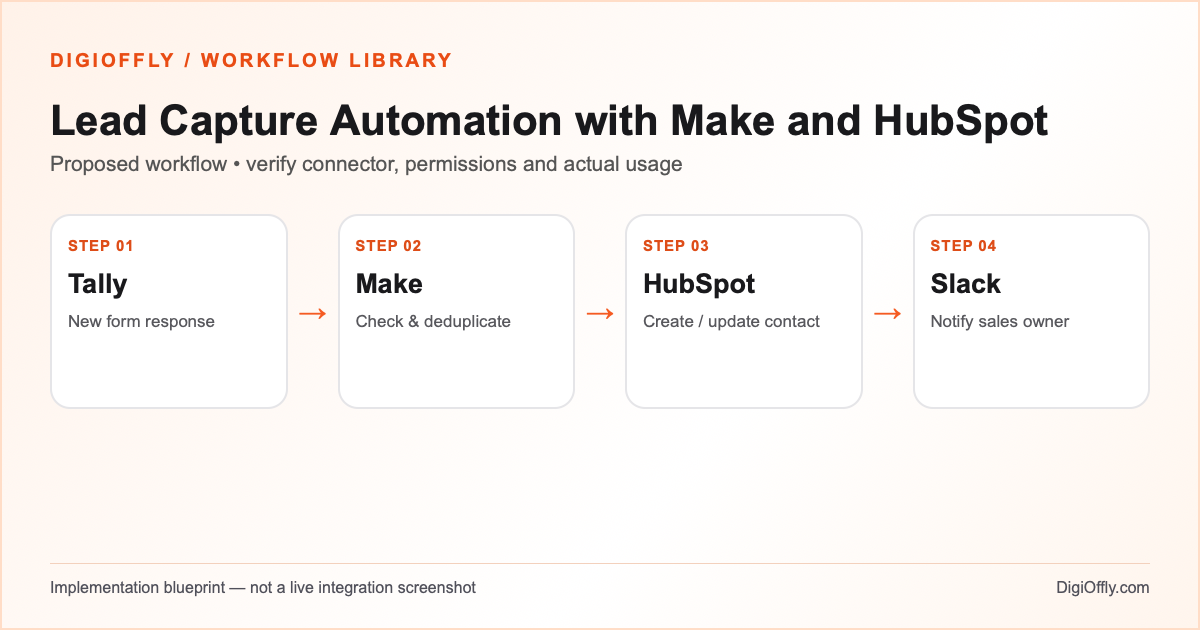
Lead capture automation with Make and HubSpot turns a form submission into a CRM record and a sales notification. In this example of website workflow automation, the sales owner, consent evidence and original submission remain identifiable.
Trigger: New Tally form submission
Software and roles
Tally review
Tally collects the inquiry and its submission identifier; keep marketing permission separate.
Make review
Make handles the form-to-CRM handoff: validate the event, find the contact, update the record and alert the owner.
HubSpot review
Use HubSpot as sales workflow software: store the contact, source and ownership fields. Confirm CRM permissions and plan.
Slack review
Slack delivers the CRM link to the sales owner without copying the full form.
Set up CRM workflow automation
- Capture a lead. Start the Tally to HubSpot workflow automation with a form containing name, email, company and a contact-purpose field. Include a submission identifier in the event data. Keep optional marketing consent separate from a sales inquiry.
- Validate and deduplicate. Create a draft Make scenario using the appropriate Tally event or webhook. Reject invalid addresses and use the submission ID as an idempotency key. Look up an existing CRM contact before creating another.
- Update the CRM. Map only required fields into HubSpot. Set the source and assign an owner using a documented rule. Preserve existing consent fields; never overwrite consent based on a new inquiry.
- Notify and review. Send a short Slack message with the CRM record link, not the full form payload. Route missing owner or duplicate conflicts to a review queue. Test a fresh lead, repeated submission and invalid email before enabling the schedule.
Before enabling: Use a dedicated test form and CRM sandbox or test contacts. Confirm HubSpot app approval and scopes, Slack channel membership, retention, deduplication and opt-out handling. A form submission is not automatically permission for marketing.
Measure: For the lead capture process, measure lead-to-owner turnaround, duplicate records per 100 submissions and unresolved failures. A notification is useful only if the CRM record is correct.
Official references: HubSpot CRM connector · Make app directory.
Estimate monthly automation usage
Default example: (1,000 × 4 + 0) × 1.20 = 4,800 credits/month. Edit the inputs for your workload.
4,800 estimated credits / month
Calculate stack cost & optimizeThe calculator imports the stack and monthly Make credit estimate. Check the contact and seat allowances before treating the total as a quote.
E-commerce Order Processing Automation
A Shopify order automation workflow can create an internal operations record and flag exceptions. The workflow automation leaves order payment, inventory and fulfillment under Shopify control.
Trigger: New Shopify order event
Software and roles
Shopify review
Shopify supplies the order ID, event and authoritative commercial status.
Make review
Make runs workflow automation for order validation, item mapping and record updates.
Airtable review
Airtable holds the operations register; check record limits and avoid a second inventory master.
Slack review
Slack alerts fulfillment staff when an order needs review, not on every normal update.
Set up order workflow automation
- Select the order event. For Shopify to Airtable automation, test the workflow automation with a test order before reading real customer records. Decide whether the workflow starts on order creation or confirmed payment; those events are not interchangeable. Store the Shopify order ID and event timestamp.
- Normalize order data. Use Make to map order status, currency, total and item identifiers. Keep personal addresses and payment details out of the operations register unless the fulfillment purpose requires them.
- Write an operations record. Create or update an Airtable record keyed by order ID. Use a distinct status column for operational review rather than treating Airtable as the authoritative inventory ledger. Handle multiple line items as repeated modules if needed.
- Route exceptions. Notify a restricted Slack channel only for missing SKU mappings, unpaid orders requiring review or failed record writes. Reconcile a sample against Shopify, including duplicate events, refunds and multi-item orders.
Before enabling: Verify Shopify app permissions, the selected order event, Airtable record limits and access controls. Never store payment card data. Keep Shopify as the source of truth; do not automatically fulfill, refund, cancel or change stock in this starter template.
Measure: Measure workflow automation by the time from eligible order event to operations record, duplicate rows, missing SKU mappings and reconciliation differences.
Official references: Make app directory · Shopify webhooks documentation.
Estimate monthly automation usage
Default example: (500 × 5 + 0) × 1.20 = 3,000 credits/month. Edit the inputs for your workload.
3,000 estimated credits / month
Calculate stack cost & optimizeUse the calculator to estimate order-processing costs. Count extra item-level writes and check Shopify and Airtable fees independently.
Content Production & Approval Automation
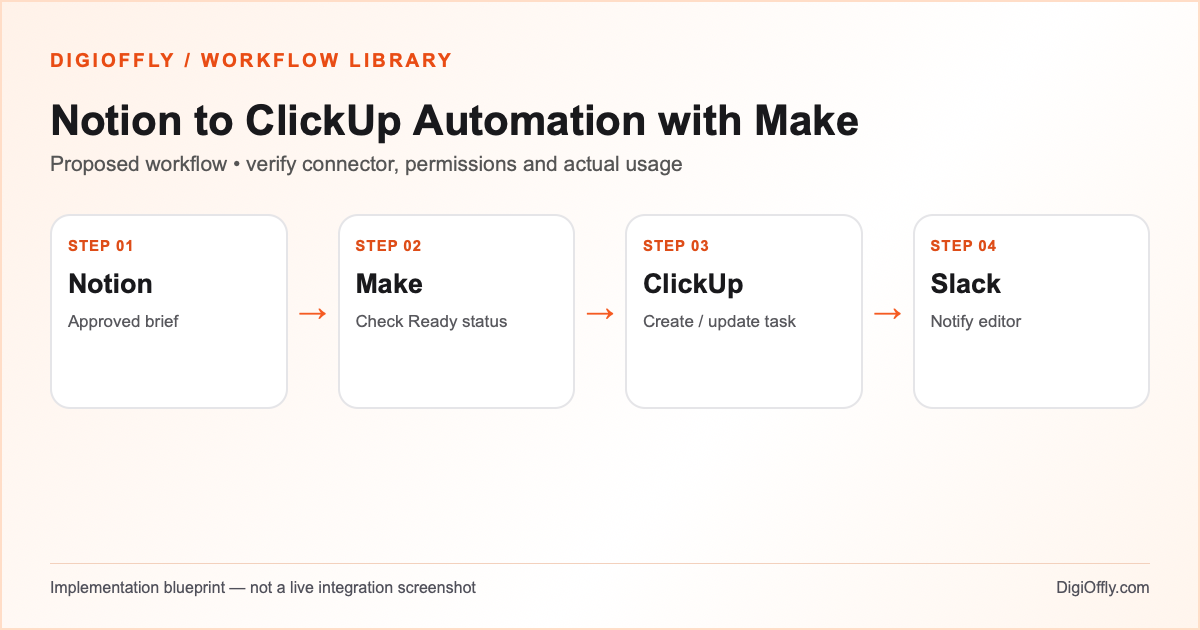
Notion to ClickUp automation turns an approved brief into a production task. This workflow automation keeps the editorial decision in Notion and task delivery in ClickUp, without publishing.
Trigger: Notion brief marked Ready
Software and roles
Notion review
Notion holds the approved brief, status and source link; grant access only to the needed data.
Make review
Make runs workflow automation when the brief meets the Ready condition, including any polling.
ClickUp review
ClickUp holds the task and delivery status; map the brief ID to the task ID.
Slack review
Slack notifies the editor with the task link rather than copying drafts into a channel.
Set up editorial workflow automation
- Define the editorial record. For the content approval workflow, create a Notion database for briefs, with a stable brief ID, title, owner, deadline and status. Keep a clear Ready state that is set only after an editor approves the brief.
- Read approved briefs. Configure the relevant Notion trigger or scheduled query in Make. Filter for Ready items and keep a processed ID or task mapping. Polling and empty checks may consume credits even if no new brief is found.
- Create the task. Map brief title, deadline, owner and a link into a ClickUp task. If the task already exists, update the intended fields instead of creating a duplicate. Define who can modify the source record and task status.
- Notify the editor. Send a Slack notification with the task link. Test a new brief, a changed deadline, an unapproved brief and a duplicate run. Require separate human approval before publication; this workflow does not post to social accounts.
Before enabling: Share only the needed Notion pages or database with the integration. Grant restricted ClickUp and Slack permissions. Keep draft text out of public channels and test the behavior of changed or archived briefs.
Measure: For editorial workflow automation, check approved briefs with no task, repeated tasks, incorrect assignees and the time from approval to task creation.
Official references: Notion connector · ClickUp connector.
Estimate monthly automation usage
Default example: (120 × 5 + 100) × 1.20 = 840 credits/month. Edit the inputs for your workload.
840 estimated credits / month
Calculate stack cost & optimizeTo estimate the editorial budget, combine production workflow software pricing with usage estimates for scheduled searches, empty checks and each returned brief. Confirm collaborator seats in both apps.
Customer Support Triage & Escalation
Zendesk ticket escalation automation routes qualifying support issues to ClickUp. This workflow automation creates an internal task without sending customer replies or closing tickets.
Trigger: New Zendesk ticket or designated escalation event
Software and roles
Zendesk review
Zendesk is the ticket source; use structured priority and category fields, not free text alone.
Make review
Make applies workflow automation rules to eligible ticket events and routes ambiguous cases to review.
Slack review
Slack alerts the restricted support channel about an actionable handoff or failure.
Set up support workflow automation
- Define escalation rules. For support ticket routing, decide which tickets require an internal task, such as repeated failure, a high-priority product issue or a request needing another team. Use existing ticket ID, priority and category fields.
- Validate and classify. Read the ticket event in a draft Make scenario. Apply deterministic routing rules and retain the ticket ID for deduplication. Uncertain cases should go to a human queue, not receive an automated diagnosis.
- Create the escalation task. Add or update a ClickUp task using a restricted title, priority, ticket link and assigned team. Avoid copying full conversations, attachments or customer contact details to the task system.
- Notify and reconcile. Notify the relevant Slack channel when the escalation is created or fails. Verify that one ticket maps to one task, including retries and reopened tickets. Keep the customer-facing response in Zendesk and require agent approval.
Before enabling: Verify Zendesk event access and ClickUp task permissions, protect customer data, use test tickets, and prevent notification loops. Do not automatically close tickets, change customer rights or send AI-written responses in this template.
Measure: Review the speed of support workflow automation, missed escalations, duplicate tasks and unresolved assignments. Sample ordinary tickets as well to detect unnecessary routing.
Official references: Zendesk connector · ClickUp connector.
Estimate monthly automation usage
Default example: (800 × 4 + 0) × 1.20 = 3,840 credits/month. Edit the inputs for your workload.
3,840 estimated credits / month
Calculate stack cost & optimizeThe usage example assumes 800 eligible events. If 1,200 other ticket checks each cost one additional credit, the same 20% reserve yields 5,280 credits rather than 3,840. Measure actual module operations.
Google Sheets to CRM Automation
Read the complete guide · Estimate budget
Google Sheets to CRM automation imports approved spreadsheet rows into HubSpot. Workflow automation should preserve a stable row ID and the matching CRM record; the sheet is not the customer database.
Trigger: New approved row in a designated Google Sheet
Software and roles
Google Workspace review
Google Sheets, part of Google Workspace, holds the approved source rows and import status.
Make review
Make performs workflow automation for row checks, contact matching and exception routing.
HubSpot review
When combining CRM and workflow automation software, keep the customer record and confirmed contact ID in HubSpot.
Slack review
Slack alerts a reviewer about an unmatched row or failed write without exposing the full sheet.
Set up spreadsheet workflow automation
- Prepare a controlled input sheet. Create a header row with an immutable row ID, email, company, import status and review flag. Use a separate test tab; avoid blank gaps in a watched range because Make documents that blank rows can interrupt Watch New Rows processing. Do not rely on sheet row position as a permanent identifier.
- Validate and match. For Google Sheets to HubSpot integration, use a documented Sheets event or scheduled search in Make. Check the approval flag, required fields and stable ID. Look up the CRM contact using your agreed identity rule. Route ambiguous matches to a monitored review queue rather than guessing.
- Write once and reconcile. Create or update the appropriate HubSpot contact only after validation. Keep its ID and processing stage in a durable mapping. A failed sheet status write must not cause another CRM contact on retry. Treat HubSpot as the customer-record authority.
- Review exceptions. Send a short restricted Slack notification with the row ID and CRM link. Test repeated rows, blank rows, changed email addresses and permission failures. Reconcile source IDs against the CRM before enabling scheduled production.
Before enabling: The Google Workspace catalog entry covers the software subscription, not a separately priced Google Sheets connector. Confirm app access, account scopes, plan and sharing settings. No marketing permission is inferred from a row.
Measure: For this workflow automation, reconcile approved row IDs against CRM IDs. Track unmatched rows, duplicate contacts and failed status updates separately.
Official references: Google Sheets modules · HubSpot CRM connector.
Estimate monthly automation usage
Default example: (800 × 4 + 100) × 1.20 = 3,960 credits/month. Edit the inputs for your workload.
3,960 estimated credits / month
Calculate stack cost & optimizeUse the calculator to compare spreadsheet import costs, including empty sheet checks. Workspace and CRM seat costs depend on the selected plans.
AI Content Pipeline with Human Approval
Read the complete guide · Estimate budget
AI content workflow automation turns an approved Notion brief into a draft for ClickUp review. It does not publish material; a human editor checks the source claims and approves the result.
Trigger: Notion brief explicitly marked Ready for draft
Software and roles
Notion review
Notion contains the approved brief version and supporting evidence.
Make review
Make runs the draft-generation step and review handoff. Check the AI connection and its credit rules.
ClickUp review
ClickUp stores the review task, draft reference and any validation issue.
Slack review
Slack reports that the draft is ready for review or that the generation failed.
Set up AI content workflow automation
- Lock the brief and evidence. Prepare a Notion brief with stable ID, intended audience, source links, content rights and approval status. Keep client secrets and personal information out of the prompt. Version the brief so edits after a draft do not silently change the approved request.
- Generate one bounded draft. In a separate Make test scenario, choose a documented AI module and connection type. Set a bounded input and output length, a request limit and a review-only destination for the AI content pipeline. Treat model output as untrusted text, never as instructions to call more tools or publish.
- Create the review task. Store the brief version, draft reference, source checklist and any validation failures in a ClickUp task. Reuse a stable brief/version key on replay. An editor must verify factual claims, citations, tone and originality before approval.
- Measure and notify. Send a restricted Slack message containing the review link and result status. Test provider errors, malformed output, repeated events, token limits and a rejected draft. Keep publication, billing and account permissions outside the automated path.
Before enabling: The AI provider is a separate dependency, not included as a ChatGPT seat. With a connected third-party AI app, Make operations and external API token charges are separate; with some built-in or connection-free modules credits are dynamic. Use a paid Make plan if the selected connection requires it. No API key is supplied or connected by this template.
Measure: Evaluate AI workflow automation by cost per approved draft, factual corrections, failed calls and the proportion of drafts accepted by an editor.
Official references: Make credit usage for AI · OpenAI modules in Make · Notion connector · ClickUp connector.
Estimate monthly automation usage
Default example: (120 × 6 + 100) × 1.25 = 1,025 credits/month. Edit the inputs for your workload.
The numeric example is an ordinary-operation estimate only for a fixed-credit connected AI design. Provider token charges are excluded. Dynamic AI modules need a different credit estimate based on actual token usage; a ChatGPT subscription is not an OpenAI API allowance.
1,025 estimated credits / month
Calculate stack cost & optimizeThe cost calculator models subscriptions and the entered Make credits. External API token costs must be measured and added separately.
Email Marketing Automation with Mailchimp
Read the complete guide · Estimate budget
Email marketing automation with Mailchimp prepares permission-based newsletter records. This workflow automation checks the audience state and never launches a campaign.
Trigger: New Tally subscription form submission
Software and roles
Tally review
Tally captures a separate newsletter signup and evidence of permission.
Make review
Make uses workflow automation to match the audience member and route suppression conflicts for review.
Mailchimp review
Mailchimp remains the authority for subscriber, pending and unsubscribe status.
Slack review
Slack gives the authorized reviewer a short exception notice, not a contact list.
Set up email workflow automation
- Collect explicit permission. Use a dedicated signup form and clear explanation of what will be sent. Record consent source, timestamp and purpose. Apply applicable privacy and marketing requirements; retain only necessary evidence. Separate marketing opt-in from support or sales inquiries; a contact email alone does not authorize subscription.
- Check audience state. Use the documented Tally and Mailchimp connectors in Make. Normalize the email, lookup the intended audience member and check current permission and suppression status. Do not override an unsubscribe, cleaned address or complaint with a routine update.
- Route new consent correctly. For Mailchimp double opt-in automation, use the authorized signup/confirmation path where appropriate. Preserve the evidence and membership identifier. If confirmation is pending, do not label the contact as subscribed or activate a campaign. Review imports and re-subscription manually when needed.
- Verify audience and failures. Send a short restricted Slack exception notice, not a copy of the mailing list. Test duplicate signups, unsubscribed contacts, pending confirmation and invalid email. Reconcile audience state with consent evidence before any human-approved campaign.
Before enabling: Use a test audience and approved sender. Verify applicable consent requirements, unsubscribe handling, contact limits, and plan features. This starter only prepares audience records; it never sends a marketing campaign.
Measure: Assess email workflow automation by confirmed signups, suppression conflicts, pending confirmations and failed audience updates rather than by messages sent.
Official references: Mailchimp connector · Tally connector.
Estimate monthly automation usage
Default example: (1,000 × 4 + 0) × 1.20 = 4,800 credits/month. Edit the inputs for your workload.
4,800 estimated credits / month
Calculate stack cost & optimizeCalculate email setup costs with the actual contact allowance and expected Make operations; campaign or provider fees are not included by default.
Invoice Preparation and Approval Automation
Read the complete guide · Estimate budget
Invoice approval automation with QuickBooks Online starts with a billing request, not a payment. This workflow automation prepares the finance review and reconciles the invoice ID after an authorized accountant creates the invoice.
Trigger: New billing request marked Ready for finance review
Software and roles
Google Workspace review
Google Sheets holds the restricted billing request and approval status.
Make review
Make performs workflow automation for validation and read-only accounting lookups in the default path.
QuickBooks Online review
QuickBooks Online is the accounting authority; an authorized accountant creates or corrects invoices.
Slack review
Slack notifies the finance reviewer with a request ID and restricted link.
Set up invoice workflow automation
- Define the billing request. Prepare a restricted Google Sheet with a stable request ID, customer reference, agreed currency, item references, quantity, price and approval status. Keep bank and card data outside the sheet. Validate numeric fields against the approved contract or order.
- Check customer and accounting mapping. For no-code financial workflow automation, test Make with an eligible row and look up the intended QuickBooks customer and items. Flag missing mappings, tax treatment, unexpected currency or duplicate request IDs. An accountant decides ambiguous tax or accounting treatment.
- Gate the accounting action. Generate an internal review item and notify finance with the request ID and restricted link. The default Make connection only reads QuickBooks records. After approval, an authorized accountant creates the invoice directly in QuickBooks and records its invoice ID. If later automating creation, require a separately authorized write step, uniqueness check and reconciliation; creating an invoice can affect accounting records even without sending it.
- Reconcile before closing. Match the approved request and actual invoice ID, totals and currency. Test rejected requests, replay after a failed status update and an existing invoice match. Never re-create an invoice solely because notification failed; route corrections to the accountant.
Before enabling: QuickBooks Online plans, local tax rules, invoice numbering and accountant permissions differ. Check the actual company and test environment. This blueprint does not send invoices, initiate charges, transfer money, file taxes or make accounting decisions.
Measure: Evaluate invoice workflow automation by pending approvals, mismatched totals, duplicate billing attempts and reconciliation failures. Do not treat message delivery as invoice approval.
Official references: QuickBooks connector · Google Sheets modules.
Estimate monthly automation usage
Default example: (250 × 5 + 50) × 1.20 = 1,560 credits/month. Edit the inputs for your workload.
Estimate covers request processing and reconciliation, not sending or payment fees. The sample is illustrative and does not include accounting service fees or taxes.
1,560 estimated credits / month
Calculate stack cost & optimizeEstimate the finance budget for validation and reconciliation, excluding tax, payment processing and accounting service fees.
Workflow Library: plan, test and measure
Use these business workflow automation checks before connecting production accounts: confirm the data flow, approval rules and who owns each record.
How the workflows fit together — examples & validation
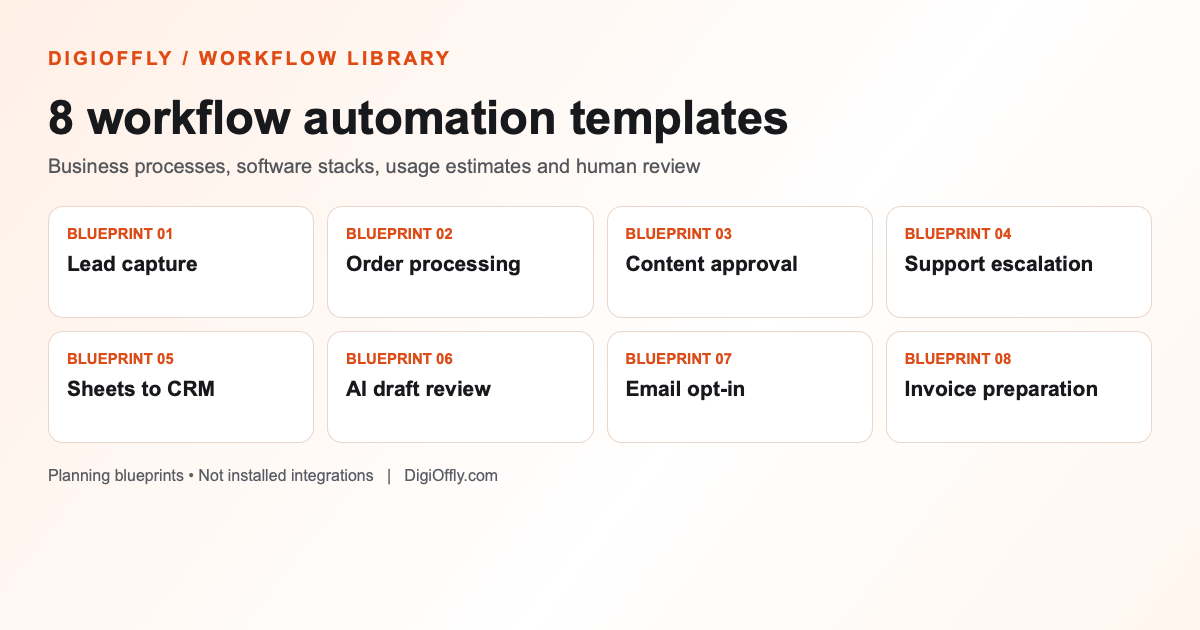
These workflow automation templates are organized around outcomes: sales, e-commerce, editorial production, customer support and finance. Before choosing automation planning software, identify the process, its source of truth and its approval gate. These examples focus on no-code workflow automation with existing apps. The Workflow Library covers small business workflow automation and software budget planning, not preconfigured accounts. Treat the Make automation workflows as starting points; measure the actual operations during a pilot.
Test workflow automation with a synthetic record, then with an invalid record, a duplicate event and a failed downstream action. Review the expected side effects, the actual consumed credits and the permissions needed by every connector. Document a rollback or manual fallback. Only then enable a limited production pilot and compare measured usage with the budget. Assess workflow automation cost savings by comparing monthly software and staff costs before and after the change.
Example: verify the handoff from a form to CRM
Example: keep approval and task ownership separate
Frequently asked questions
Are these importable Make scenarios?
No. These workflow automation templates describe proposed components, data mappings and validation steps. Configure and test the connectors in your own accounts.
Can I use Zapier instead of Make?
Yes, if the required trigger and action are supported by your plan. Rebuild the workflow and recalculate usage in billable tasks, rather than treating Make credits as Zapier tasks. See Zapier task rules.
Does the estimate include all costs?
No. The workflow automation cost estimate covers modeled usage and documented subscriptions. Verify checkout terms, integrations, taxes, AI tokens, transaction charges, implementation and missing prices separately.
How do I avoid duplicate records?
Use a stable source identifier and make repeated processing safe. Look up or update the corresponding record instead of blindly creating one. Test retries and partial failures before launch.
Continue planning beyond the Workflow Library
Compare ready-made software stacks, explore the software directory, use the Software Finder, and check your budget with the Software Cost Calculator and Stack Optimizer.
EXPLORE NEXT ON DIGIOFFLY
🔍 Explore More on DigiOffly
Build on your chosen workflow: compare the software, plan your budget and explore more automation guides before connecting your accounts.
Find and budget your software
- Software Finder — Find the right tools for your business task.
- Software Cost Calculator — Estimate subscriptions and compare stack costs.
- Software Compare — Compare shortlisted products side by side.
- Ready-Made Software Stacks — Explore complete stacks for different teams.
Choose automation tools
- Make Review — Explore scenarios, connectors and credit usage.
- Zapier Review — Compare task-based automation and supported apps.
- Make vs Zapier — Compare automation platforms before choosing a plan.
- Automation & No-Code — Discover related workflow and automation software.
Explore workflow guides
- Lead Capture Automation — Connect forms, CRM records and sales notifications.
- Shopify Order Automation — Organize store order events and operations.
- Notion to ClickUp Automation — Turn approved briefs into production tasks.
- Zendesk Ticket Escalation — Route support exceptions to the right team.